Log In to Your ThrivePass Customer Support Account
Whether you're a returning user or new to the portal, getting into your ThrivePass Customer Support account is quick and straightforward.
Step 1: Go to the Customer Support Portal Open your browser and navigate to: support.thrivepass.com. This is your home base for submitting and tracking support requests.
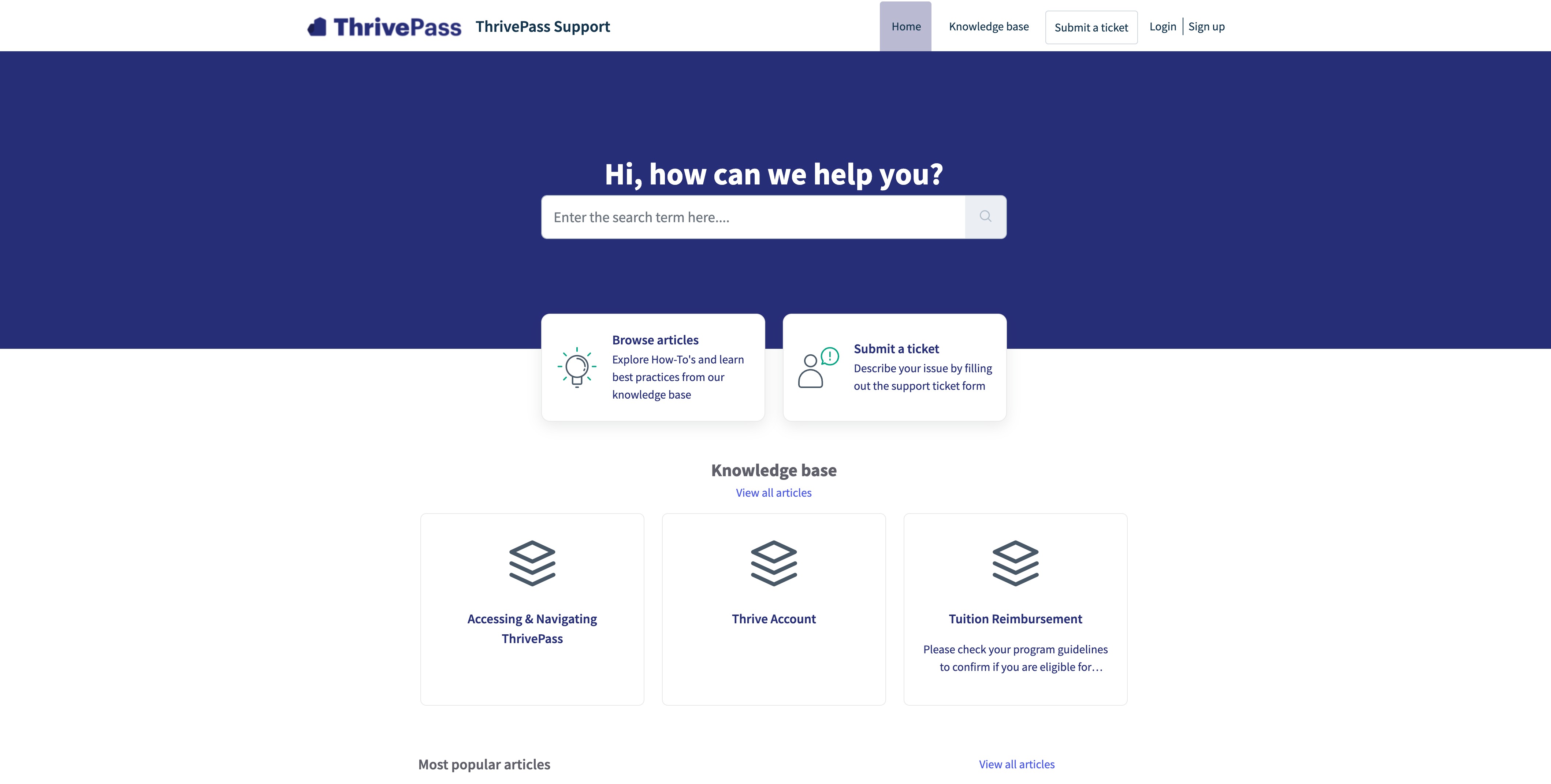
Step 2: Log In or Create an Account On the portal home page, you'll see two options:
- If you've contacted ThrivePass Support before, select Sign In and enter your email and password. If you forgot your password, you can reset your password on the Sign In screen.
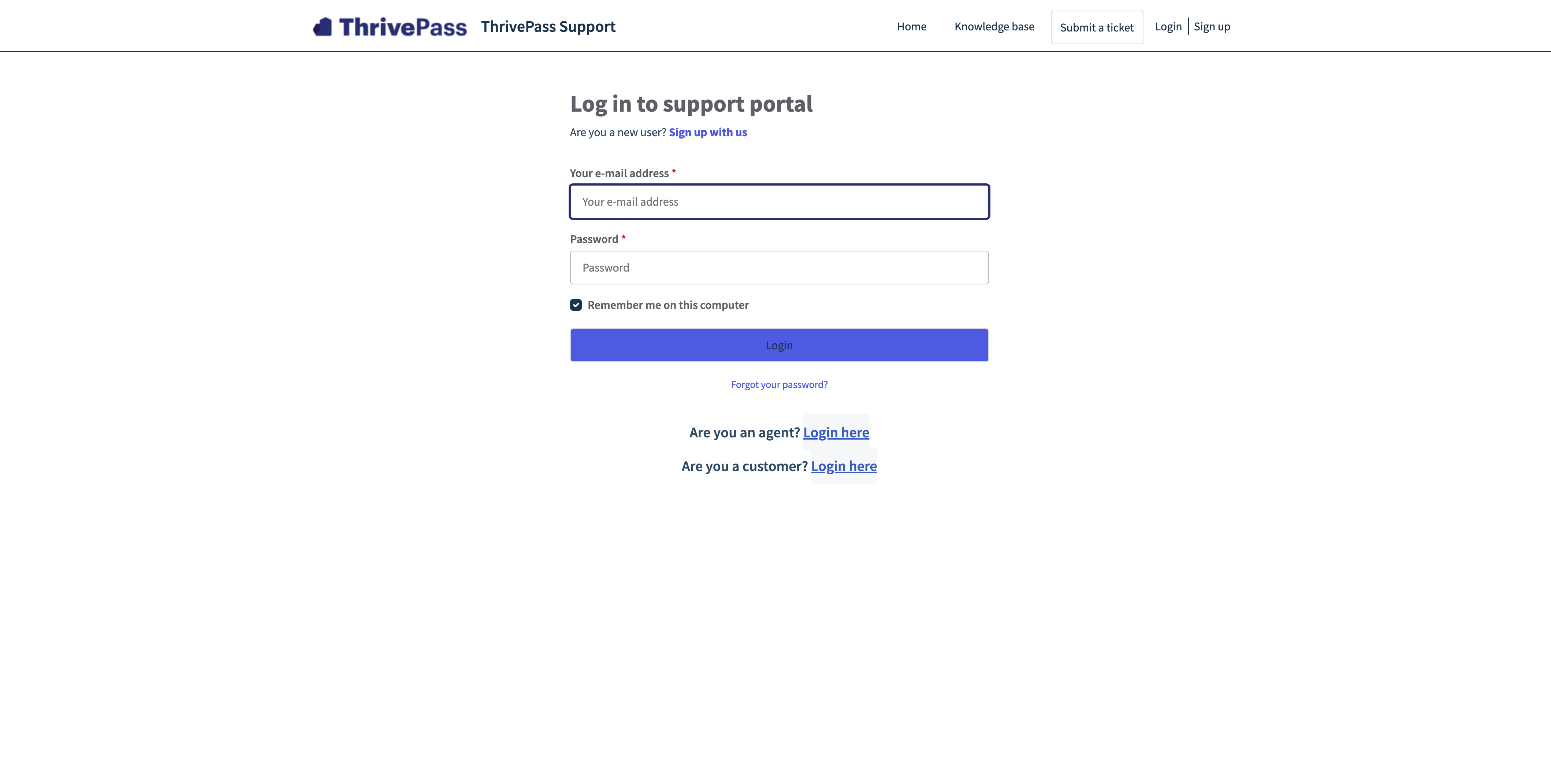
- If you're new, select Sign Up to create an account.
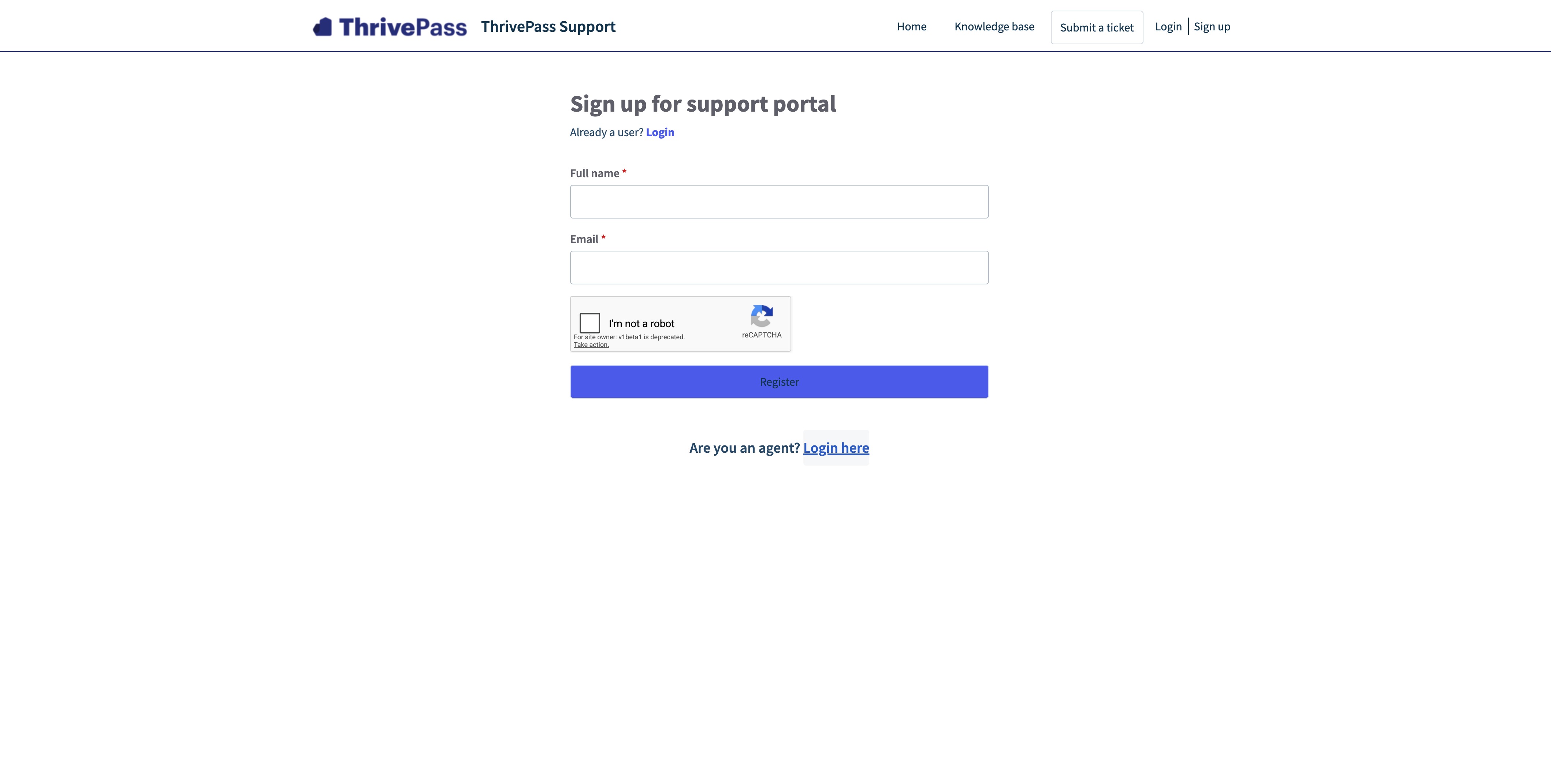
Step 3: Create Your Account (New Users Only) Enter your name and email then select Register. You will receive an email to establish your account password.
Step 4: Submit a Support Ticket Once logged in, you'll land on the home page. Select Submit a ticket to create a new support request. Use the dropdown menus to choose the options that best match your question so it reaches the right team.
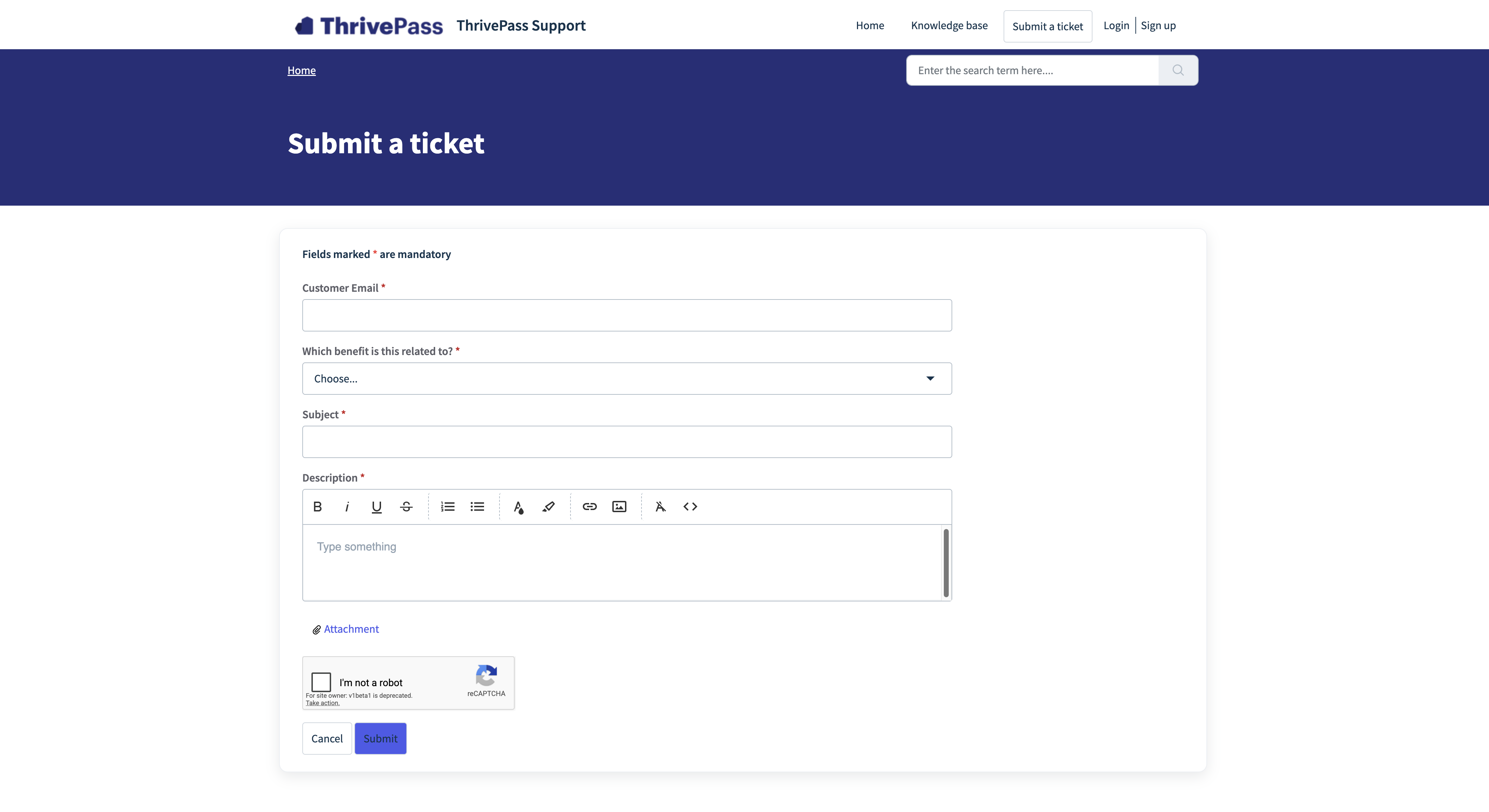
Step 5: Share the Details Add a clear subject line and a detailed description of your question or issue. Attach any relevant files or screenshots that may help us resolve your request faster. When you're ready, select Submit.
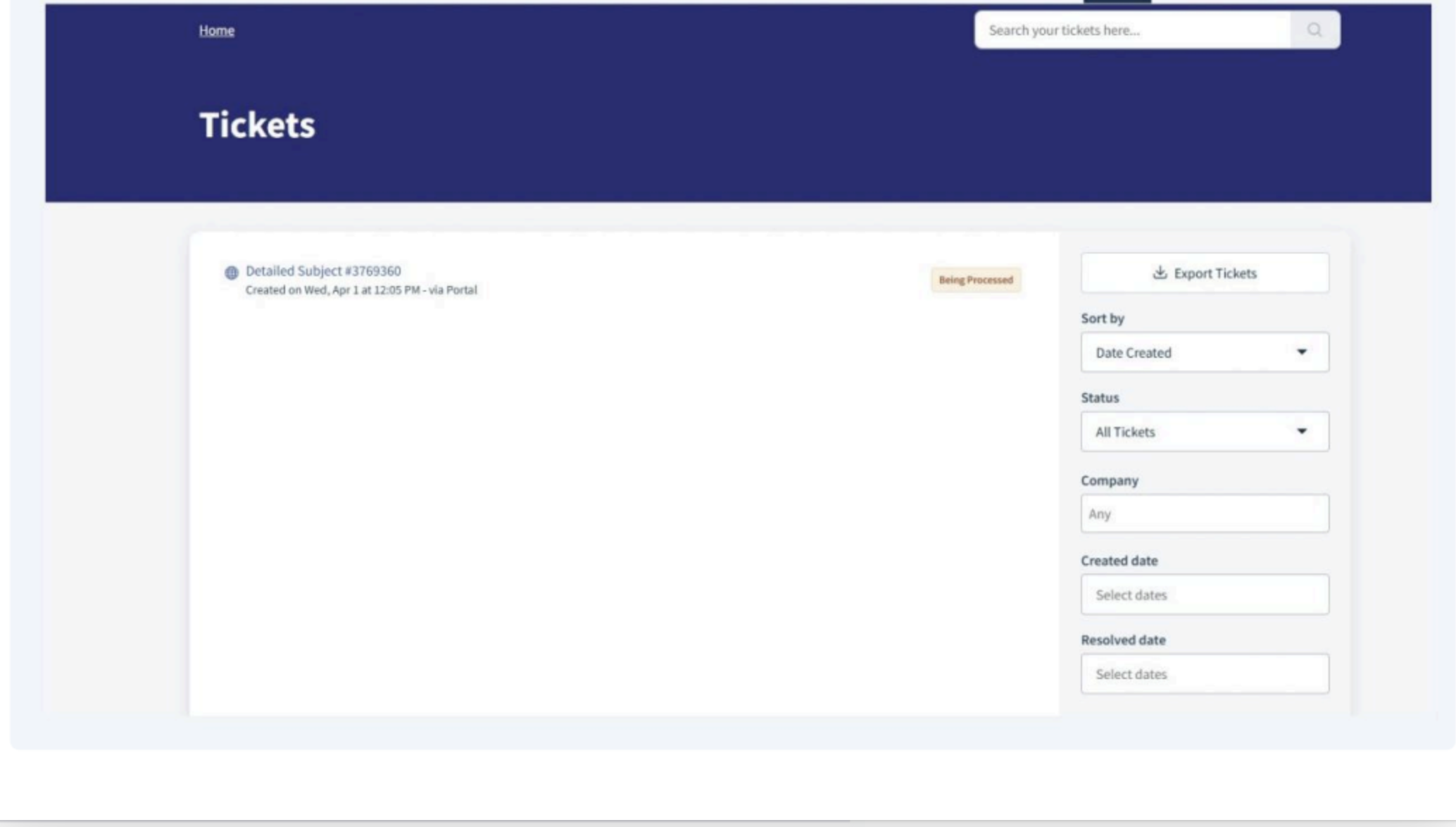
Step 6: Track Your Tickets At any time, return to the home page and select Tickets to view the status of your requests. You'll be able to see updates, responses, and resolution progress all in one place.
Was this article helpful?
That’s Great!
Thank you for your feedback
Sorry! We couldn't be helpful
Thank you for your feedback
Feedback sent
We appreciate your effort and will try to fix the article