All new rewards are automatically added to your wallet. However, older rewards may not appear automatically, as they were issued through our previous rewards system. Don’t worry - you can still easily add them to your wallet using either of the methods below.
1. Add the Reward Manually
From the “My Rewards” page, select the “Add PDF Reward” option. A pop-up window will appear asking you to enter the code printed on your PDF reward. Once entered, click the “Add to Wallet” button to complete the process.
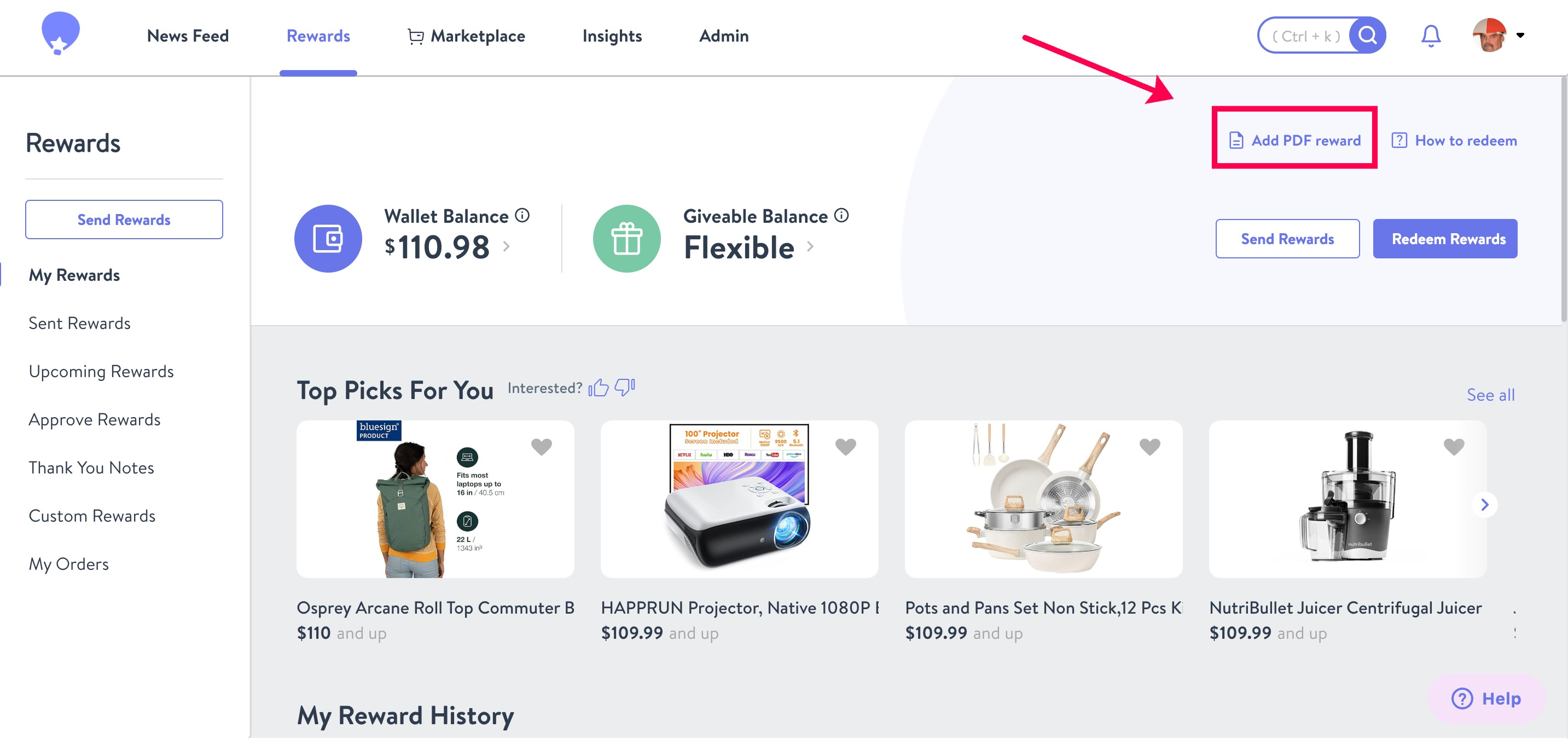
You can find this code under the “Reward Code” section of your physical reward. The code will be in an alphanumeric format as highlighted below.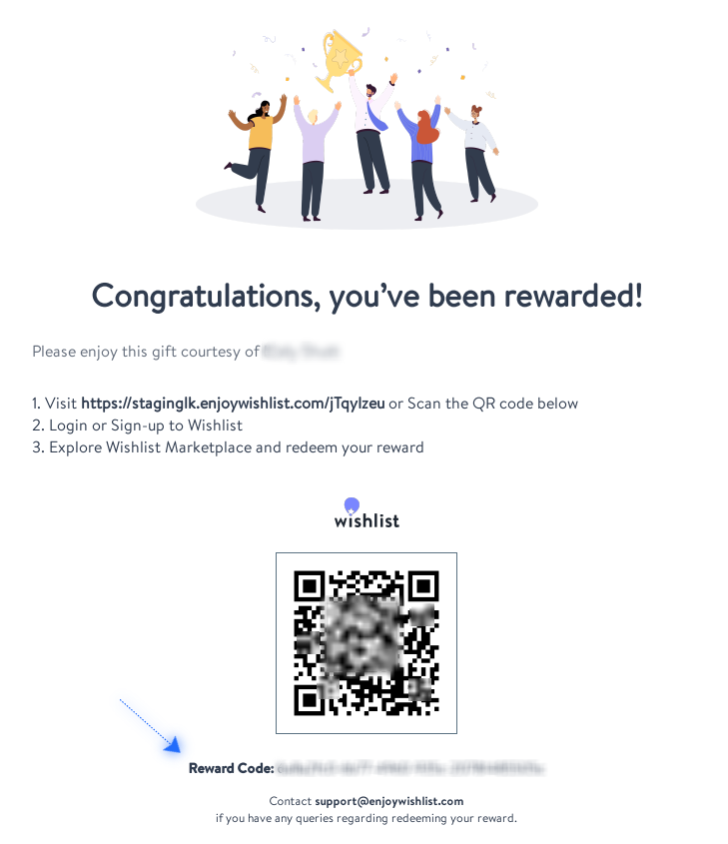
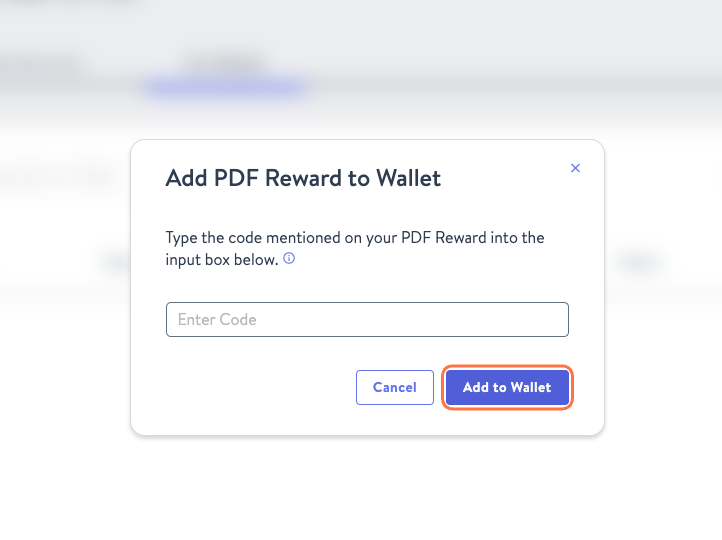
2. Scan via QR
Alternatively, on the PDF reward, you can just scan the QR code on the form using a mobile device. This will open a web page to your Wishlist wallet with the Invite Identifier code already filled in on the "Received a PDF Reward" tool. You'll then have to click on the "Add to Wallet" button to transfer the funds to your Wishlist Wallet.