Wishlist allows you to sign in using either your email address or your phone number. Adding a phone number to your account enables phone-based login for added convenience.
Note: The phone number used for login is separate from the phone number used for two-factor authentication (2FA).
When logging in with your phone number, you won't need to enter a password. Instead, Wishlist will send a one-time passcode (OTP) via text message to verify your identity.
How to Add Your Phone Number
- Sign in to your Wishlist account.
- Click your profile picture in the upper-right corner of the screen.
- Select My Profile from the dropdown menu.
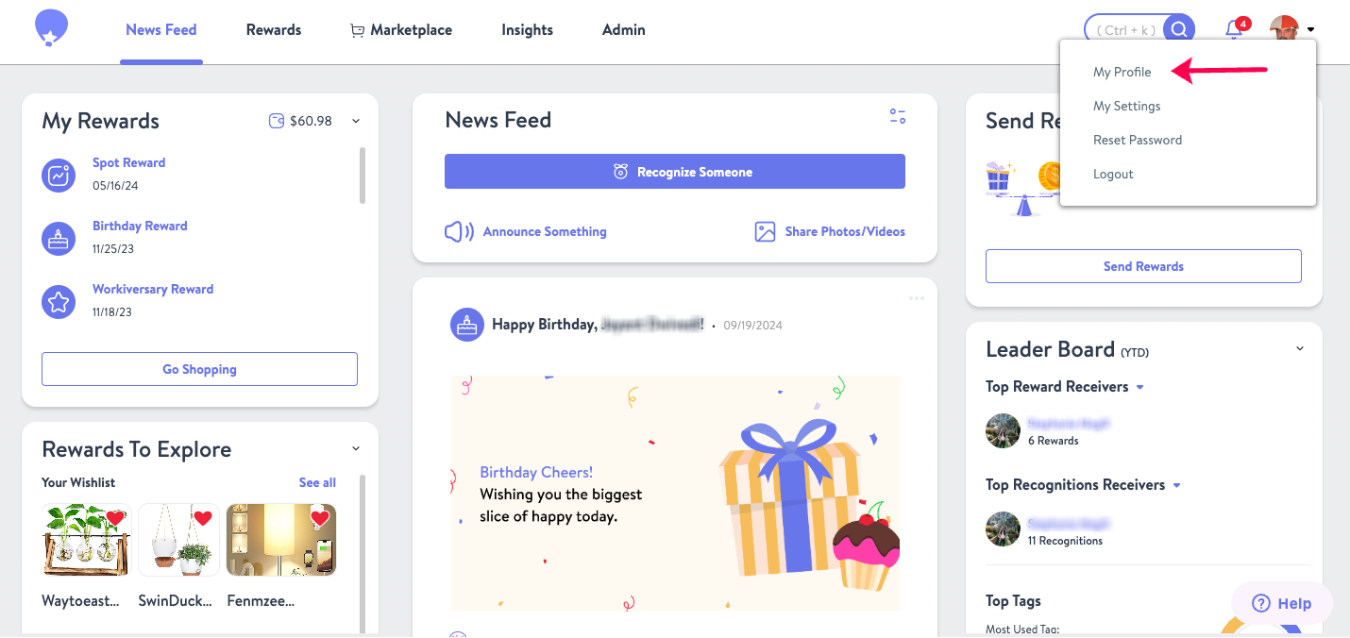
- Navigate to the Contact Information section.
- Locate the Phone Number field. You will also see your Primary Email and Recovery Email (if one has been added).
- Select Edit Contact.
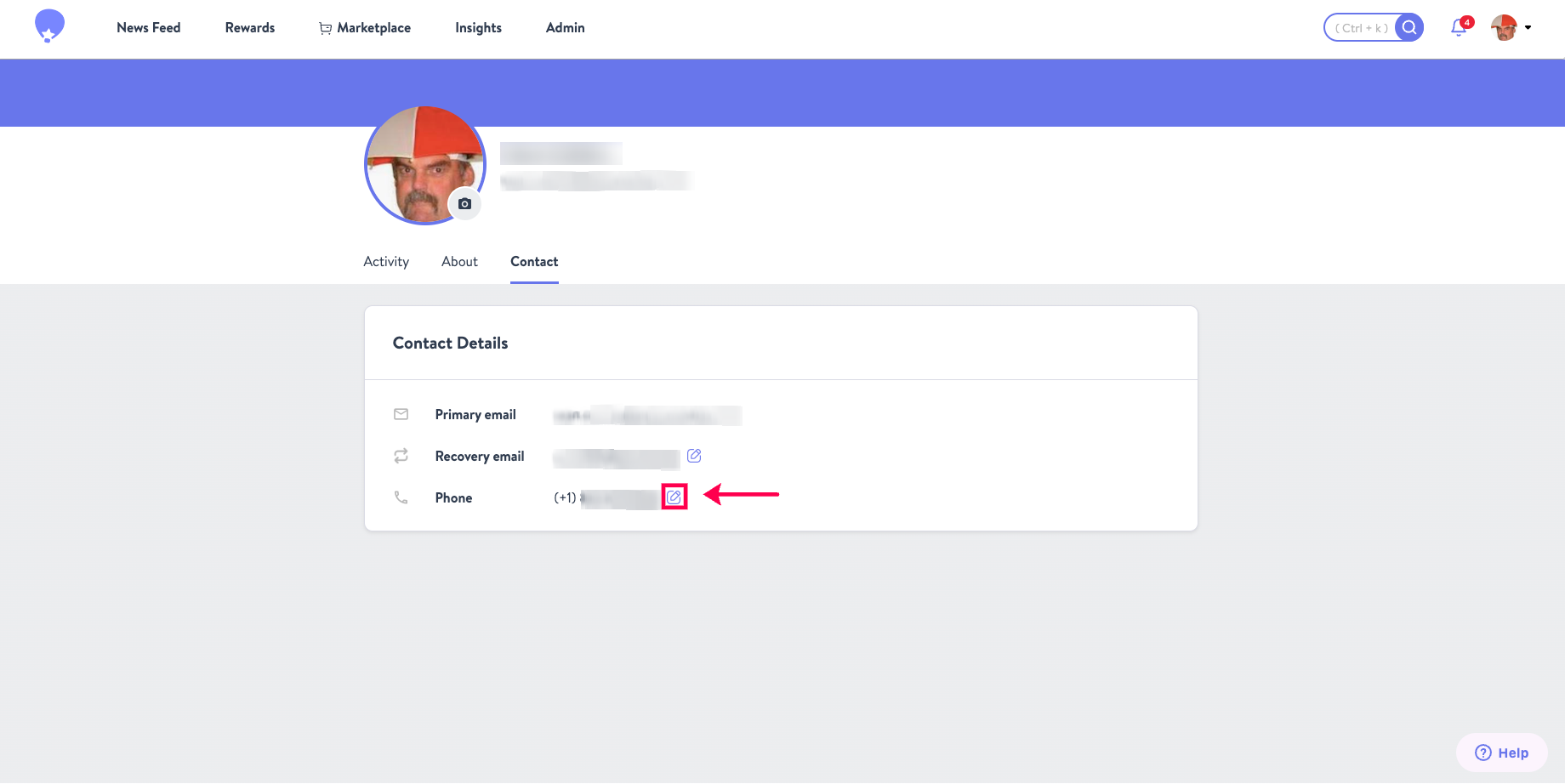
- Enter your phone number.
- Click Verify.
- Enter the one-time passcode (OTP) sent to your phone via text message.
Once your phone number has been verified, you can use it to sign in to your Wishlist account.
Updating Your Phone Number for Two-Factor Authentication (2FA)
If you use a phone number for two-factor authentication (2FA), updating the phone number in your profile does not automatically update your 2FA settings.
If you have changed your phone number and no longer have access to the number used for 2FA, please contact wishlist@thrivepass.com. Our team can help reset your 2FA settings so you can add your new phone number.
Need Help?
If you have questions about adding or updating your phone number, contact us at wishlist@thrivepass.com and we'll be happy to assist you.