Looking to remove a user from your company's Wishlist account? In this article, we'll walk you through how to do just that.
There are two ways to remove a user from Wishlist.
How to remove a user using your Wishlist account
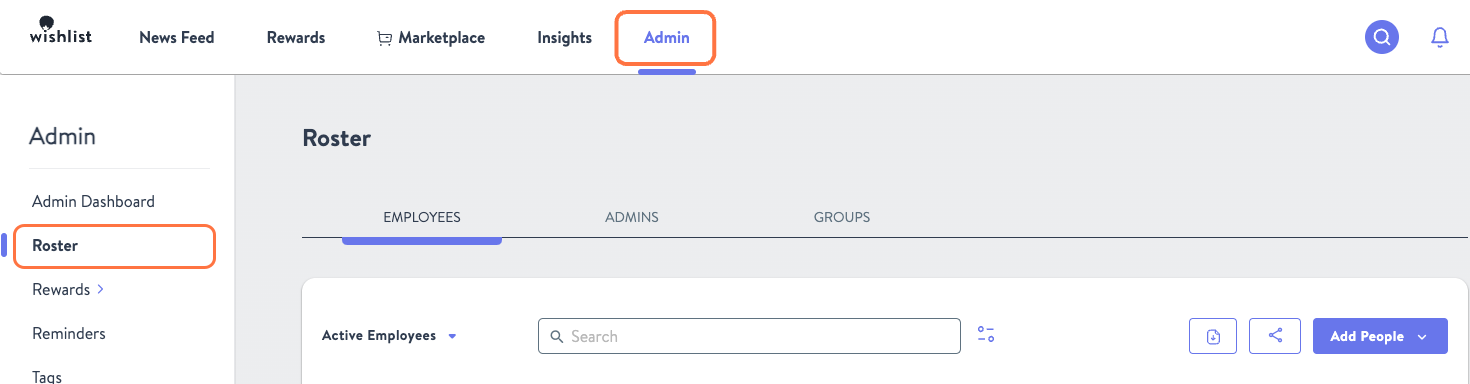
- From the Admin tab, select Roster in the top left corner of the left sidebar.
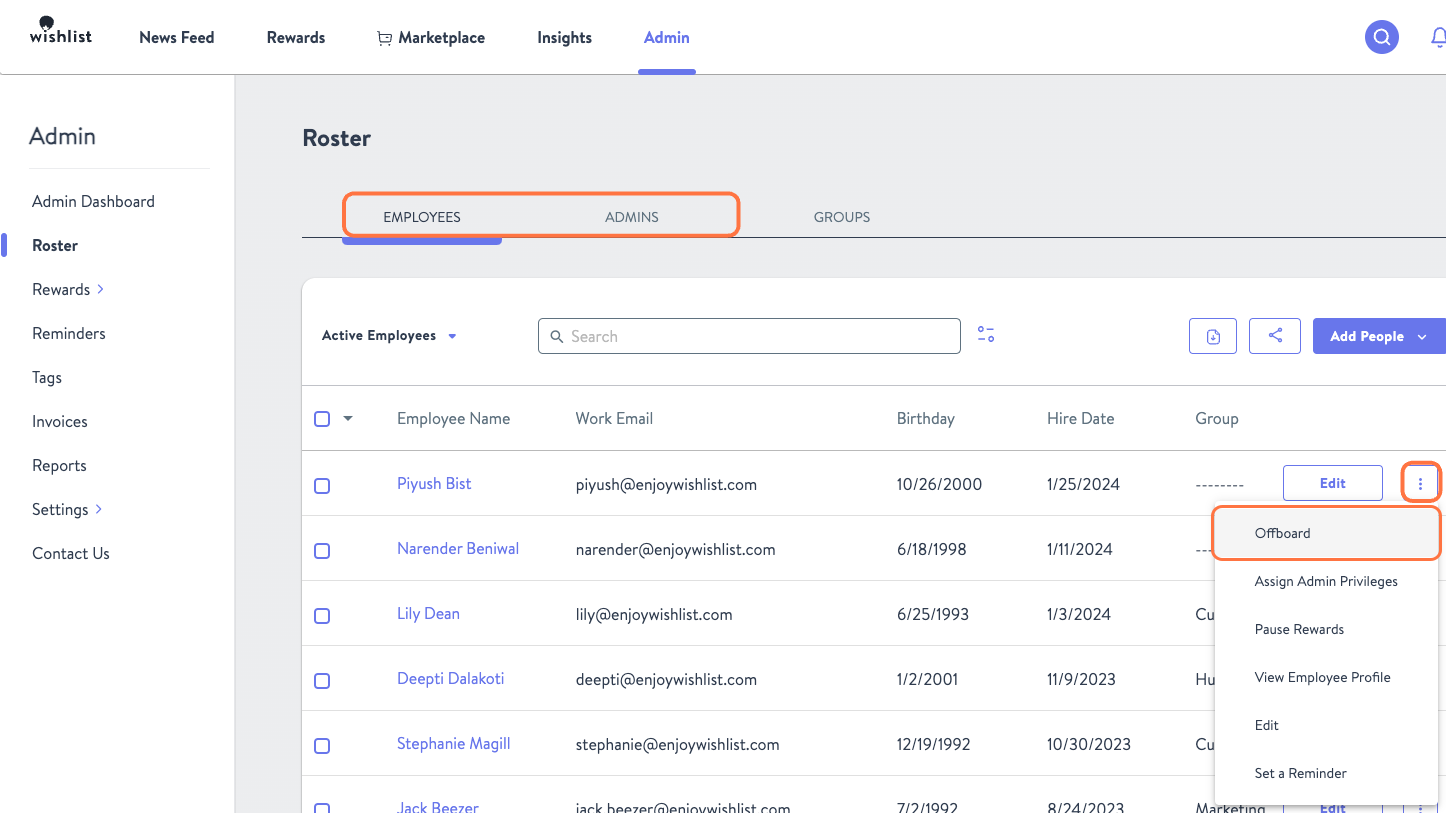
- Click the tab of the user type you are offboarding, either an Employee or Admin. Then search or scroll to the individual, select the Kebab Menu, and click Offboard from the dropdown menu.
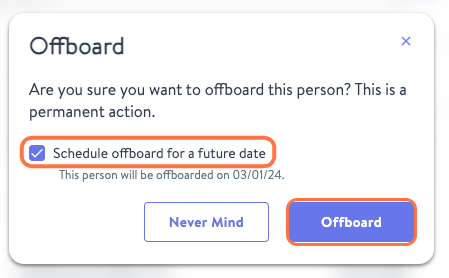
- A dialogue box will appear. If you'd like to move forward with offboarding the user immediately click Offboard. If you want to schedule it for a future date you can first check the Schedule offboard for a future date and select the desired date.
How to remove a user through your HRIS integration
Do you automatically sync your roster to Wishlist from your HRIS? This method is for you.
Because your roster is controlled through your HRIS, you are unable to edit users from within Wishlist. If you wish to offboard an employee, you will need to offboard them from your HRIS. Wishlist will then automatically update the roster through the HRIS integration.
Was this article helpful?
That’s Great!
Thank you for your feedback
Sorry! We couldn't be helpful
Thank you for your feedback
Feedback sent
We appreciate your effort and will try to fix the article