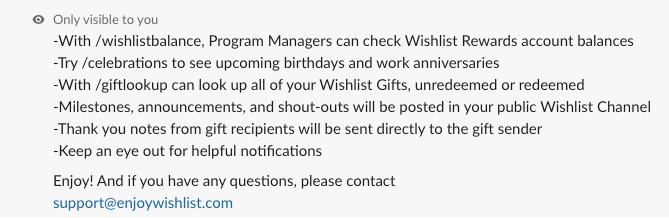
Once you've added the Wishlist app in Slack and activated /commands. Here’s a list of /commands you can use with your Wishlist app:
/recognize: use this command to recognize your colleagues
To use the command, type /recognize followed by @user’s name(s) and press enter
Example: /recognize @John Smith @Jane Smith
Once you’ve entered the users that you’d like to recognize, a module will appear where you can choose a “Core Value” and enter a recognition message
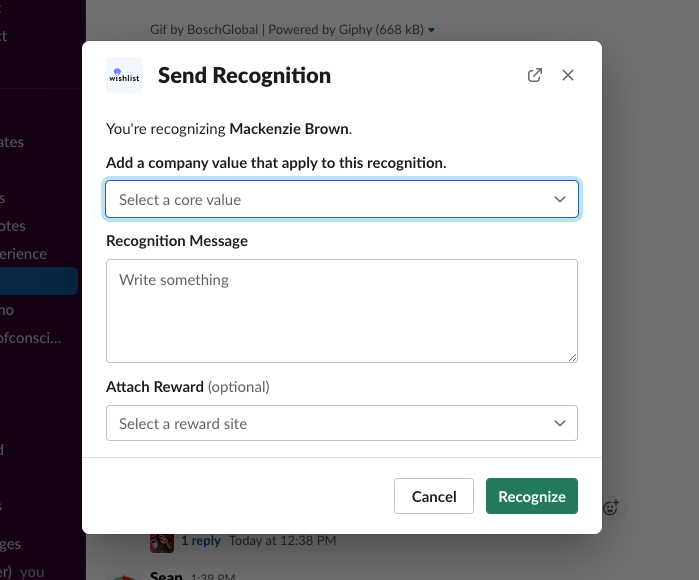
Click Recognize
The post should now be available to see in the Slack channel
Note: This will only work if the account has recognition enabled.
/reward: Use this command to reward your colleagues
To use the command, type /reward followed by @user’s name and press enter
Example: /reward @John Smith
Once you’ve entered the user(s) that you’d like to reward, a module will appear where you can choose a Reward Tag, Reward Site, enter a Personal Note, Internal Note and select the reward delivery date.
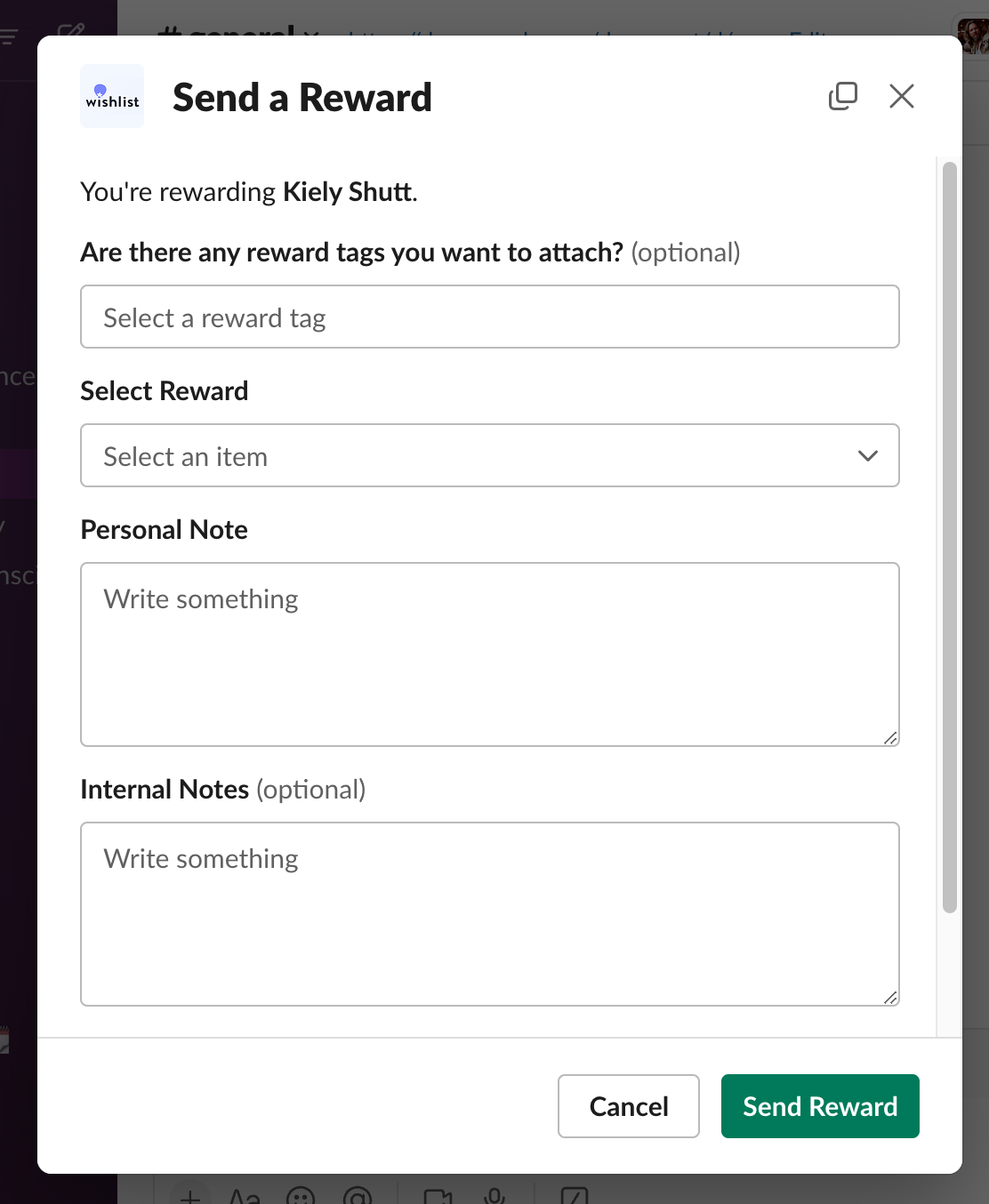
Click Send Reward
The reward will be sent to the recipient with a direct message to the user
Note: This command will only work for users with Manager and Program Admin roles.
/celebrations: Use this command to fetch birthdays and anniversaries for the week (the week is calculated from the current day until the upcoming Saturday)
To use the command, type /celebrations and press enter
If there are any birthdays or celebrations for the week, they will be displayed on the screen
/wishlistbalance: Use the following command to fetch the balance for your account
To use the command, type /wishlistbalance and press enter
Your balance should display on screen

Note: This command will only work for users with Accountant and Program Admin roles.
/giftlookup [redeemed, unredeemed, all]: Use this command to fetch redeemed, unredeemed, or all Wishlist rewards
To use the command, type /giftlookup [redeemed, unredeemed, or all] and press enter
Example: /giftlookup redeemed - Returns redeemed rewards only
Example: /giftlookup unredeemed - Returns unredeemed rewards only
Example: /giftlookup all - Returns both redeemed and unredeemed rewards
Reward status will display on your screen
/wishlist-help: Use this command to get an overview of the app and commands available
To use the command, type /wishlist-help and press enter
All help options will display on your screen