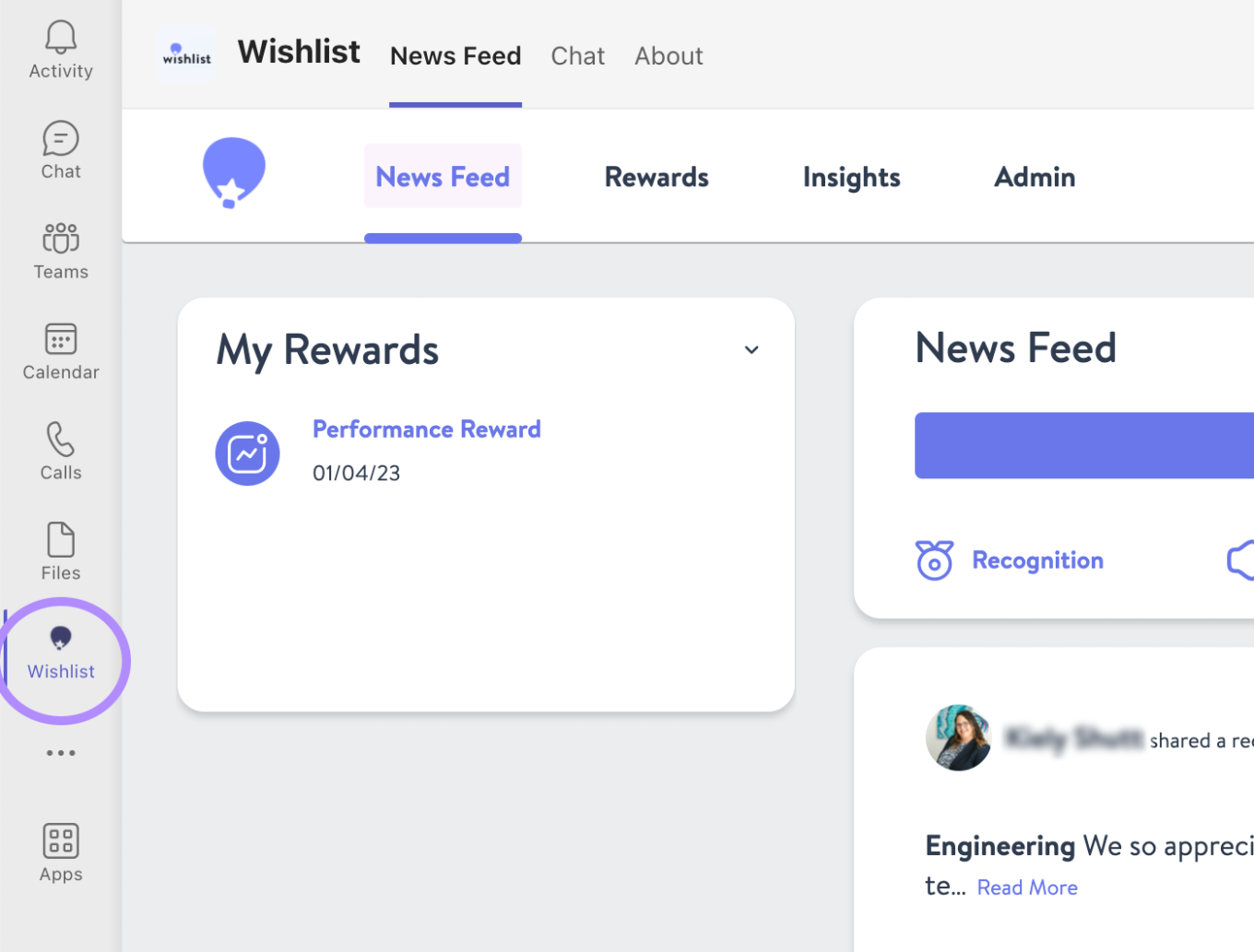
If your company uses Microsoft Teams, Wishlist can be added into the desktop Teams app. Your employees can access Rewards and send Recognitions with just a click directly through the app.
Wishlist will send you a Zip package to help with setup. After this, the first steps for the Integration will need to be within Teams:
- Go to https://admin.teams.microsoft.com then “Teams apps” > “Manage apps”.
- Click on “Upload new app”.
- In the dialog box that appears, select the zip package provided to you by Wishlist.
- Once uploaded, search for the app and open it.
- Go to the Permissions tab and click Review Permissions. It will redirect you to the Microsoft login page (You may be required to enter the password again).
- Once permissions are reviewed, click Accept.
- Now head back to the https://admin.teams.microsoft.com page and go to Teams apps > Setup
Policies > Manage Policies and click on “Global (Org-wide default)”. - Add Wishlist to both installed apps and pinned apps section. This will make sure it is pre-installed for everyone and also visible by being pinned.This might take a few minutes to reflect across. You can verify by opening Teams in the browser.
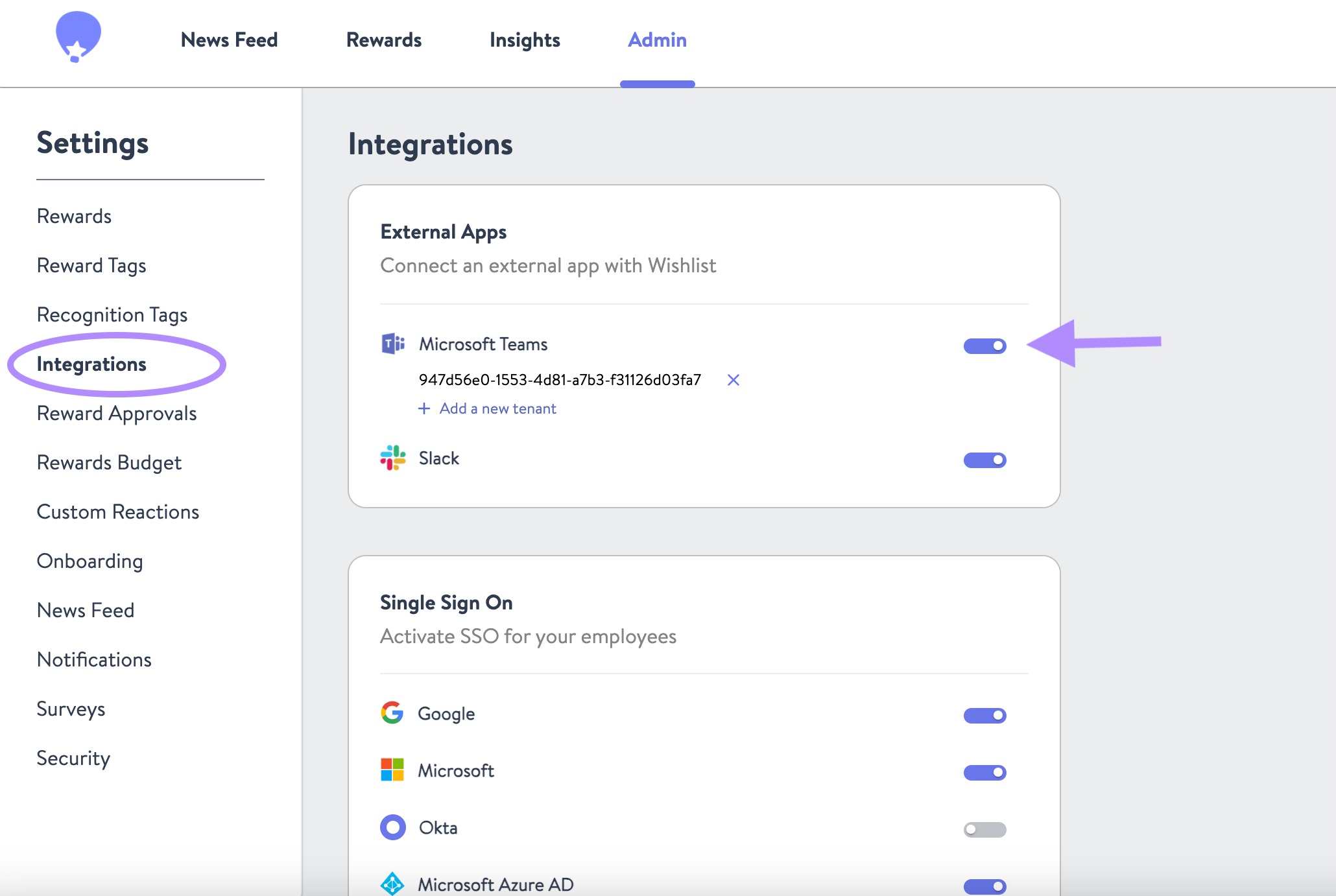
- The rest of the setup will occur within the Wishlist portal. A Program Admin will log in and navigate to the Admin page. From the Settings tab choose the Integrations tab.
- Toggle the Microsoft Teams switch to On and you're ready to go!