Introduction
This document provides step by step instructions to set up a Wishlist app on Okta to support SSO with the Wishlist platform.Create a Wishlist App
Sign in to the Okta platform using the credentials
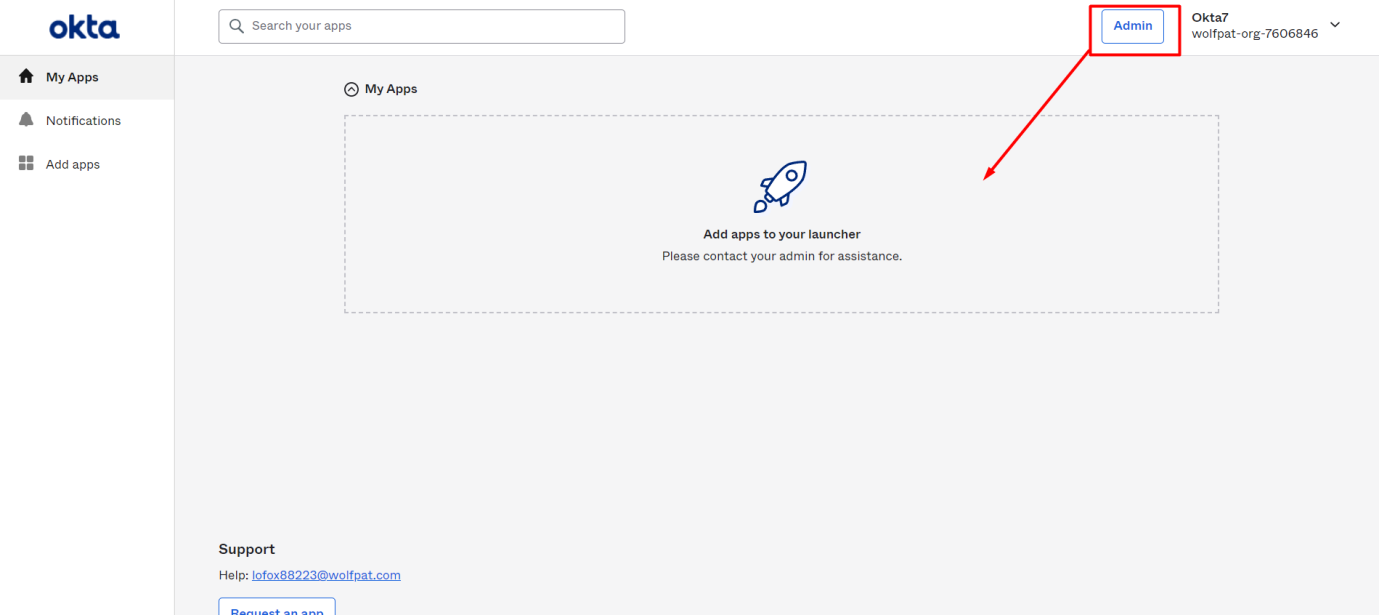
Click on the “Admin” button on top-right.
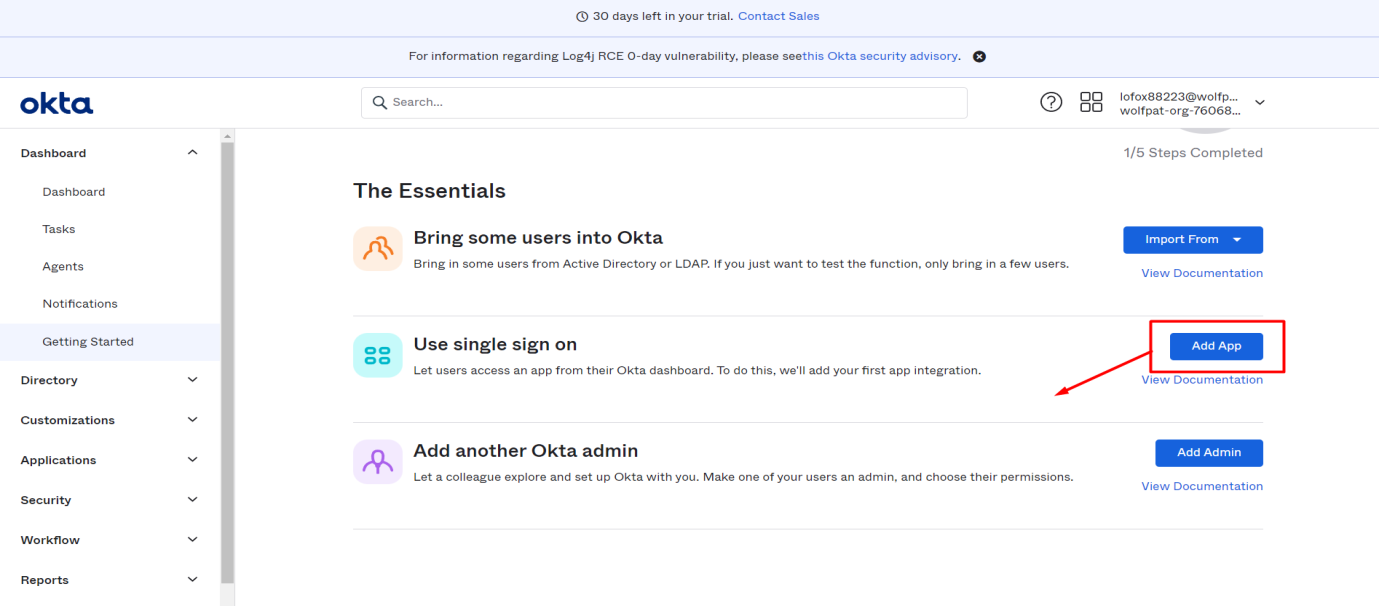
Click on the “Add App” button.
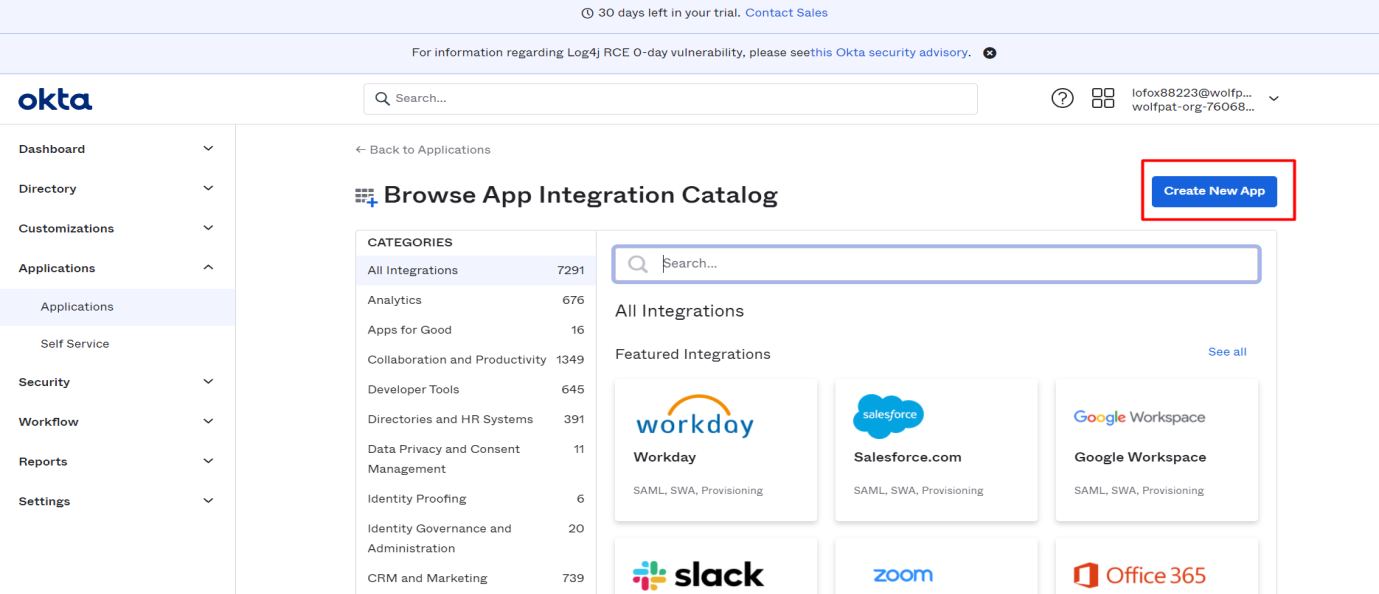
Click on the “Create New App” button.
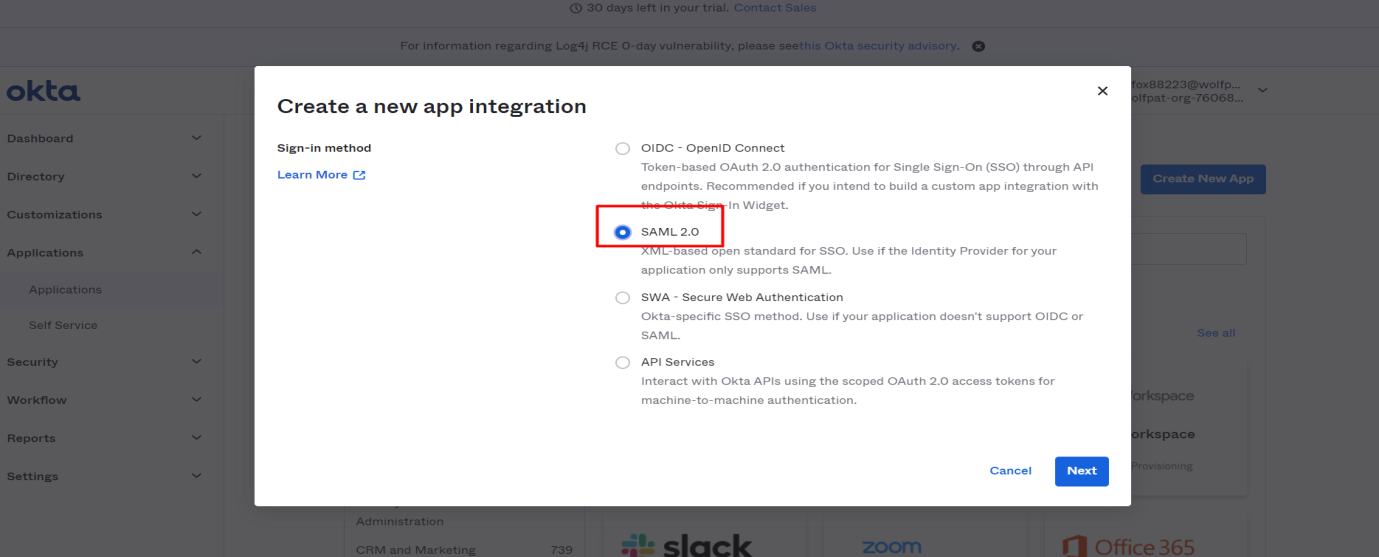
Check the “SAML 2.0” radio button and click Next.
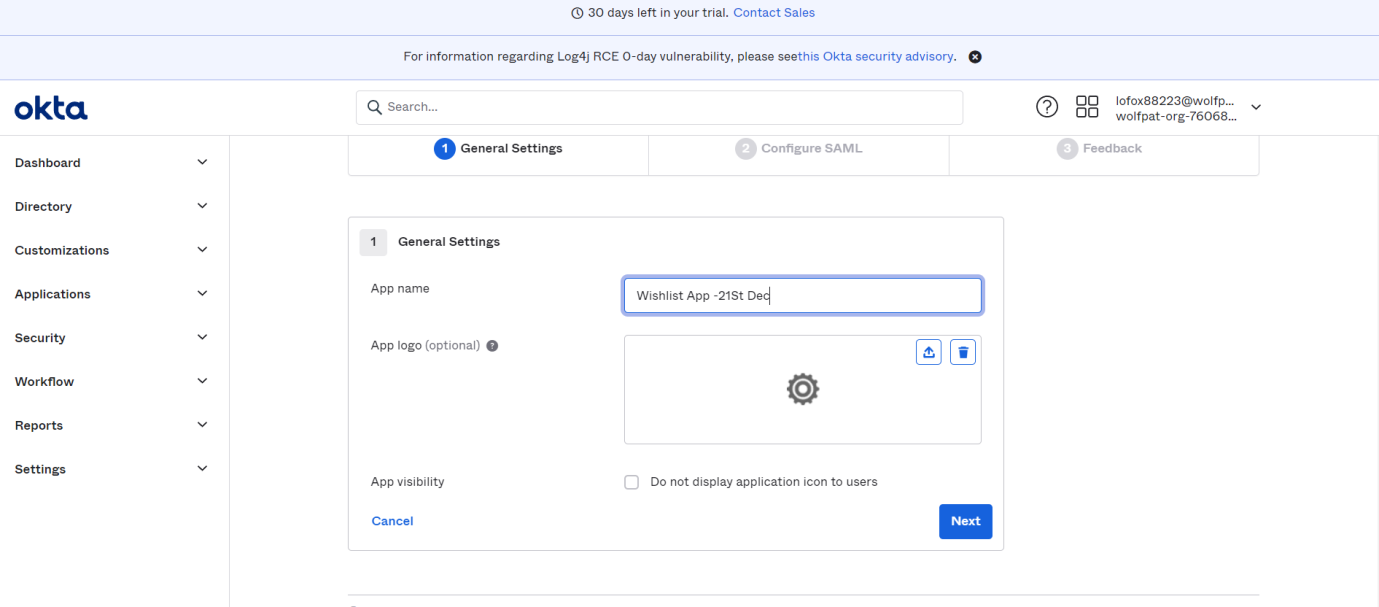
Input the App Name as “Wishlist App” and click Next.
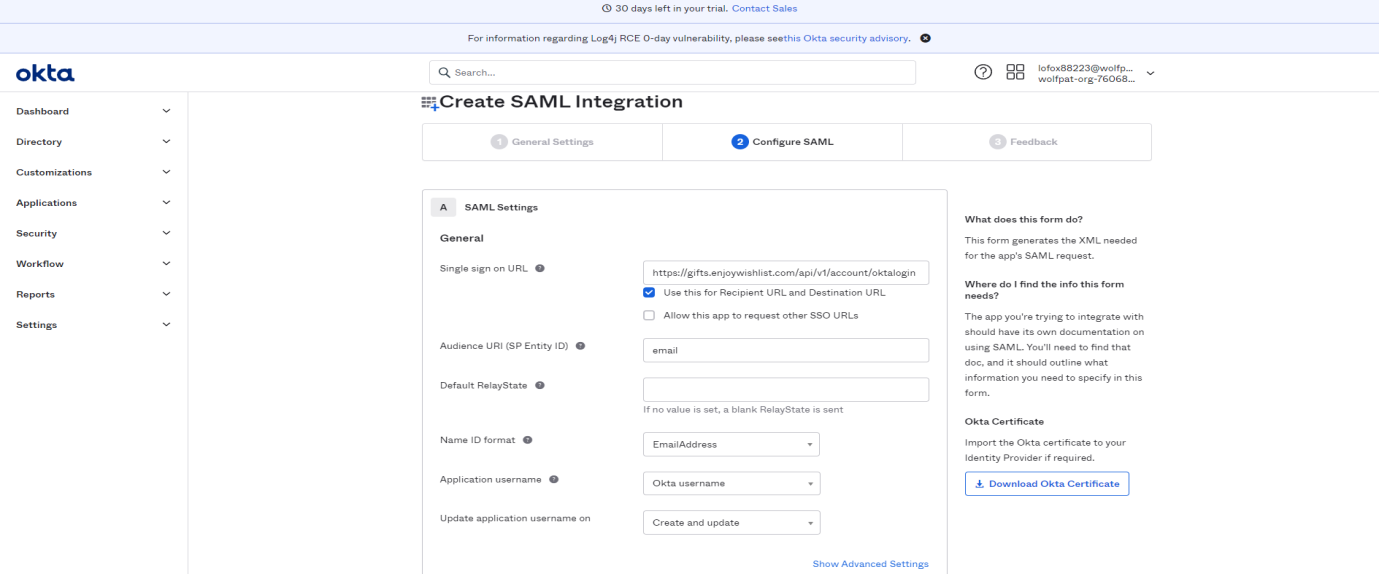
Add ‘Single sign on URL’, ‘AudienceURI’, ‘Name Id format’ and ‘Application username’ as provided on the integration page of the Wishlist Portal and click on Next.
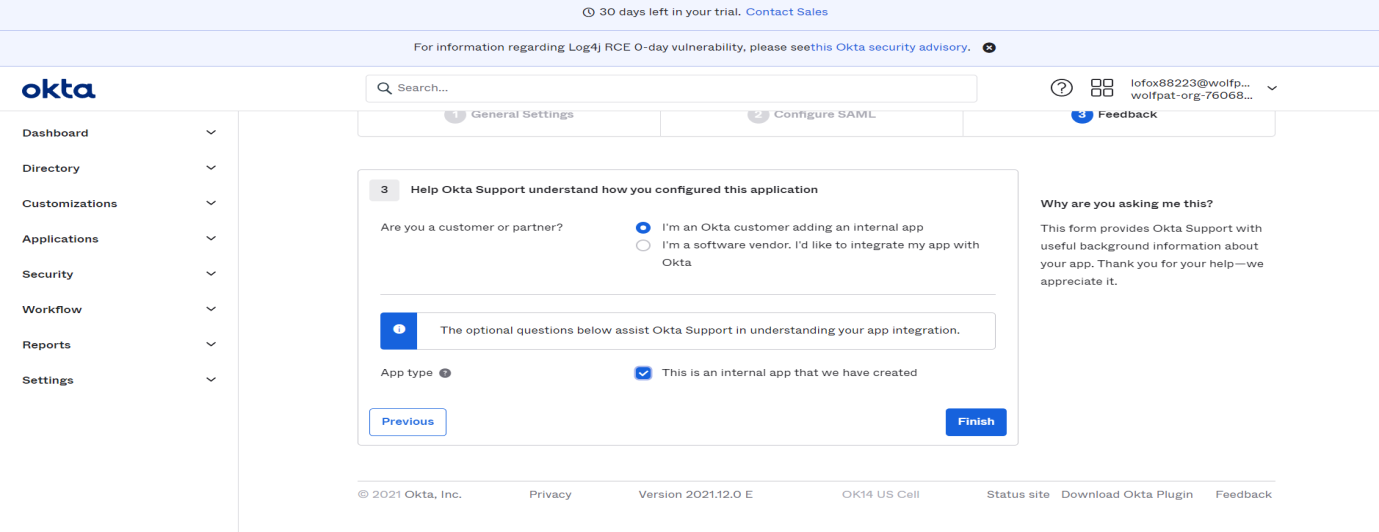
Check the box next to the App Type and click on Finish.
App should be created successfully.
Click on “View SAML Setup Instructions”
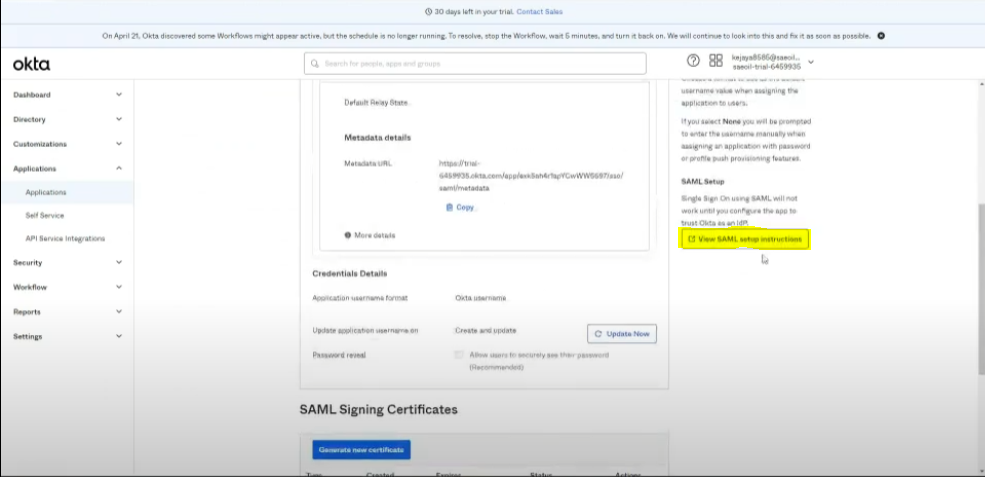
Copy and paste “Identity Provider Single Sign-on URL” and “Identity Provider Issuer Id” from the SAML setup instructions page to our Wishlist Okta Integration page.
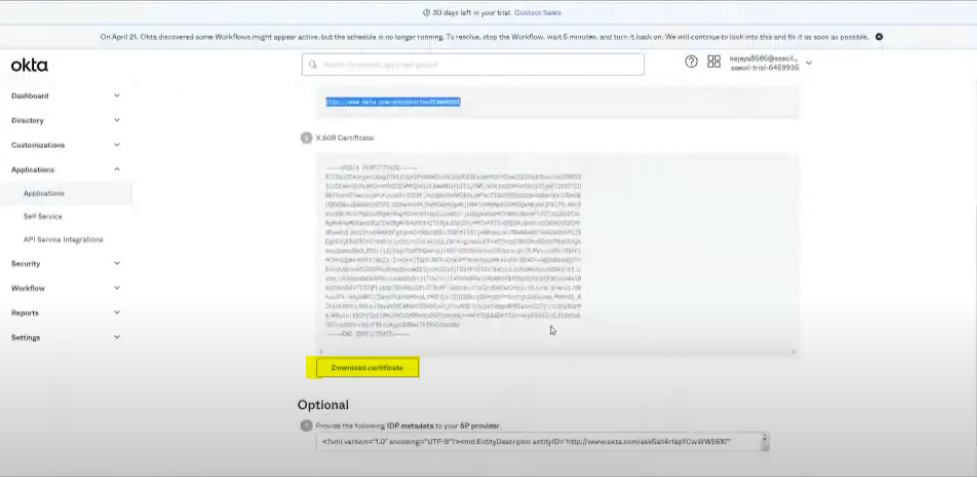
Download certificate from SAML setup instructions page and then upload the certificate to our Wishlist Okta Integration page.
Assign App to the User
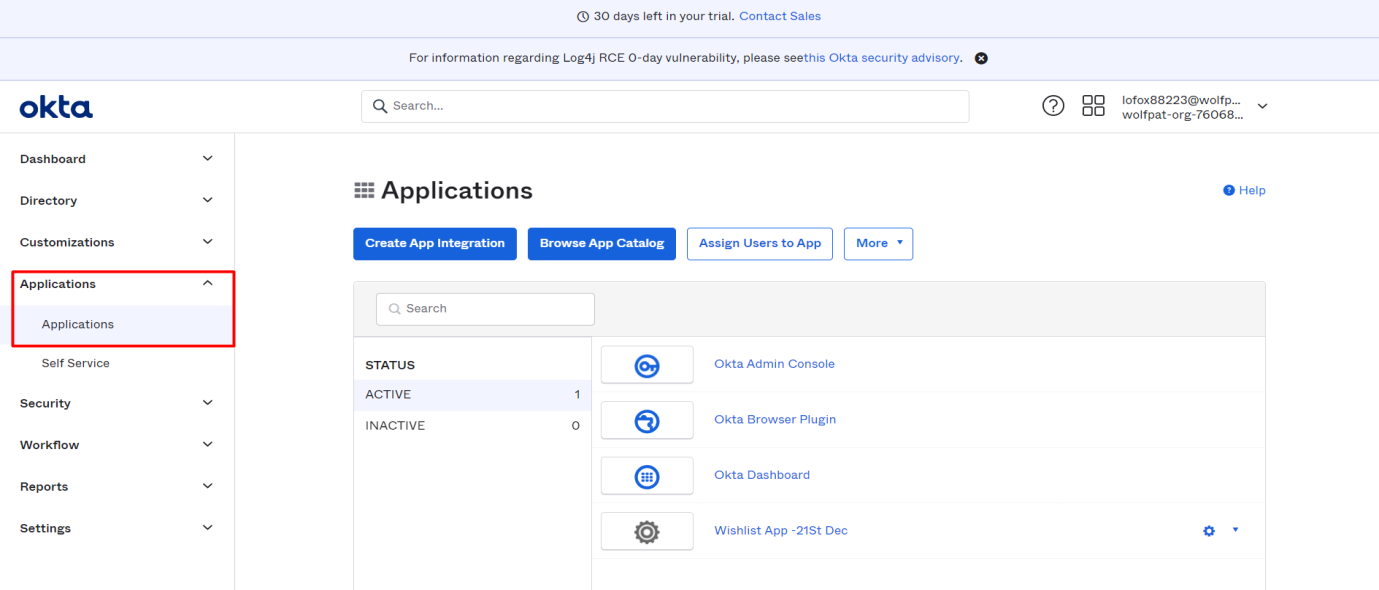
Open Okta Dashboard and then go to Applications
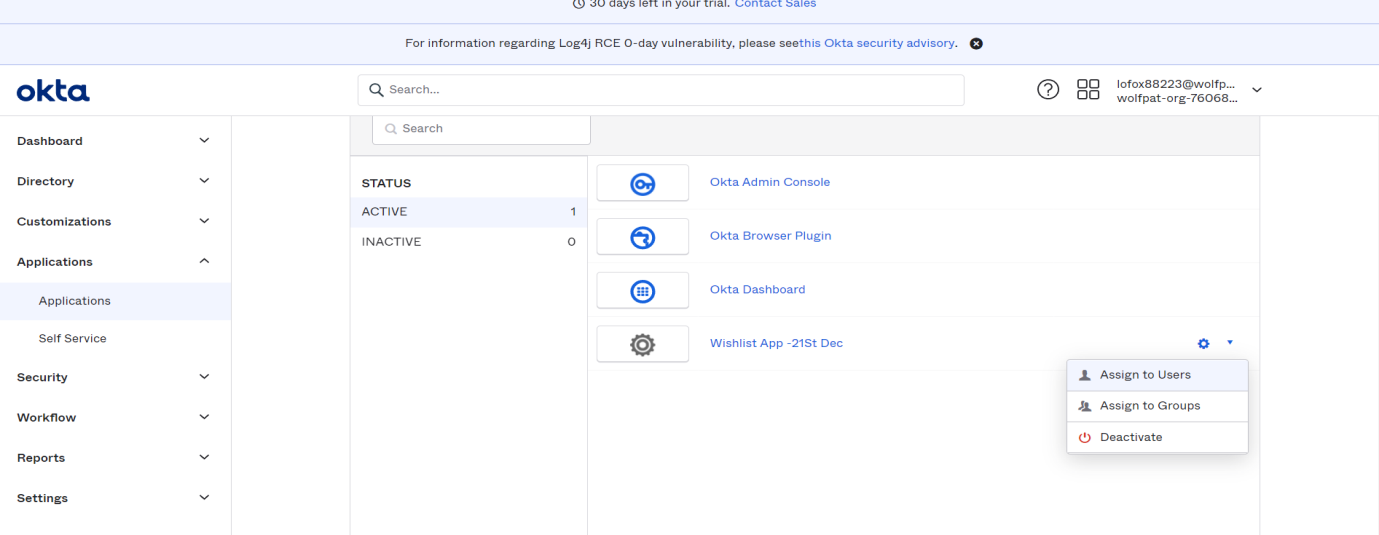
Click on Settings Icon then Assign to Users.
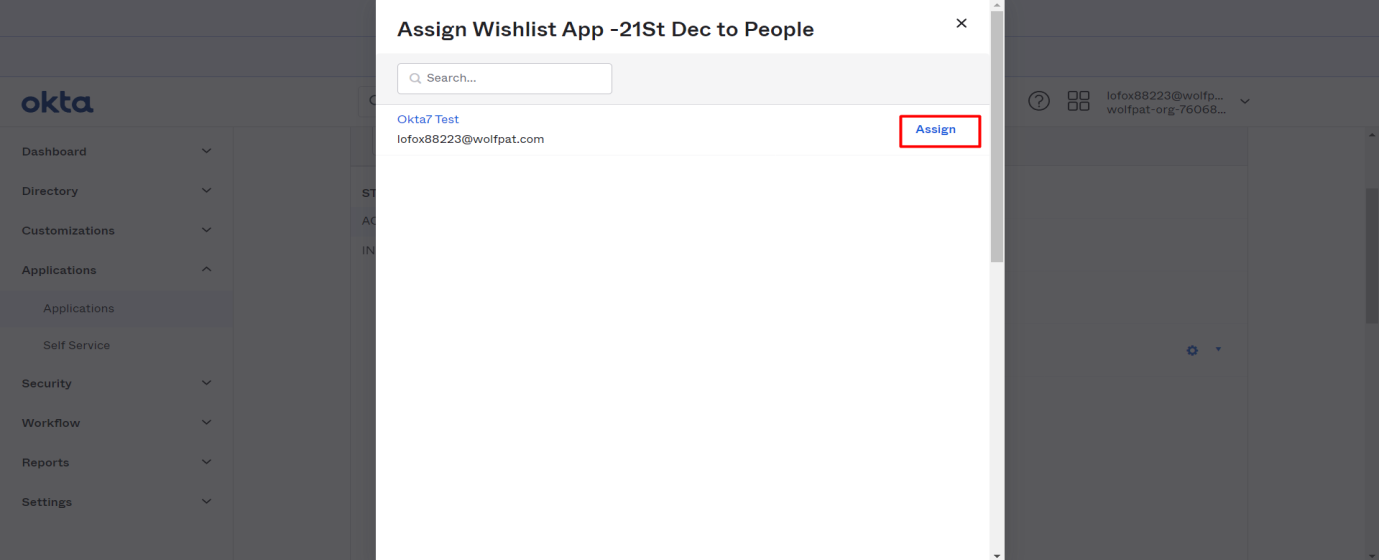
Click on Assign then Save and Go Back.
Repeat this process for all users that need to be allowed into Wishlist through Okta SSO.
Login via Okta through Wishlist Portal
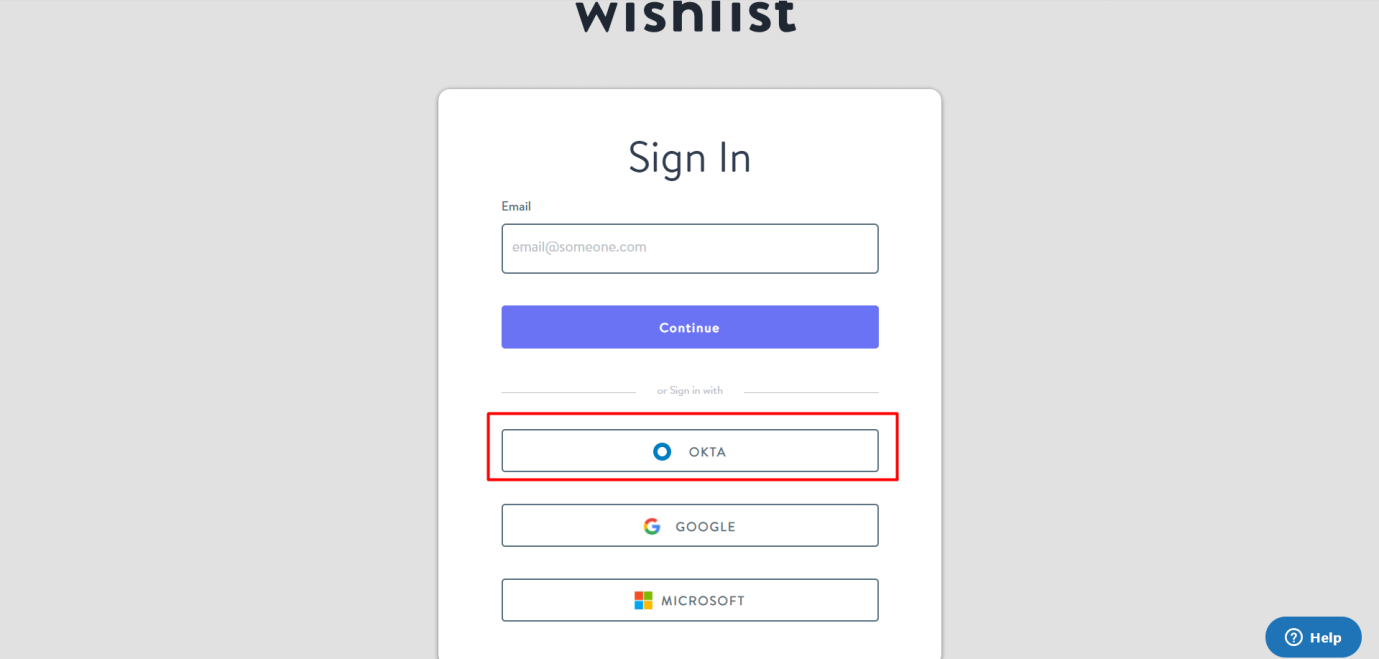
a. Go to Wishlist Login Page - Wishlist Login Page and click on Okta
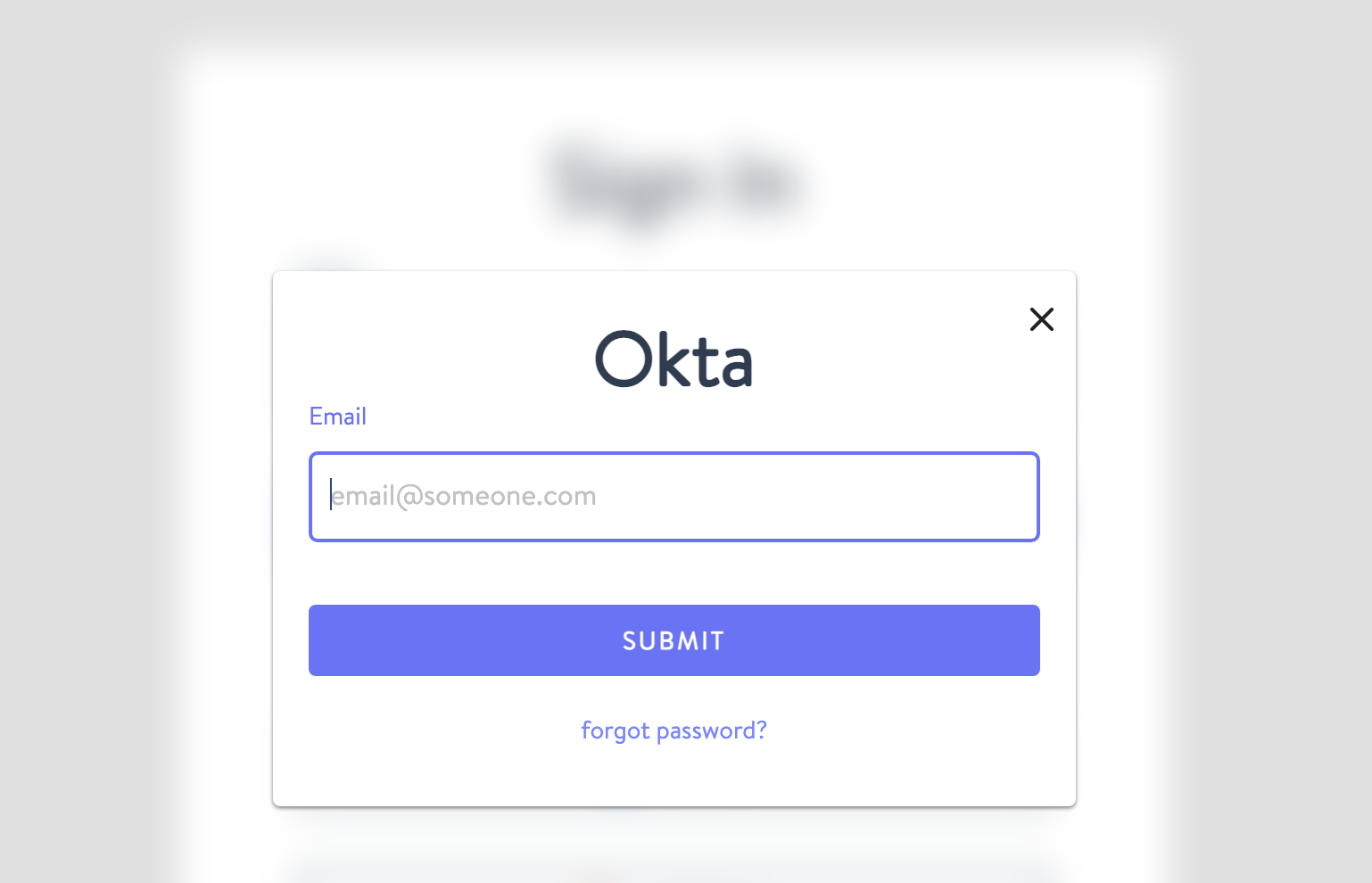
b. You’ll be prompted for your email as in the Wishlist platform. Enter your email and click on Submit.
c. You’ll be redirected to Okta, and if you're not already logged in, you'll need to log into Okta. Once logged in, you’ll be redirected back to the Wishlist platform and automatically logged in.
Login to Wishlist from Okta Portal
a. Click on the Wishlist app created over Okta.
b. The user will successfully log in.
The Integration page is only accessible to Program Admin.
Navigation: Admin > Settings > Integrations
Was this article helpful?
That’s Great!
Thank you for your feedback
Sorry! We couldn't be helpful
Thank you for your feedback
Feedback sent
We appreciate your effort and will try to fix the article