1. Navigate to https://app.thrivepass.com/dashboard
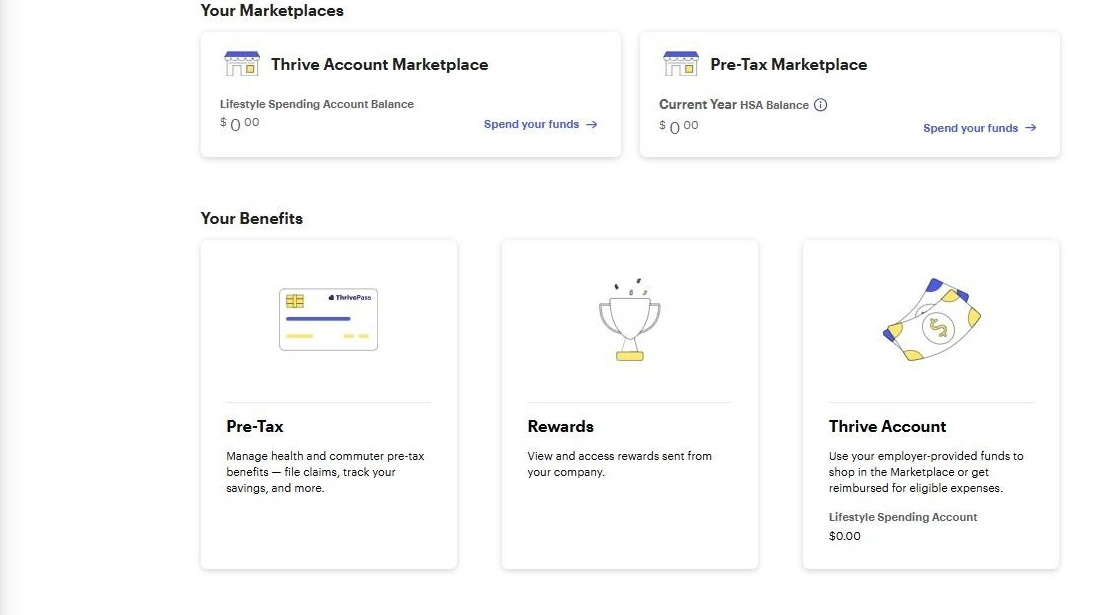
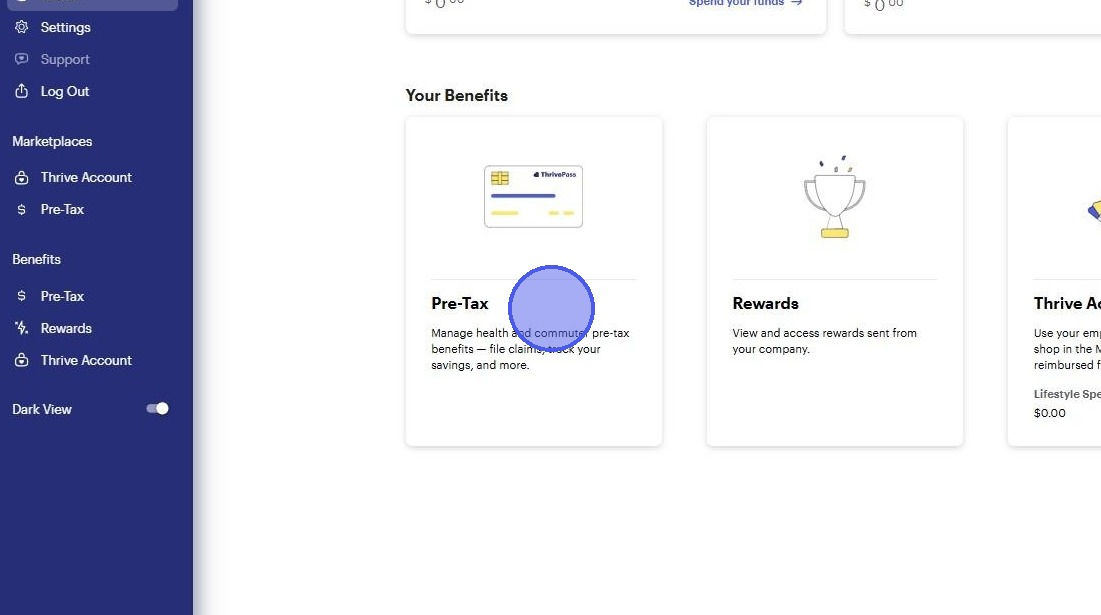
2. Click "Pre-Tax"
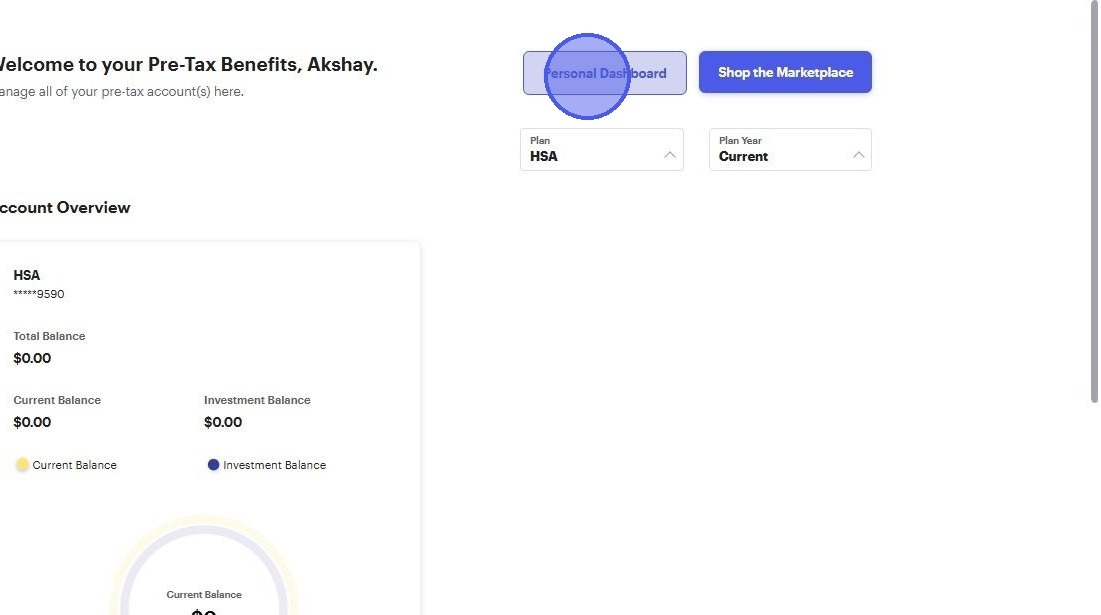
3. Click "Personal Dashboard"
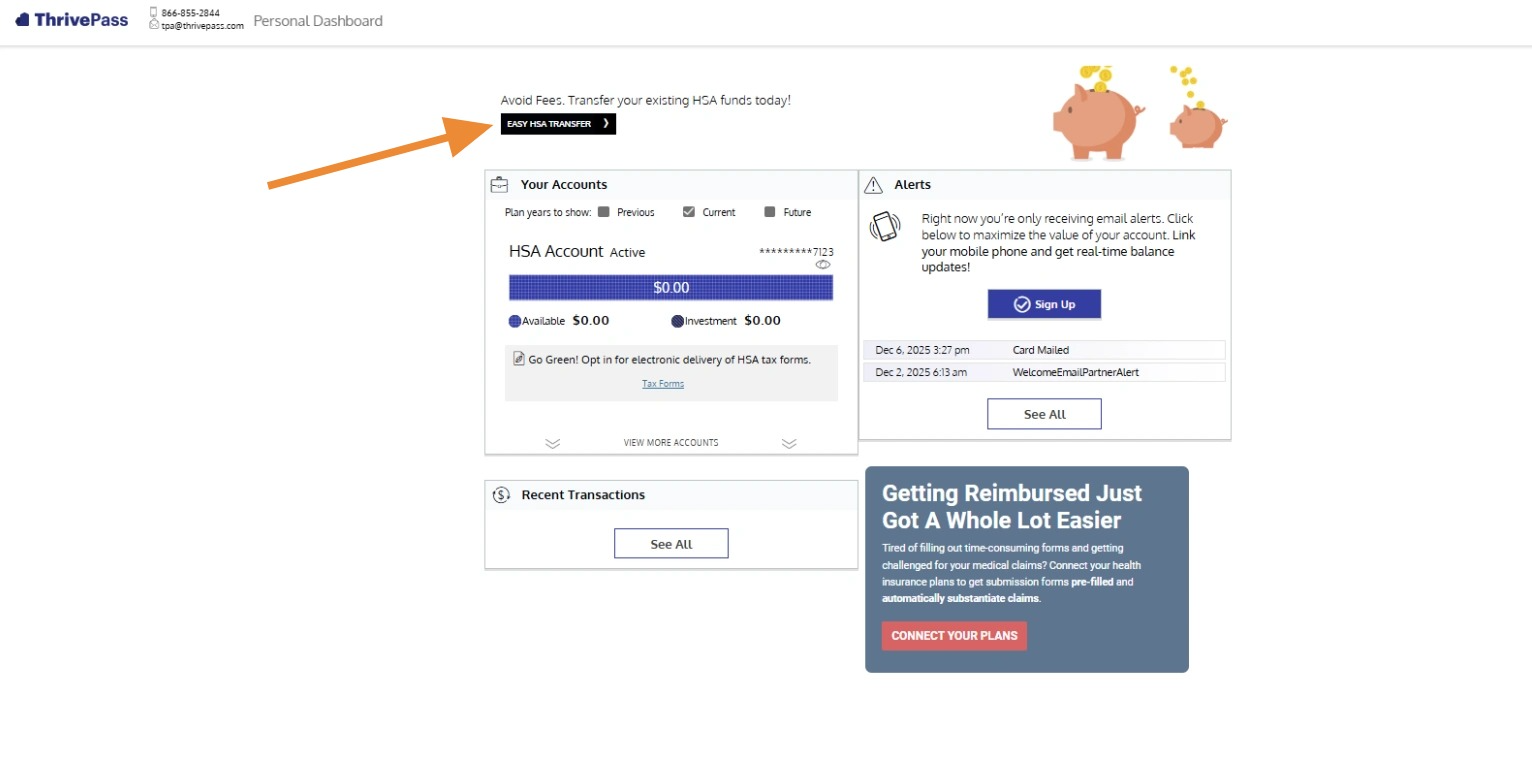
Tip: This next process will only take a minute however you must finish the process all at once. Once you click the Easy HSA transfer button the option will go away if you close out of the screen.
4. Click "Easy HSA Transfer"
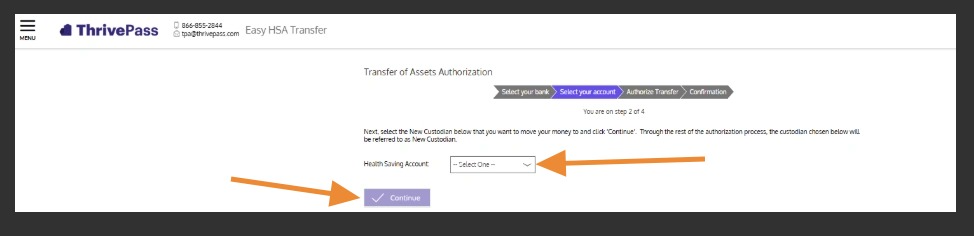
5. In the next step click the drop down and choose the only account listed. Click "Continue".
6. This last screen allows you to accept or decline to be included in the bulk transfer. Click submit
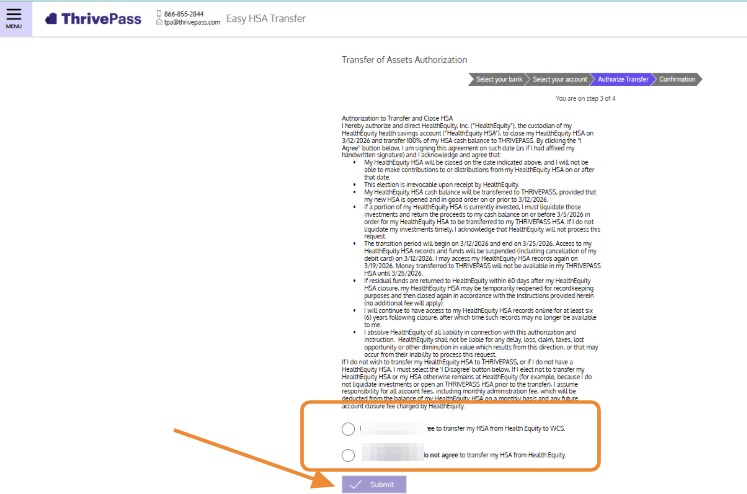
7. Once you click Submit, you will have either opted in or opted out of transferring the assets from your old HSA account to your new account.
If you opted in to the transfer, please be sure to liquidate any investments in your prior account before the deadlines indicated in any communications you have received.
Was this article helpful?
That’s Great!
Thank you for your feedback
Sorry! We couldn't be helpful
Thank you for your feedback
Feedback sent
We appreciate your effort and will try to fix the article