1. Click "ThrivePass: Personalized Employee Benefits"

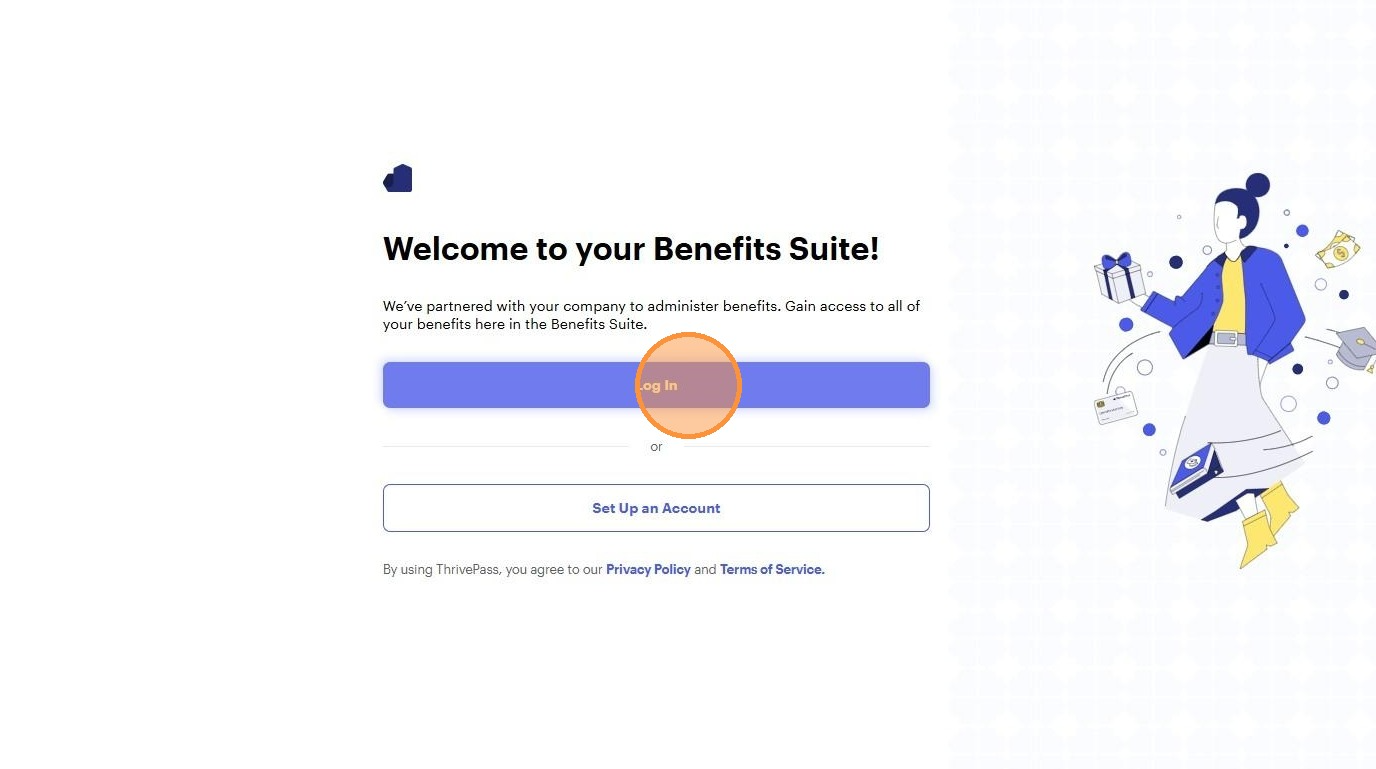
2. Click "Log In"
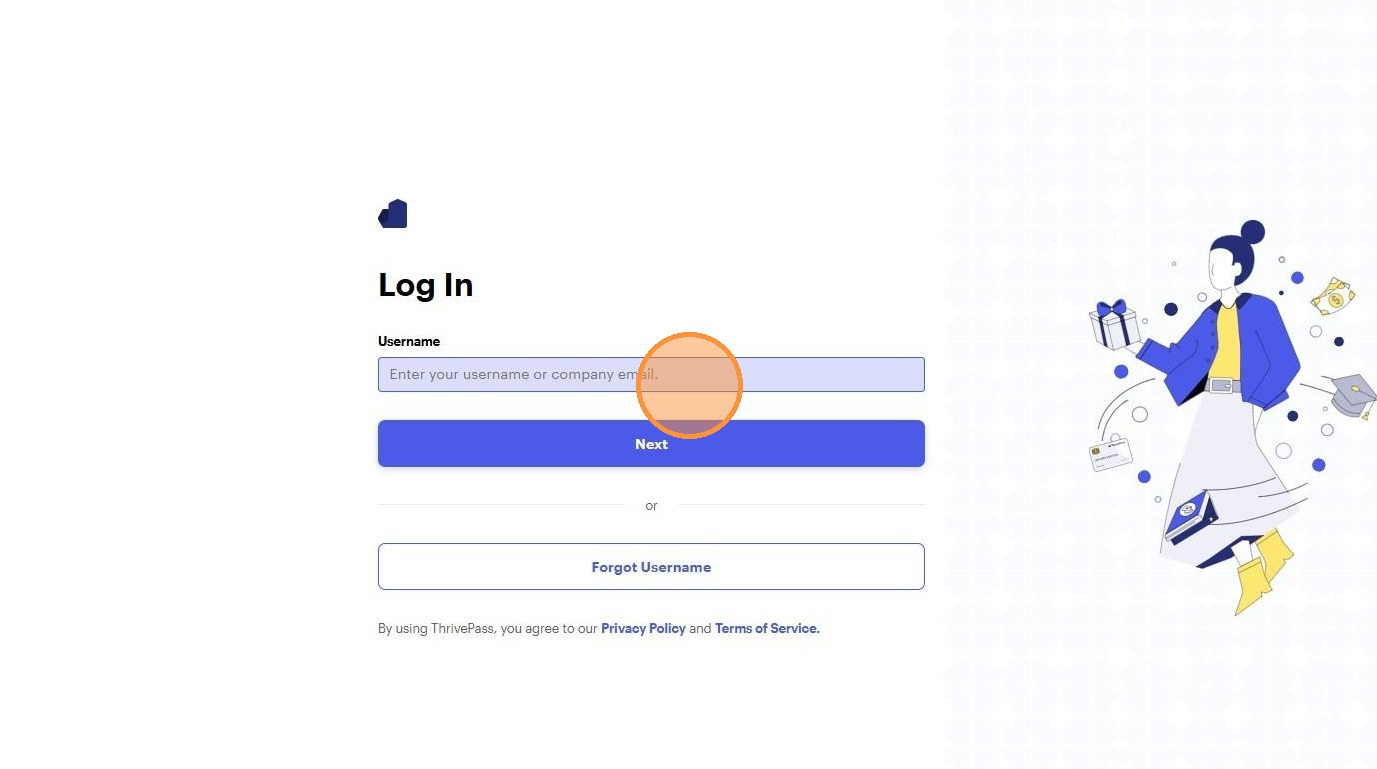
3. Click "Enter your username or company email."
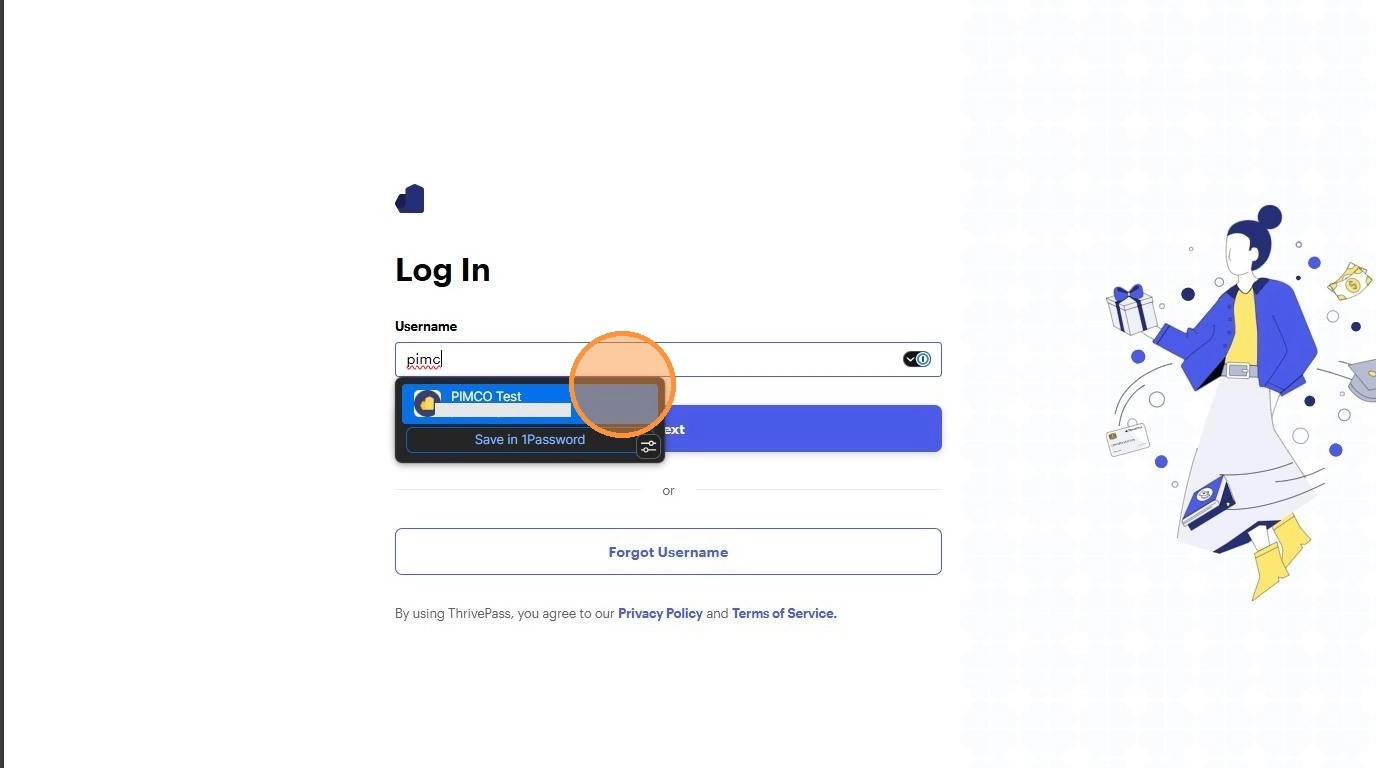
4. Enter in your username, click next and enter your password.
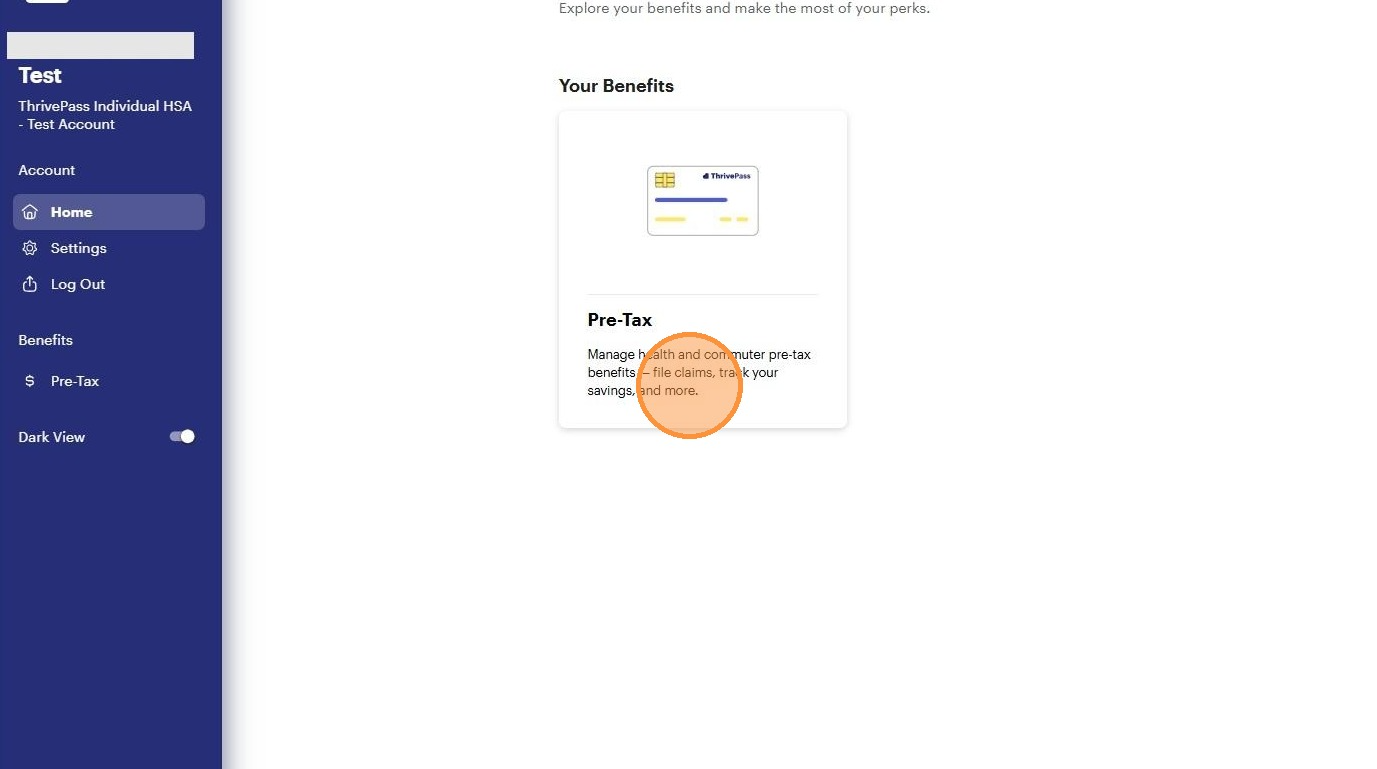
5. Click "Pre-Tax tile."
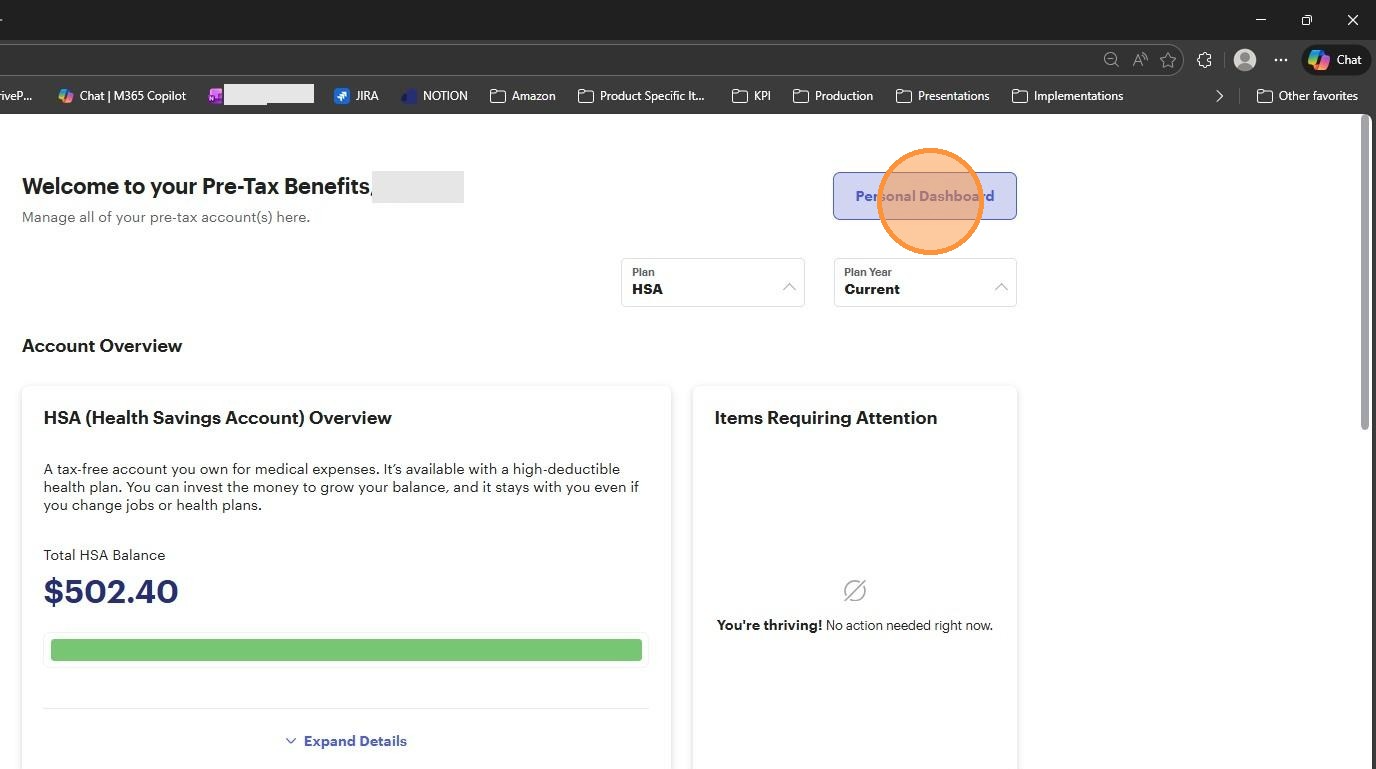
6. Click "Personal Dashboard"
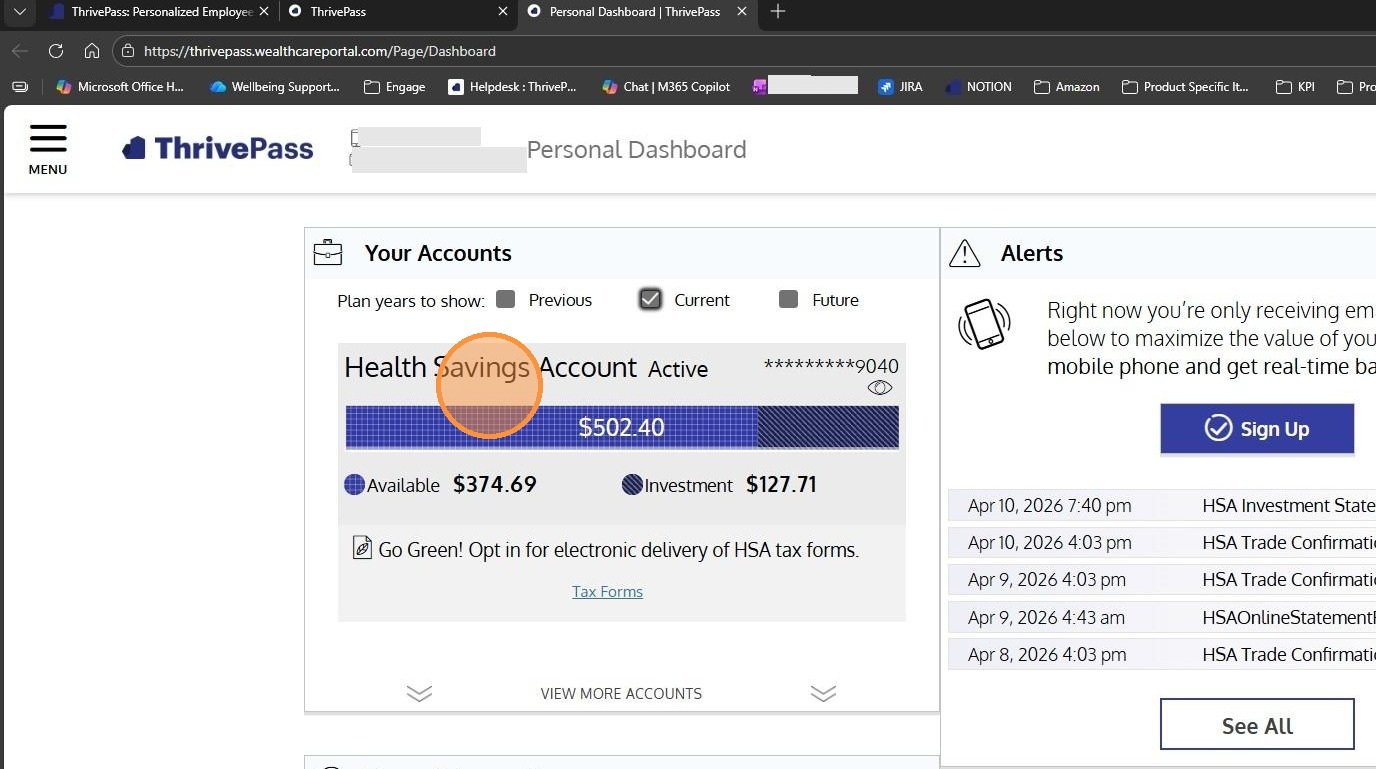
7. Click "Health Savings Account"
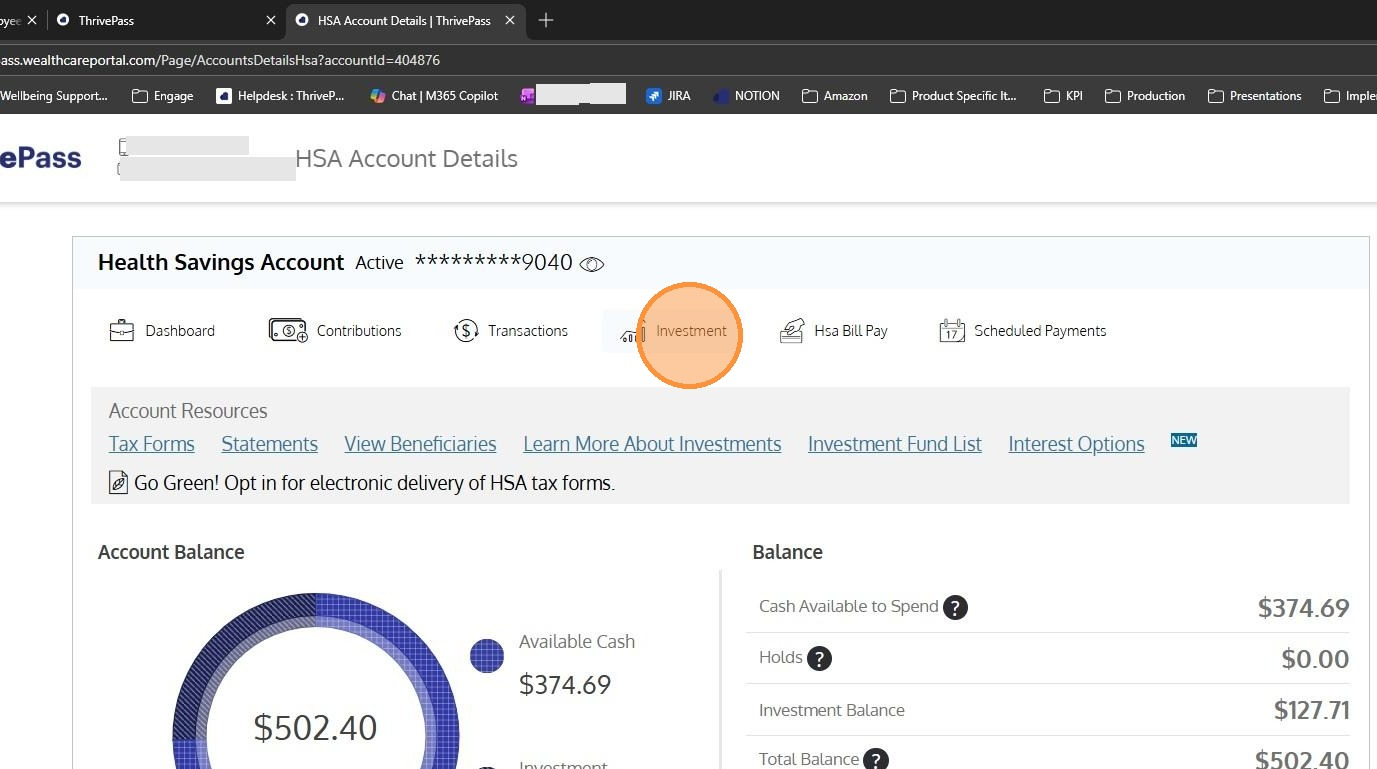
8. Click Investments
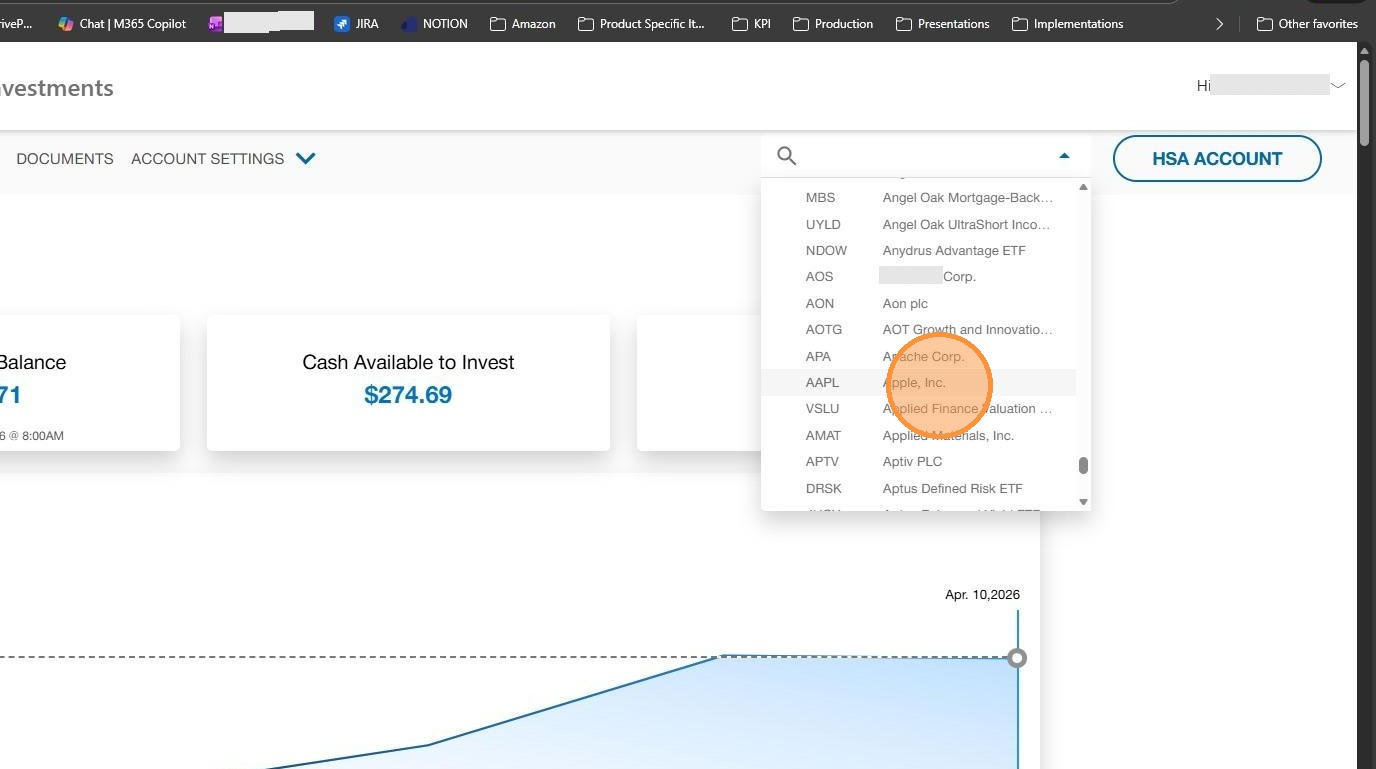
9. Click "Search all Stocks & ETFs" to find your position
10. Click the position you want to see
11. Click "Select Action:" to either buy or sell
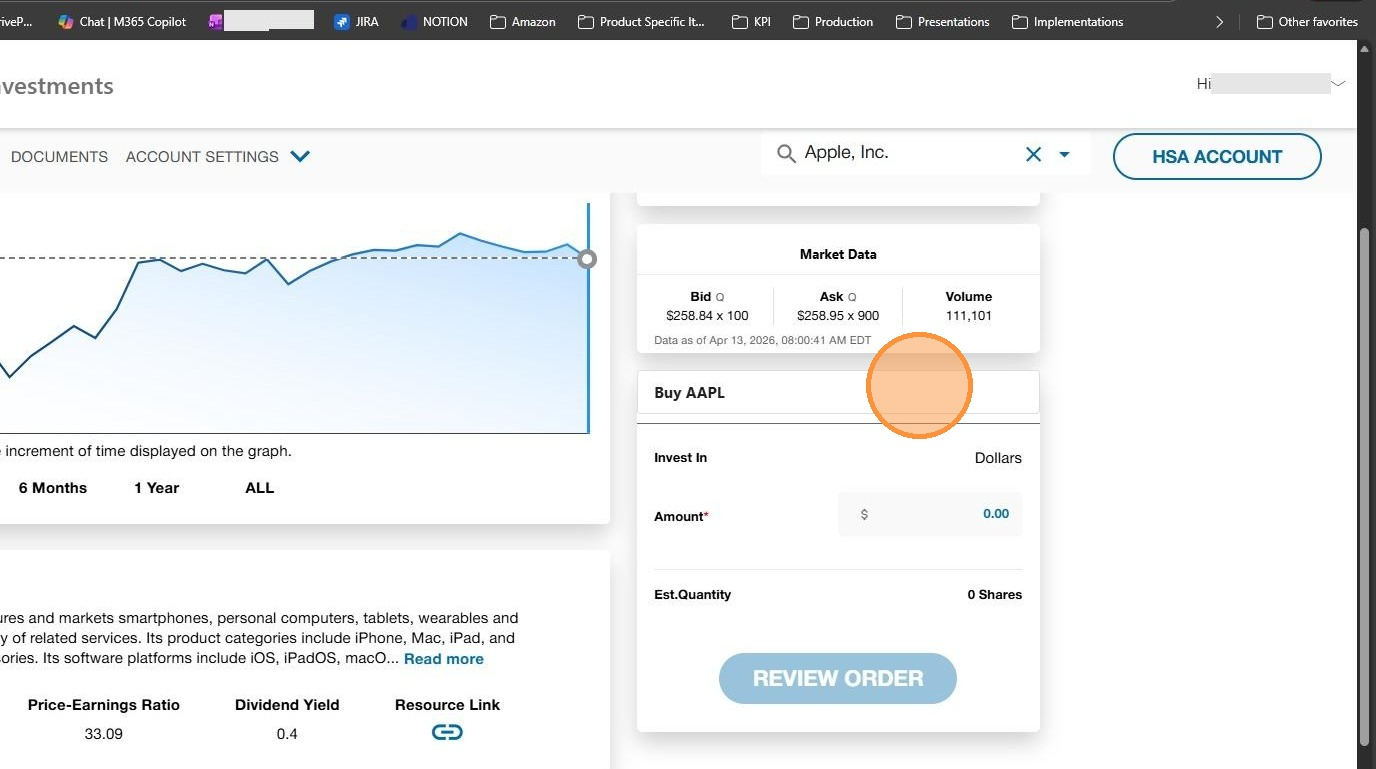
12. Click "Buy AAPL"
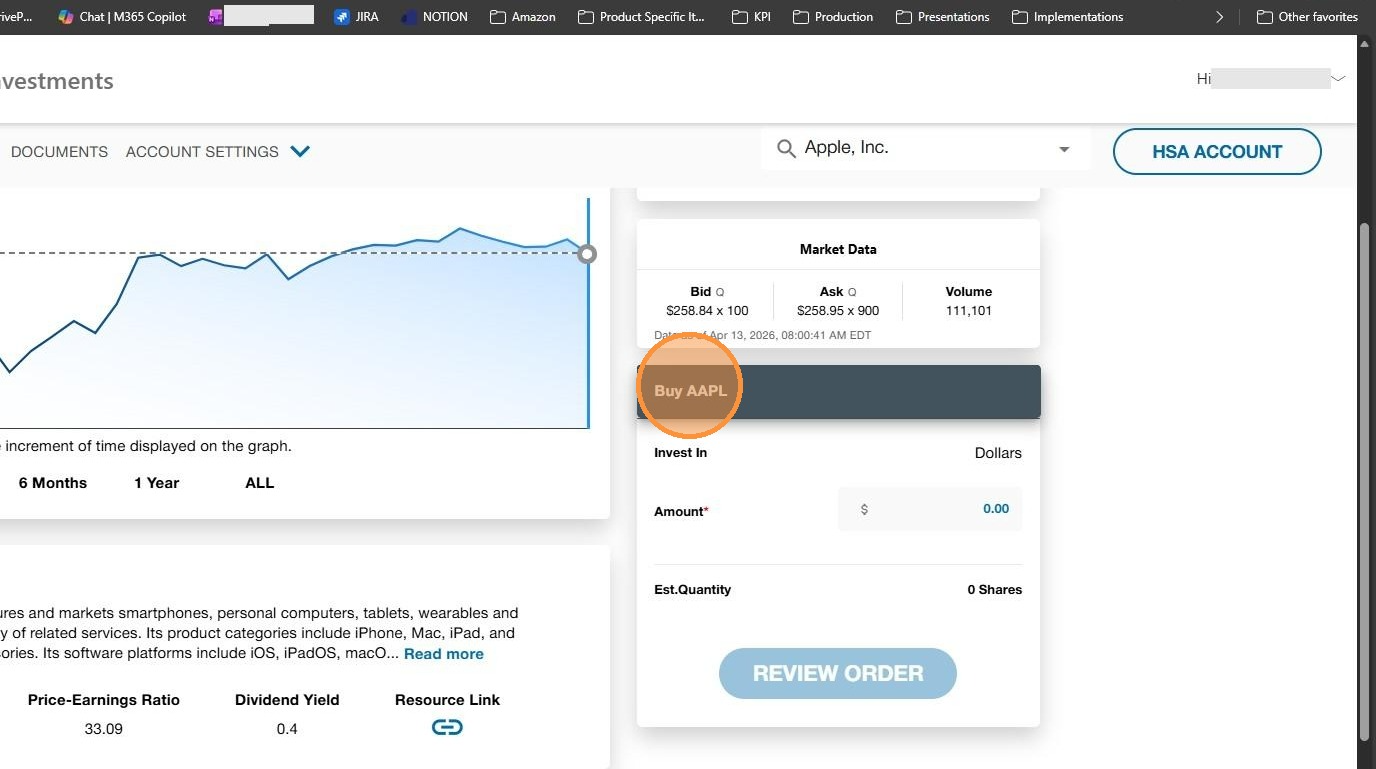
13. Enter the dollar amount you want to purchase
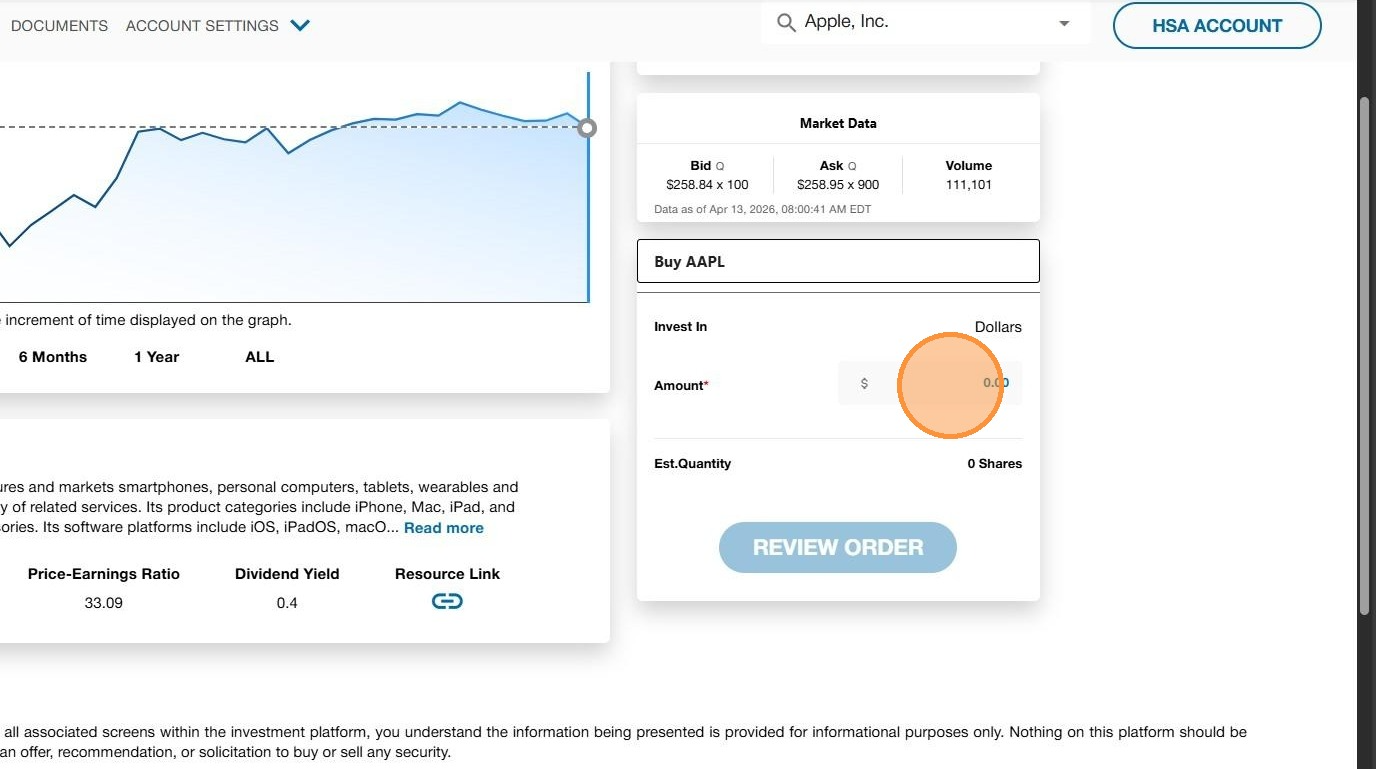
14. Click "REVIEW ORDER"
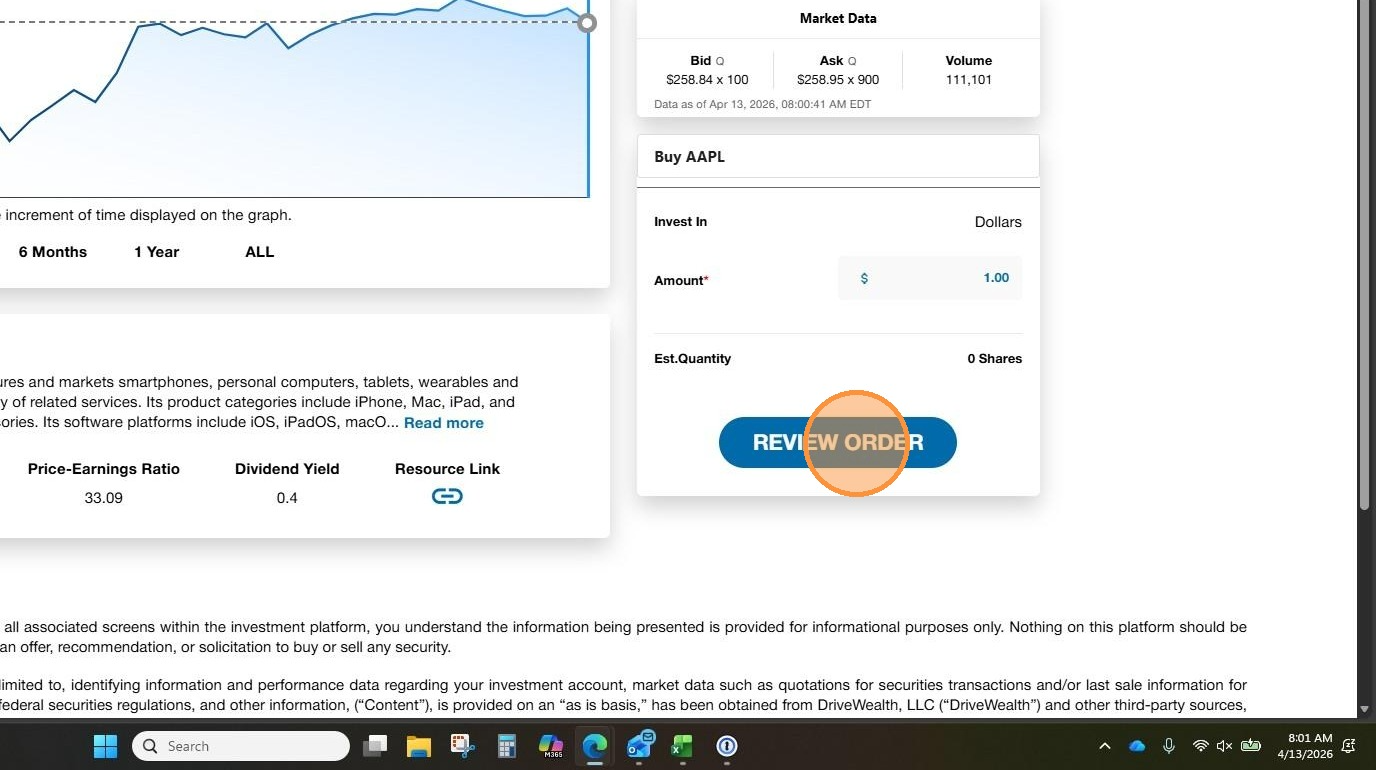
15. Click the check box to agree to the terms an conditions
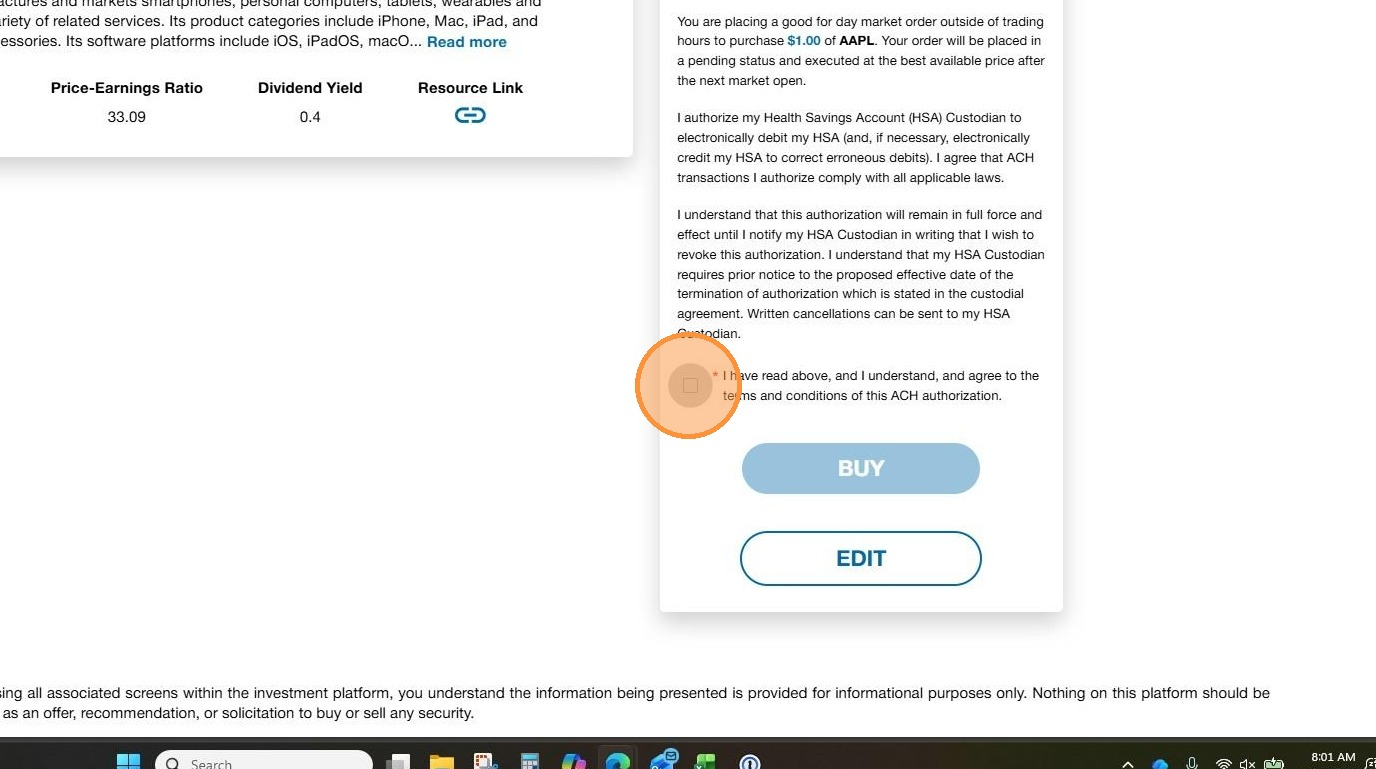
16. Click "BUY"
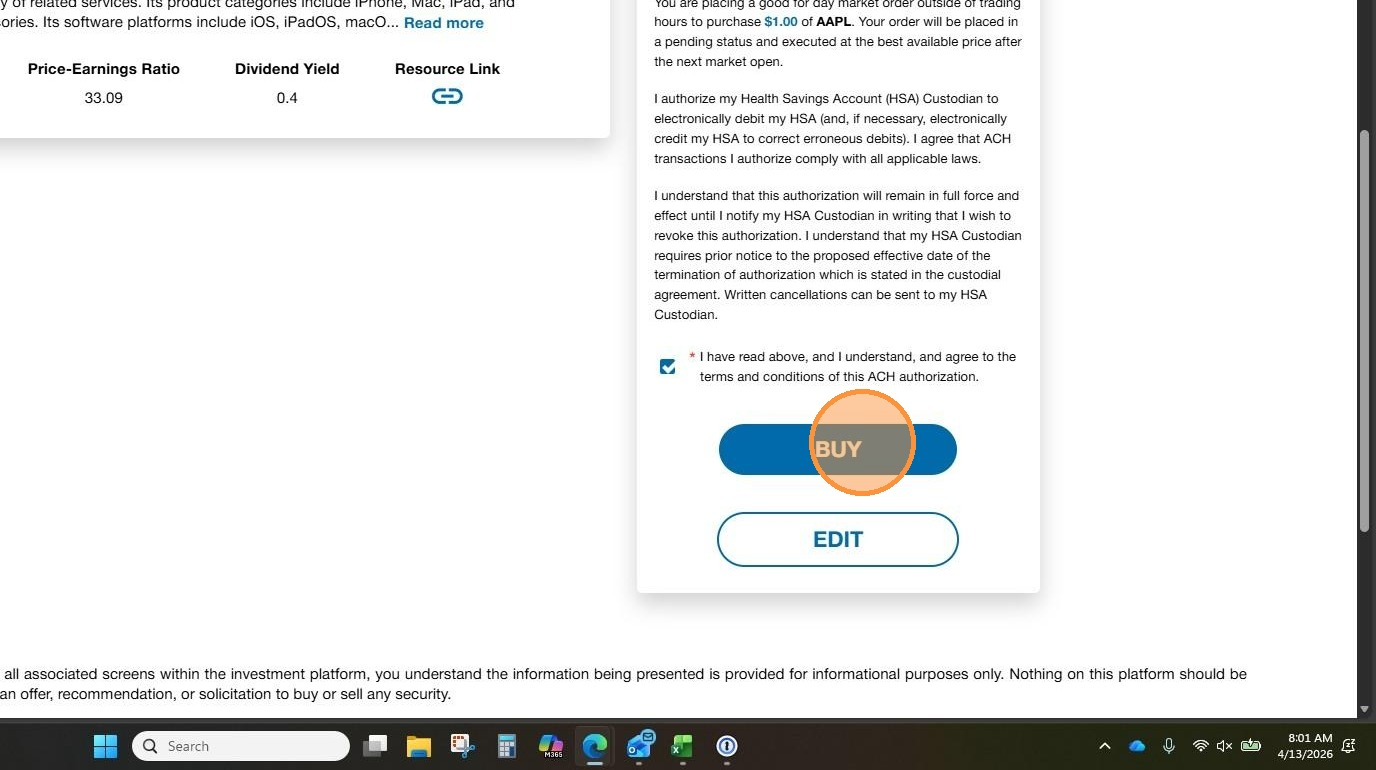
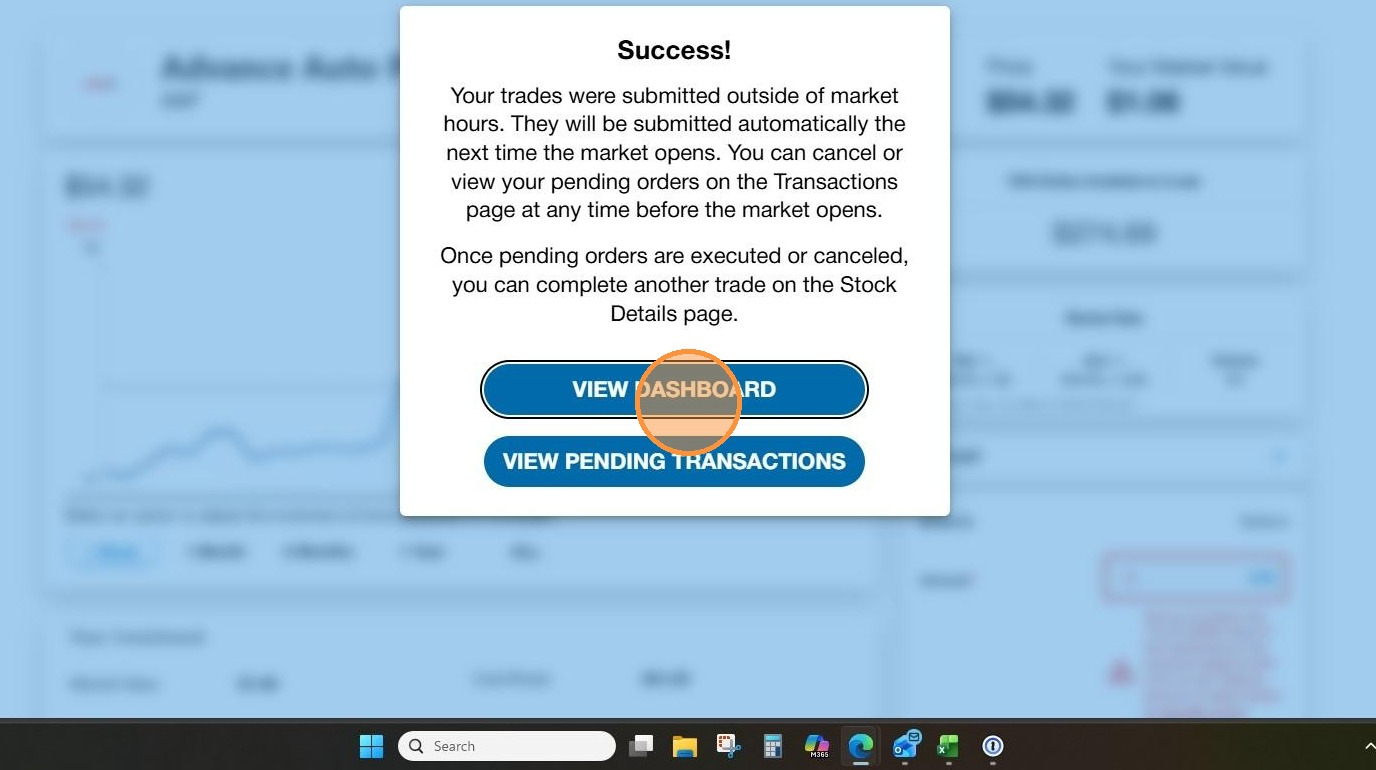
17. Click "VIEW DASHBOARD" to go back to the search page
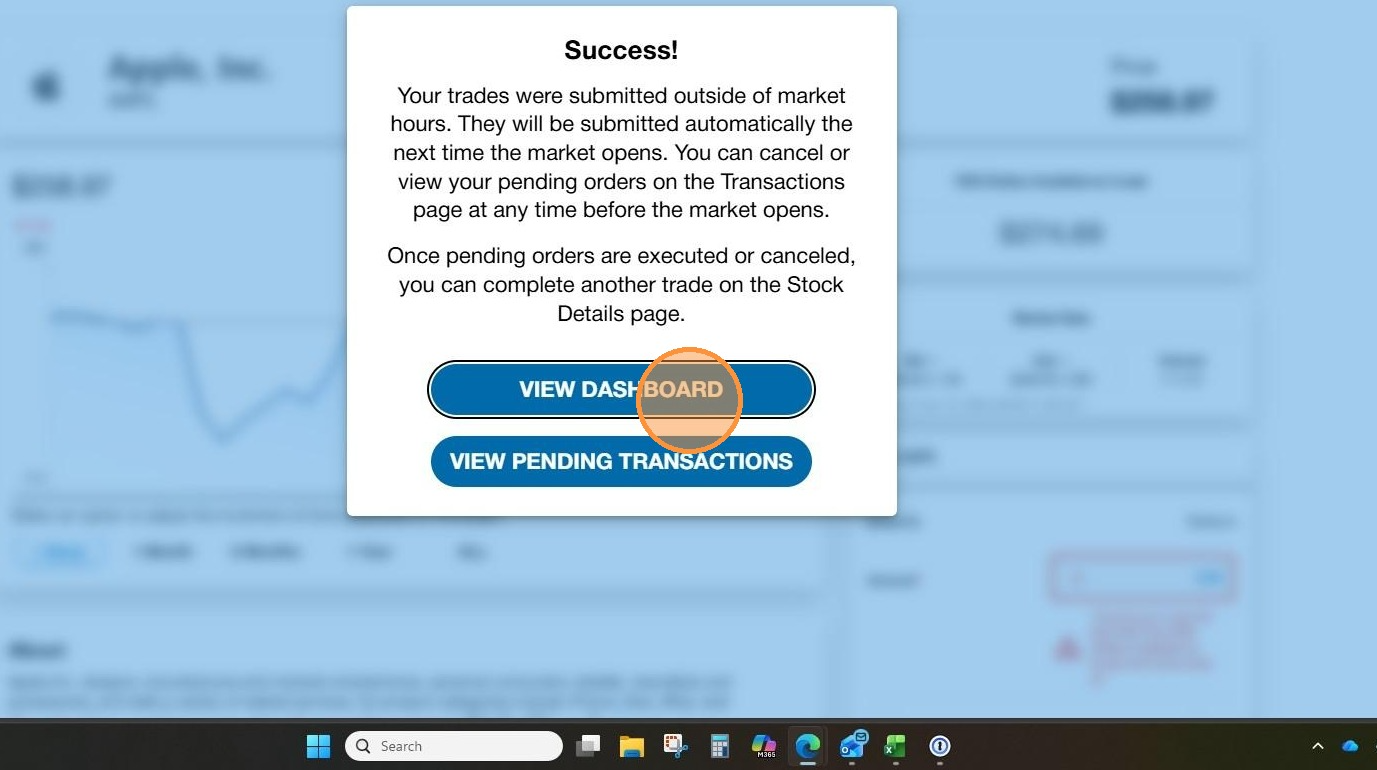
18. To sell a position, select it from your portfolio.
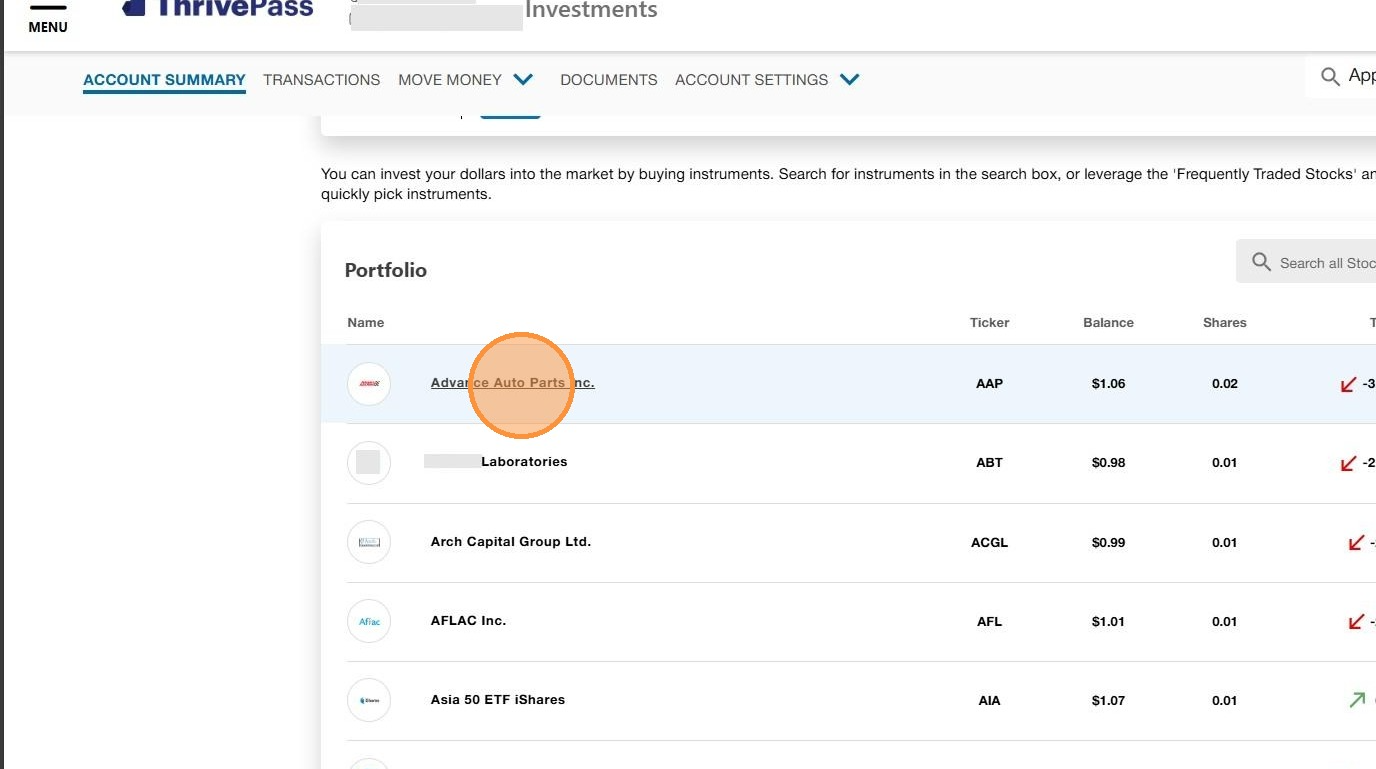
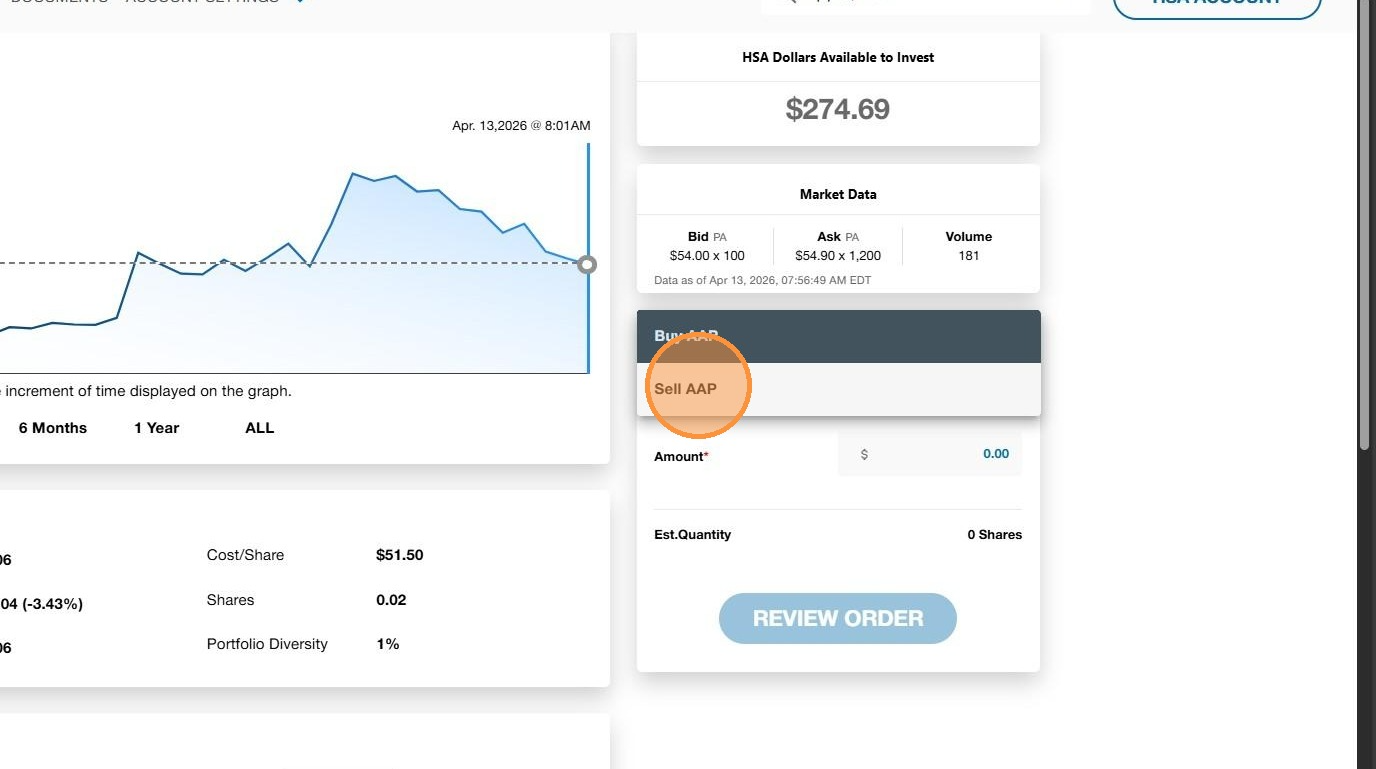
19. Click the "Buy AAP" dropdown and change to "Sell AAP"
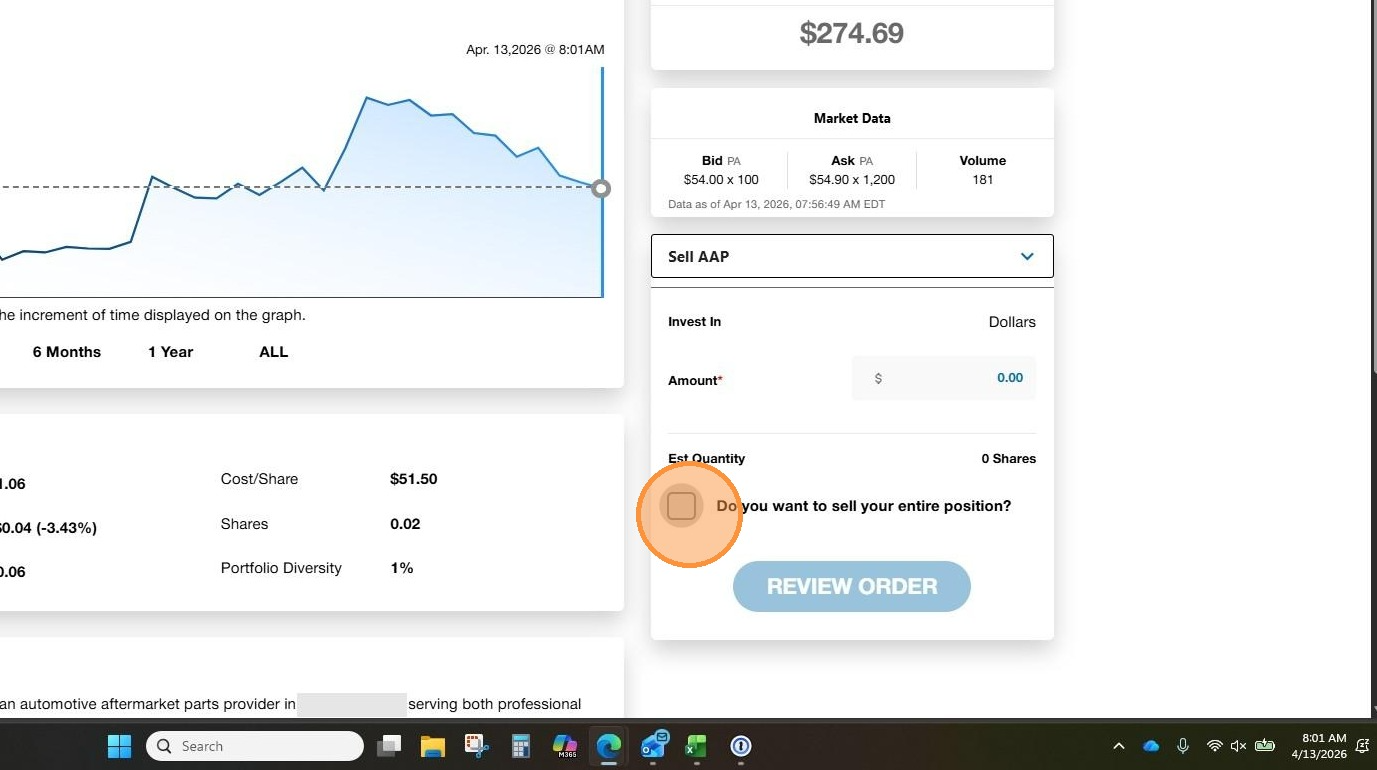
20. If you want to sell the entire position, click the box "Do you want to sell your entire position?"
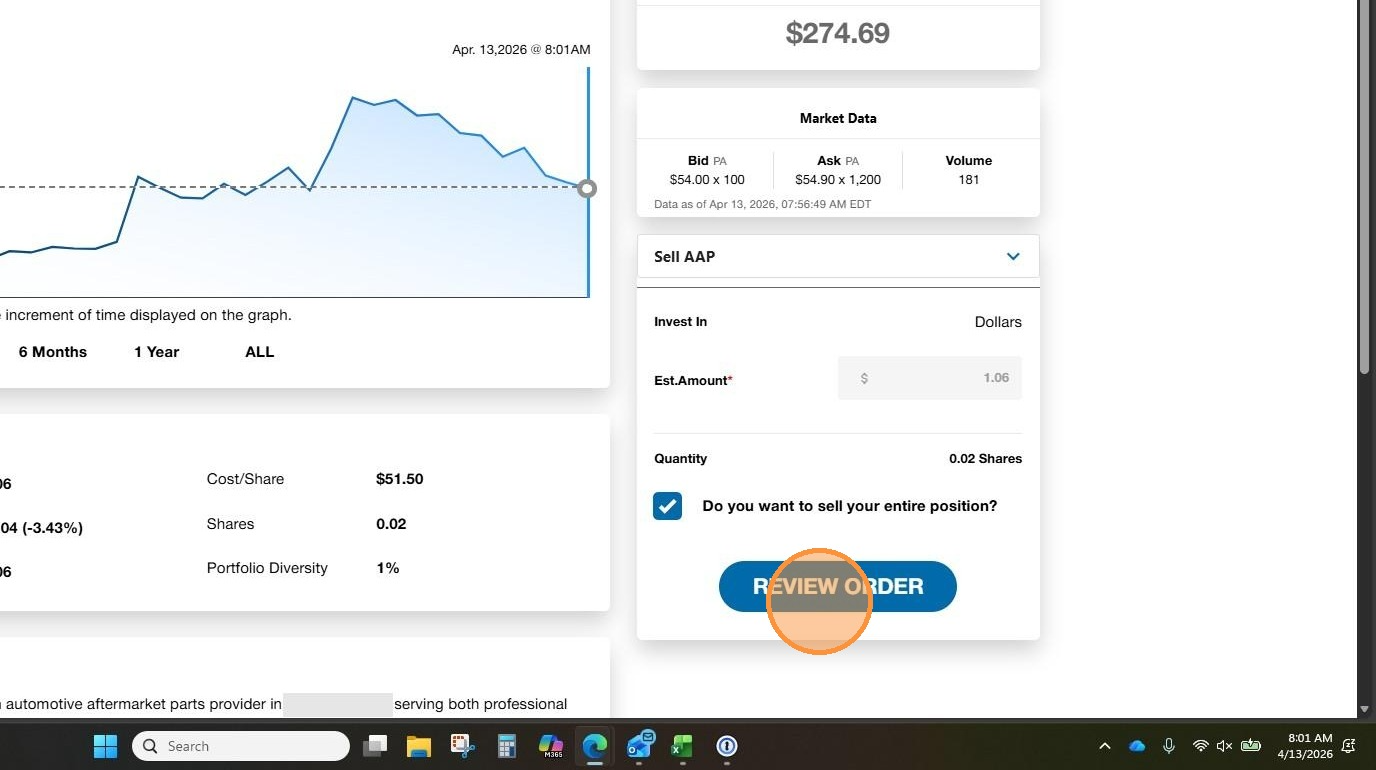
21. Click "REVIEW ORDER"
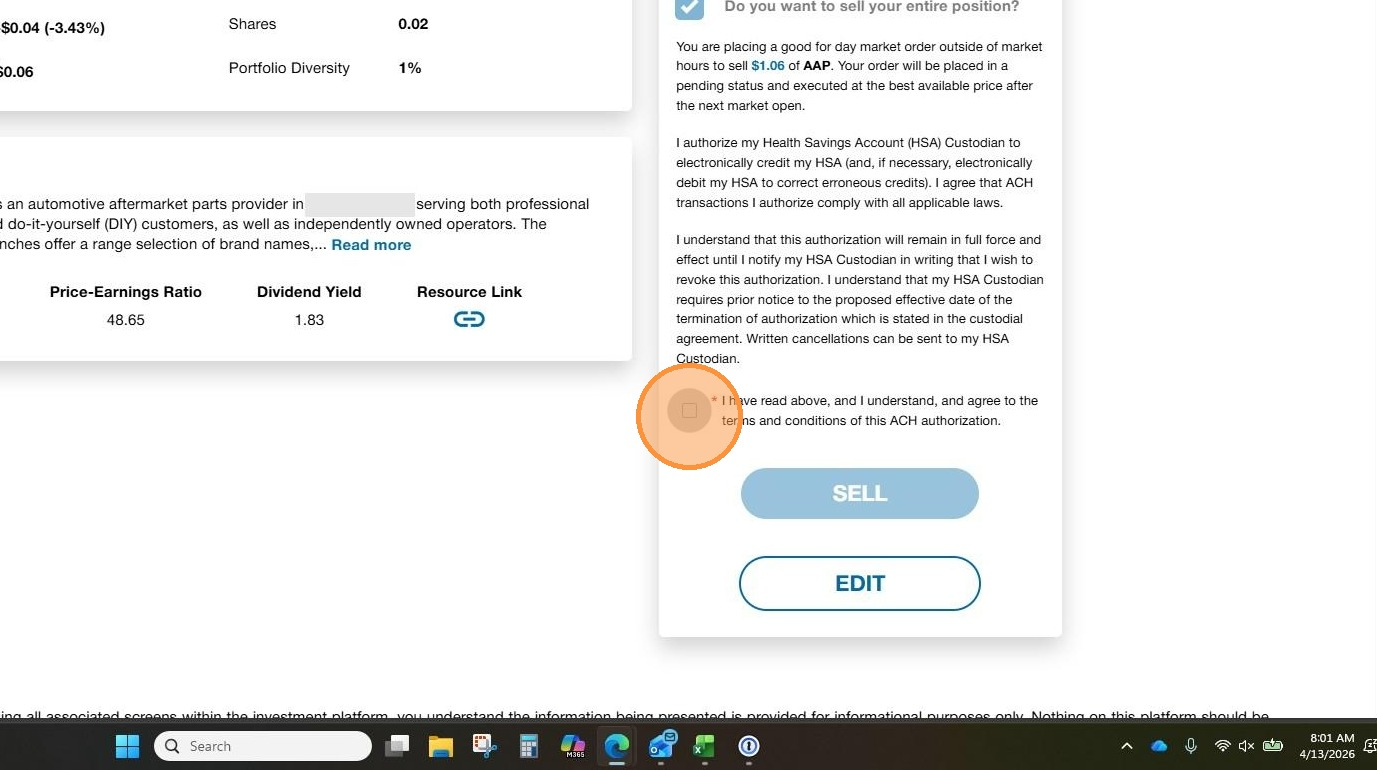
22. Click the box to agree to the terms and conditions and click Sell
23. Click "VIEW DASHBOARD" to return to the dashboard
Was this article helpful?
That’s Great!
Thank you for your feedback
Sorry! We couldn't be helpful
Thank you for your feedback
Feedback sent
We appreciate your effort and will try to fix the article