Most likely, the main reason your company uses Wishlist is to send rewards! Depending on your program configuration, there a couple of ways to send a Spot reward.
Bulk Rewards
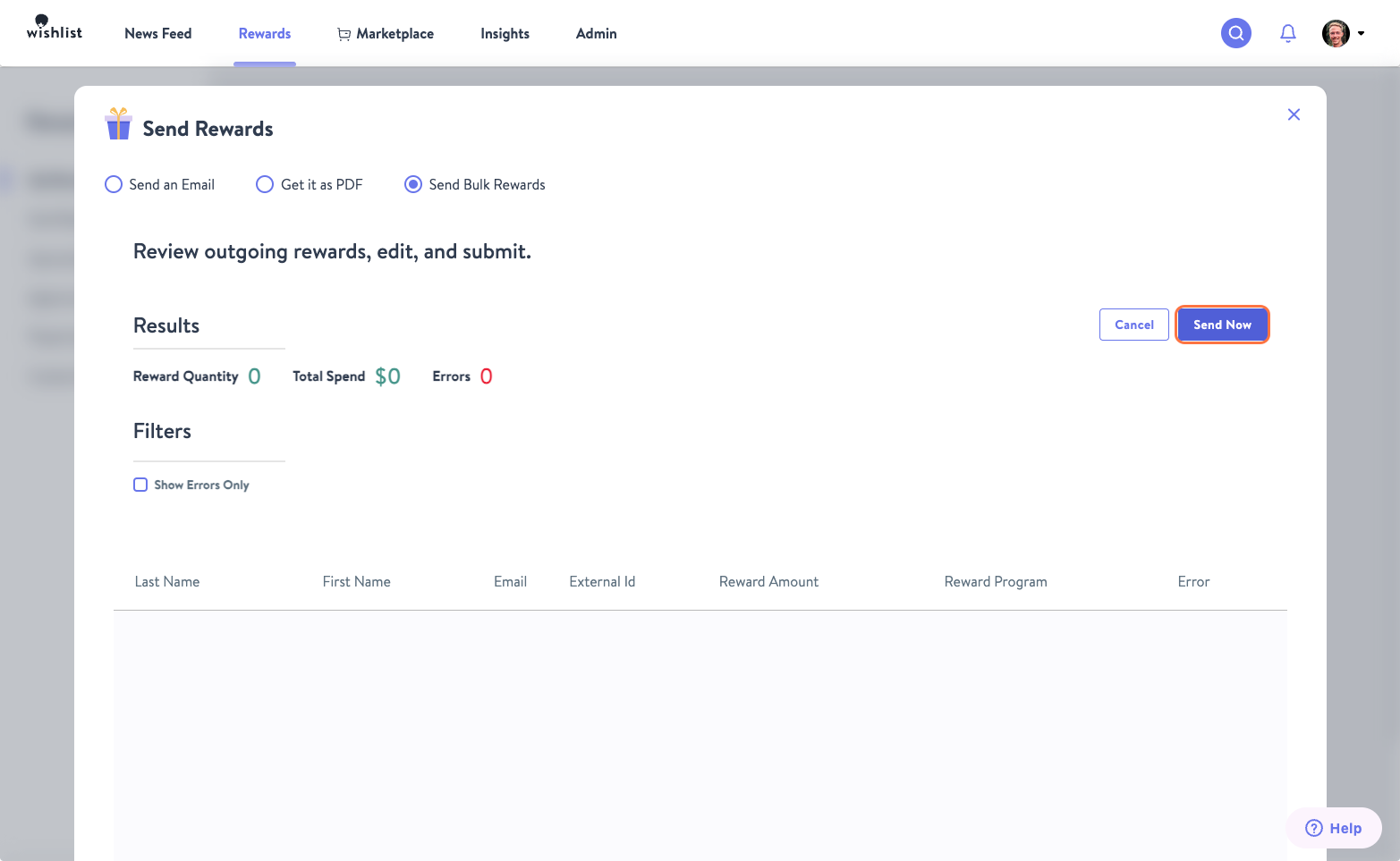
- From the Rewards page, click the option to Send Rewards.
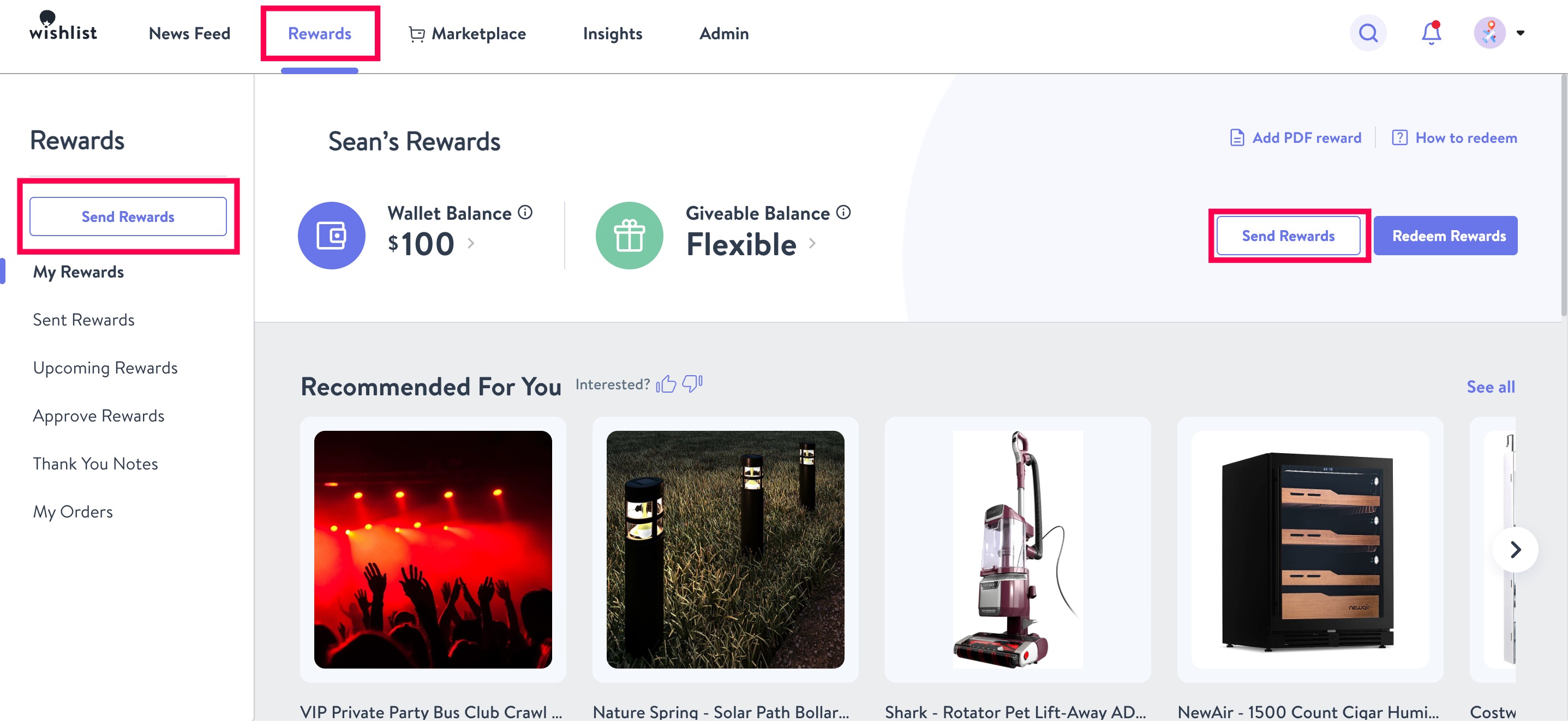
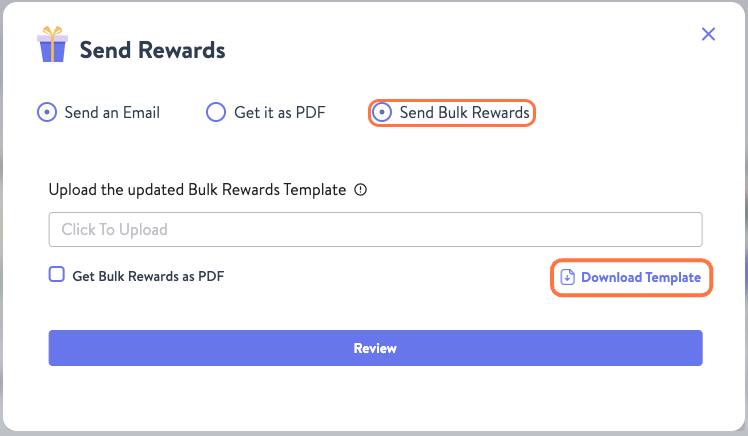
- From here you will have the option to send the reward as an email, PDF, or as a bulk reward. If you are going to be sending Bulk Rewards you will need to down the Bulk Rewards Template. To do so, select Send Bulk Rewards and then click Download Template
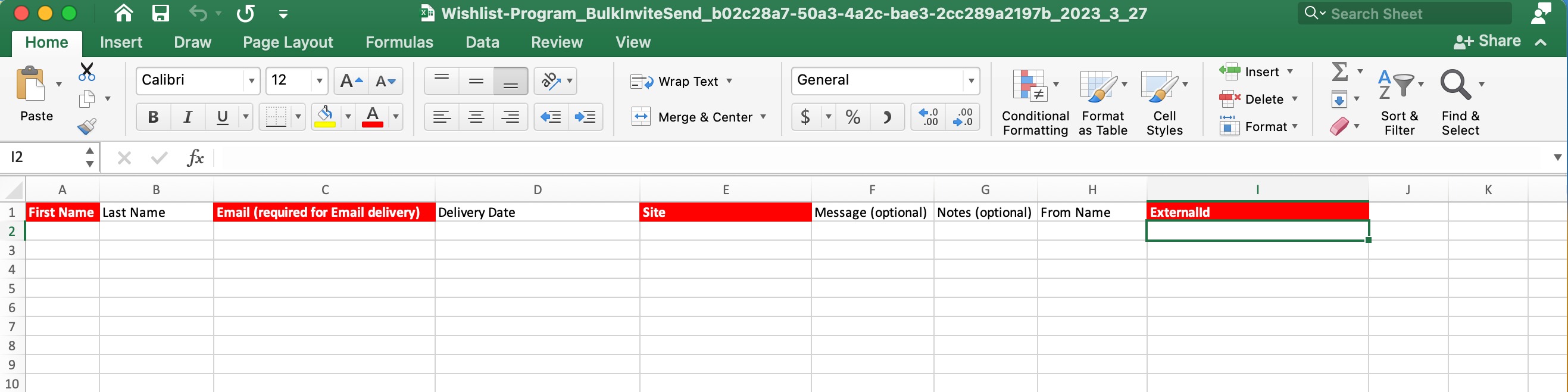
- Fields marked in red are mandatory for the Bulk Rewards option, however, you can also choose to fill out the other columns if you want to customize a message, set an alternate delivery date, change who the reward is from, or add internal notes.
- Once the details have been added to the file, click to upload it, and select Review
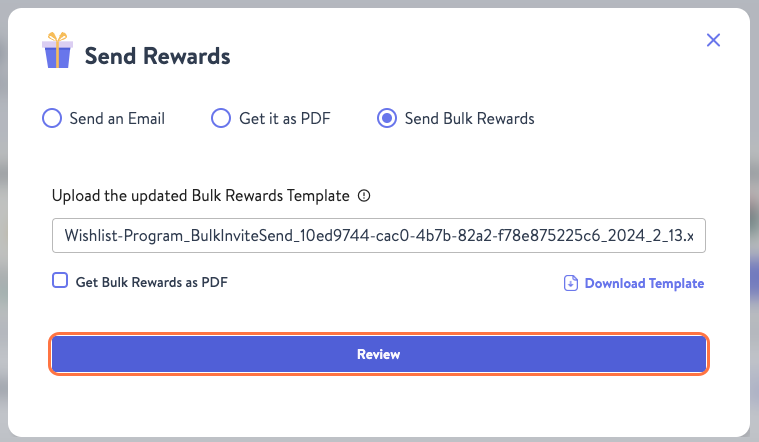
- This will take you to a screen where the system will notify you of potential errors in your Bulk Upload file. Once reviewed, click Send
To send a single individual reward, there are two different possible paths. Your company will either have a dropdown list of set reward amounts/programs or you will have an open dollar field to enter any value within your set budget.
Individual Rewards
When you are sending a reward, depending on how your account is configured, you will either have a preset list of reward programs and amounts from which you can choose (Preset Rewarding) or you will be able to manually enter an amount within your set budget to reward someone with (Open Rewarding). The following shows the general reward flow with specifics regarding Preset Rewarding. If you are already familiar with the reward flow, you can click here to see how Open Rewarding differs slightly.
- When sending a reward you will first decide if you want the reward to Send an Email or Get it as PDF. From there type in the name of the person you're rewarding and select them from the dropdown menu that appears. This will then populate their email address. You can also reward more than one person by clicking the "+" symbol to the right of the user fields after you have selected an individual.
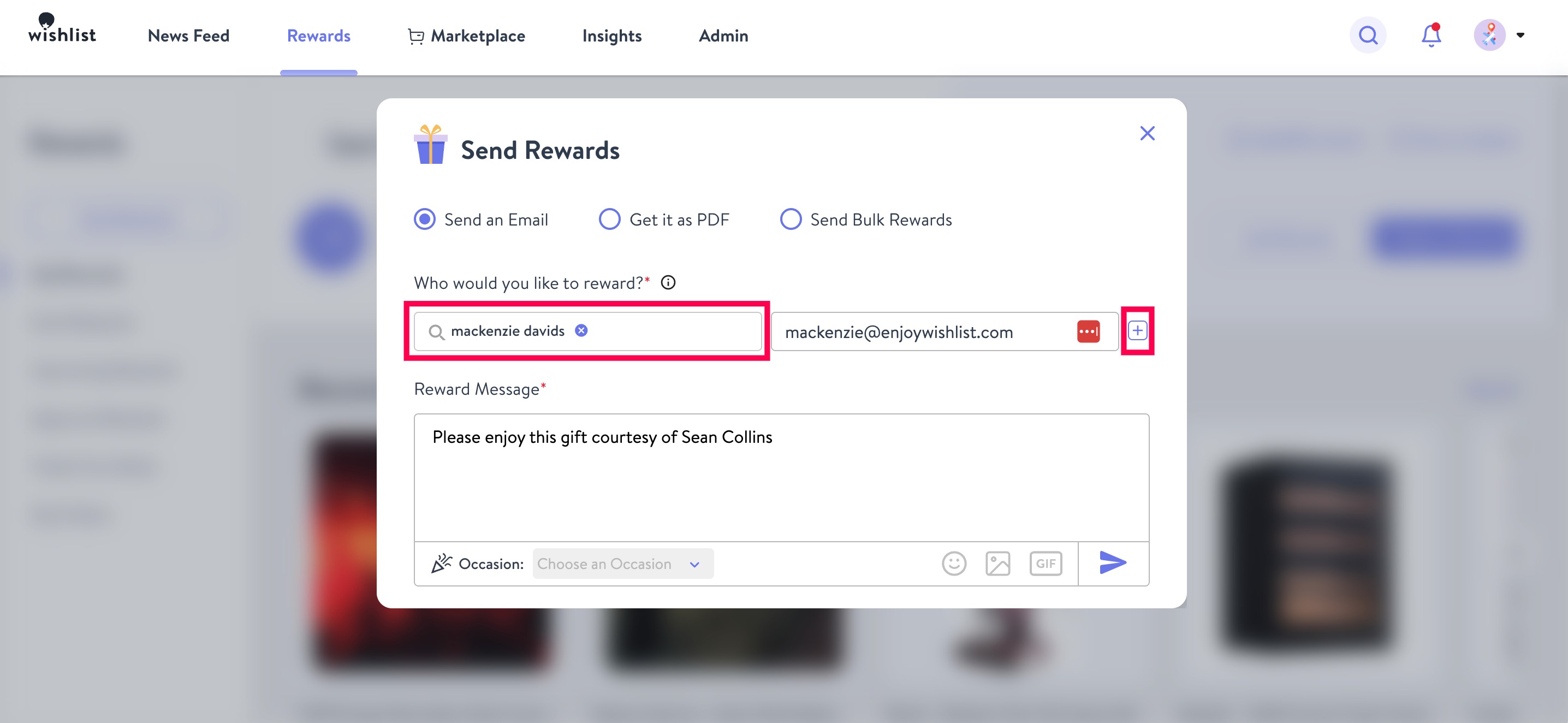
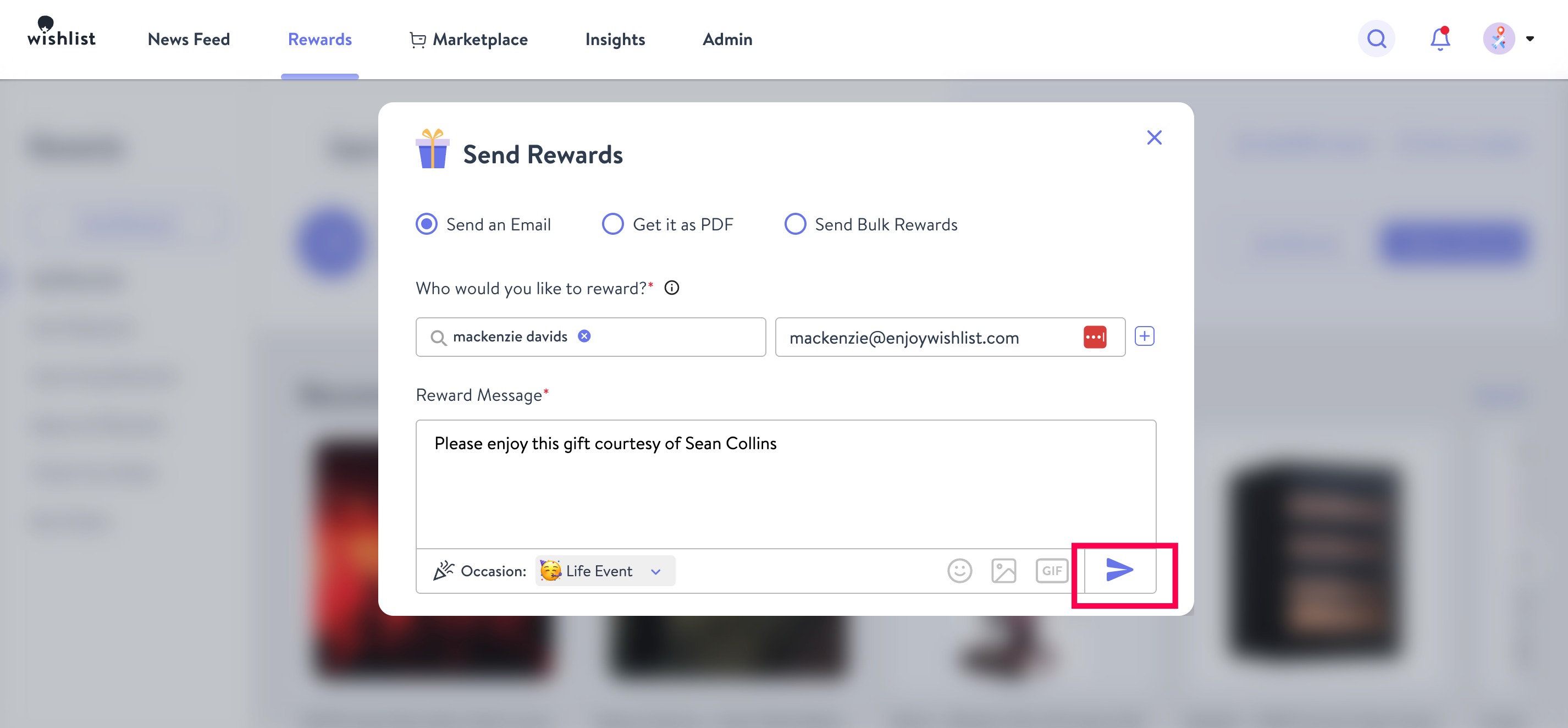
- Customize a Reward Message or stick with the one that populates. You can even select an Occasion! Once done, click that little Paper Airplane to proceed.
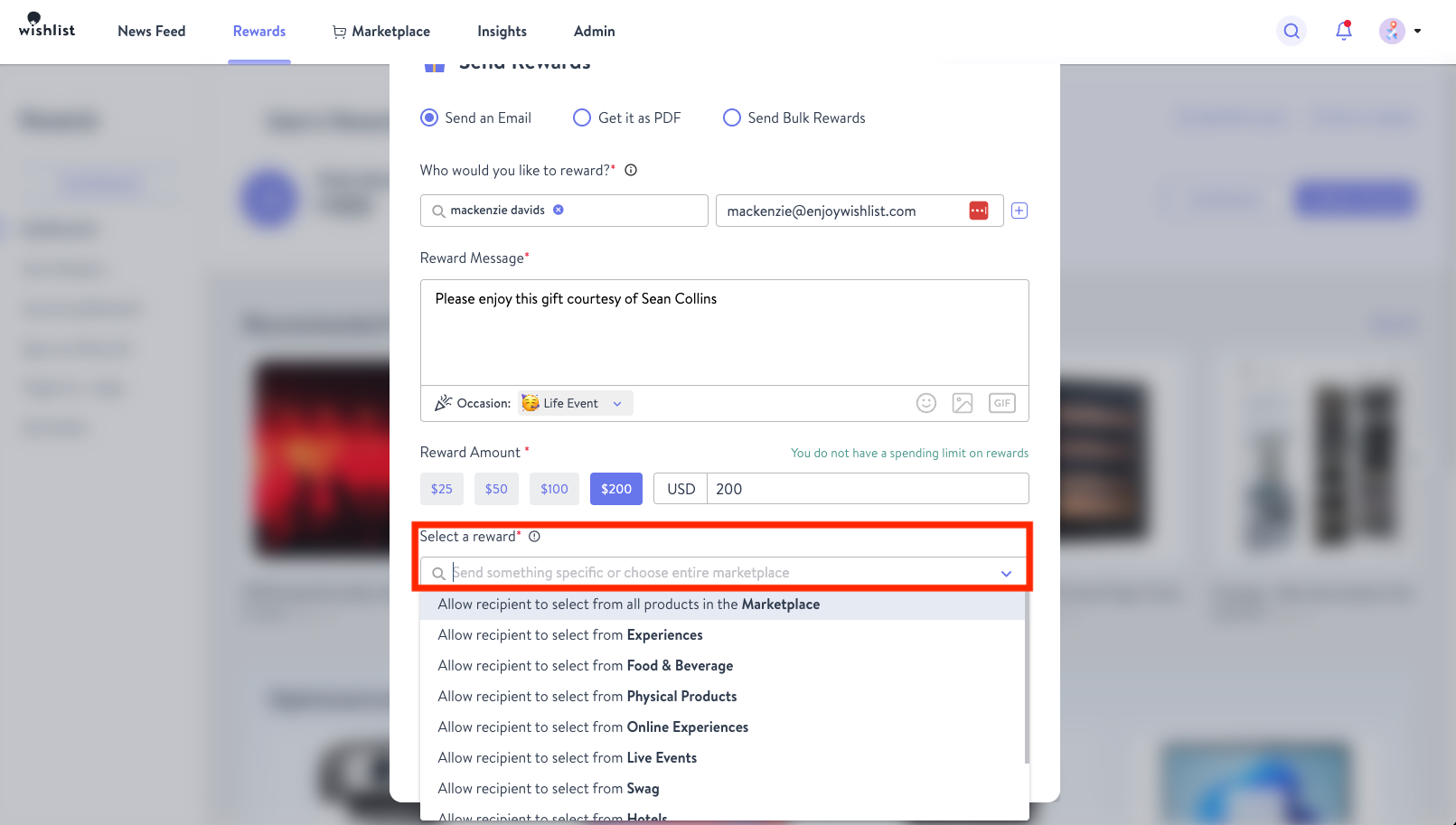
- Depending on how your account is configured, you can then select one of the preset reward amounts, enter a custom amount, or select a specific reward site.
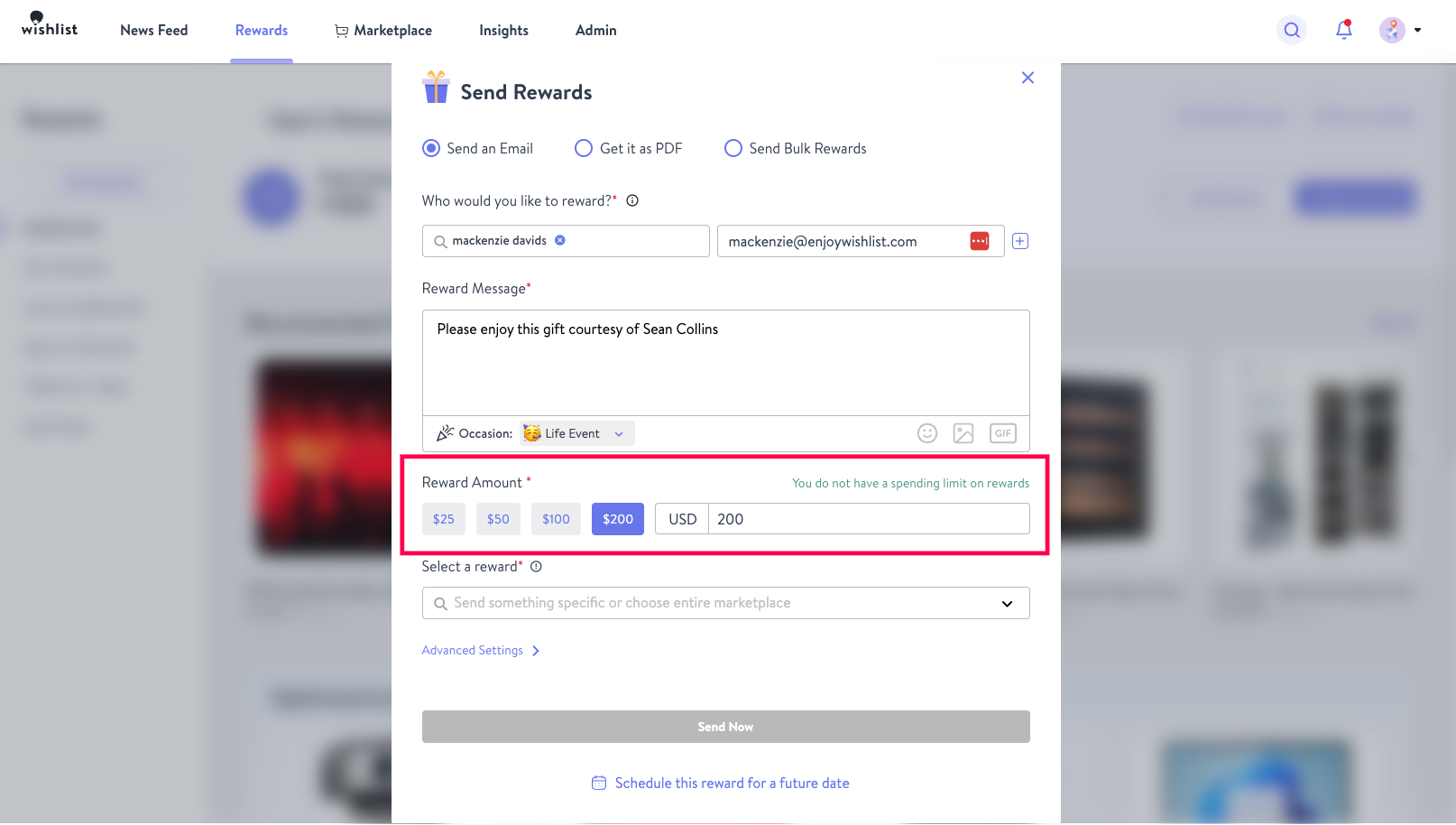
- You can be more specific in your rewards with the Select a Reward dropdown. You can choose between the following
- Giving access to the entire marketplace
- Sending a specific segment of your marketplace (for example: just Swag for an onboarding gift)
- Sending a specific reward or set of rewards using a Custom Collection (for example: a t-shirt, tumbler, or mug to choose from).
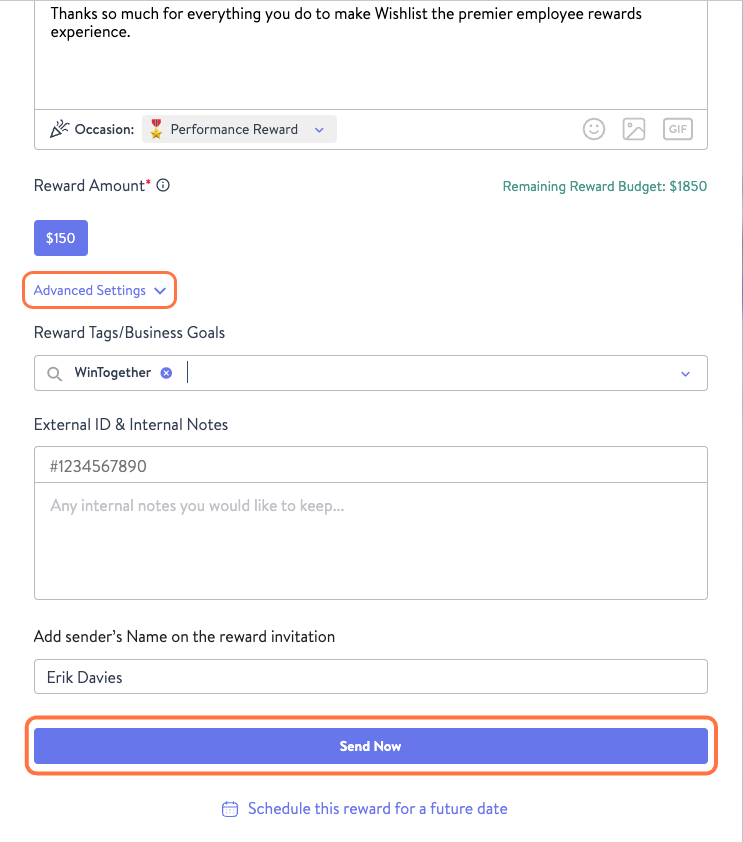
- Here, you can click Advanced Settings to add Reward Tags/Business Goals, insert an External ID & Internal Notes, or even Schedule this reward for a future date. These are all optional and you can send the reward when you're ready by clicking Send Reward! Please note that if you decide to schedule the reward for a later date, you will still need to click send reward to complete the process.
Was this article helpful?
That’s Great!
Thank you for your feedback
Sorry! We couldn't be helpful
Thank you for your feedback
Feedback sent
We appreciate your effort and will try to fix the article