One of the key functions of our recognition program is sending a Recognition to other users, pretty obvious. Follow the steps below to learn how:
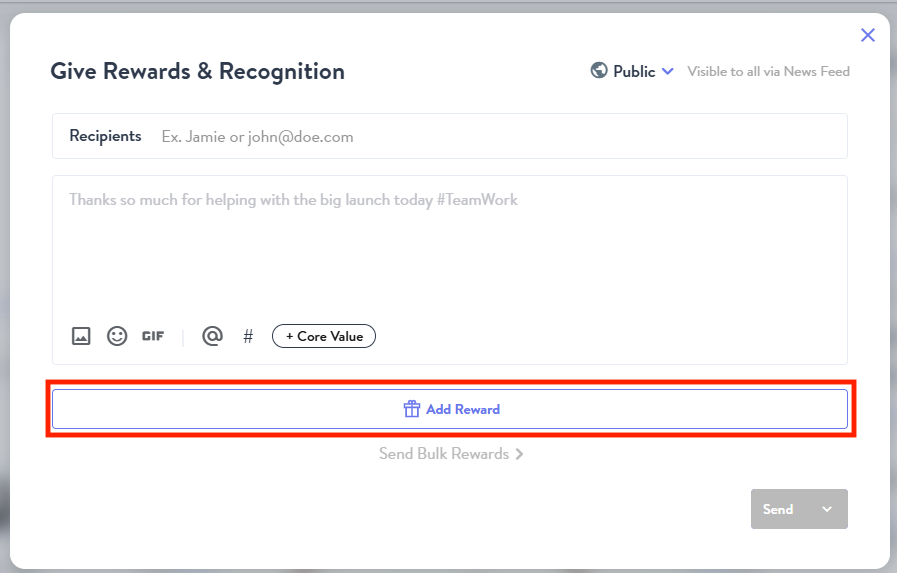
- From the News Feed, click Give Rewards and Recognition.
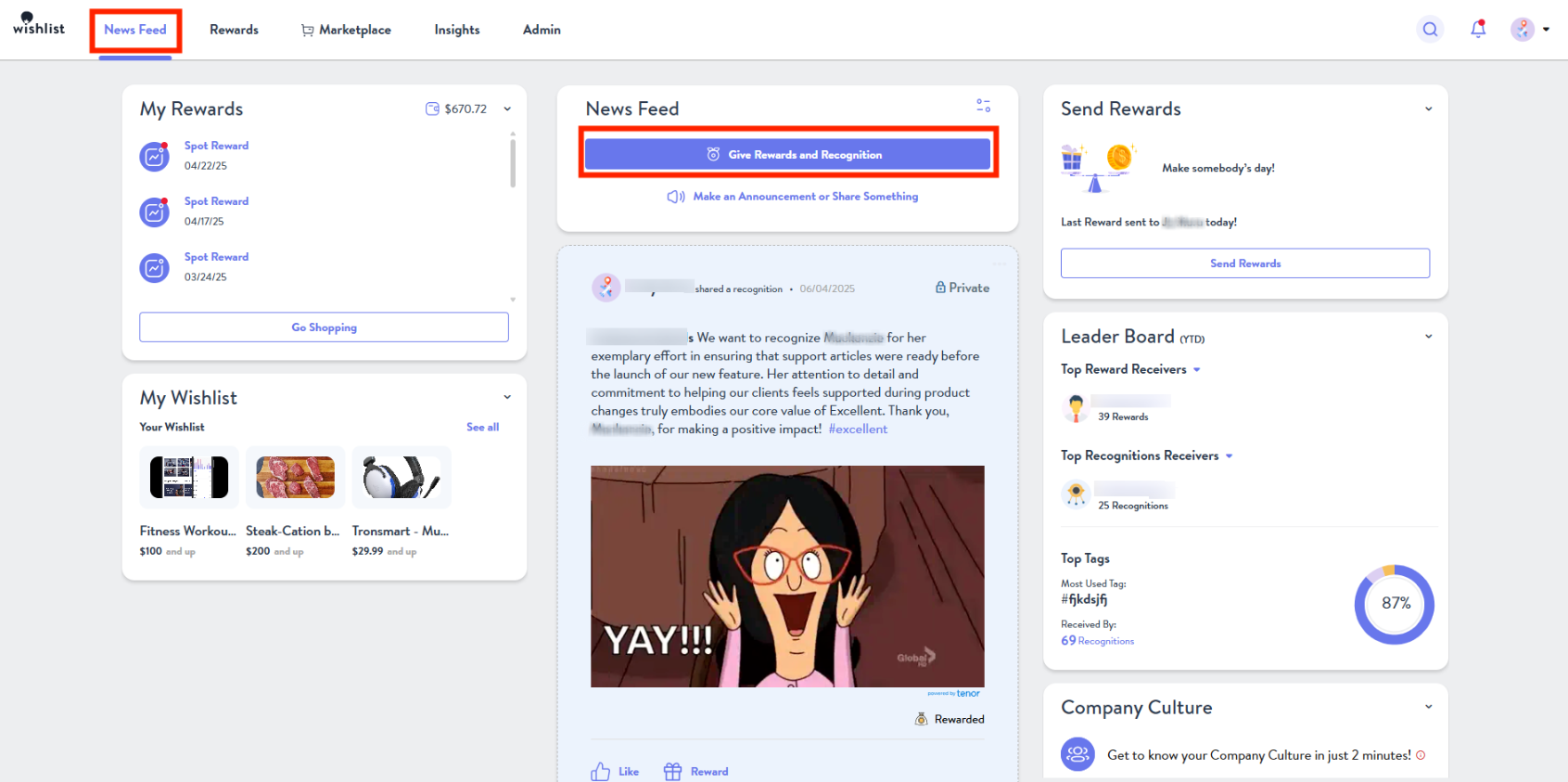
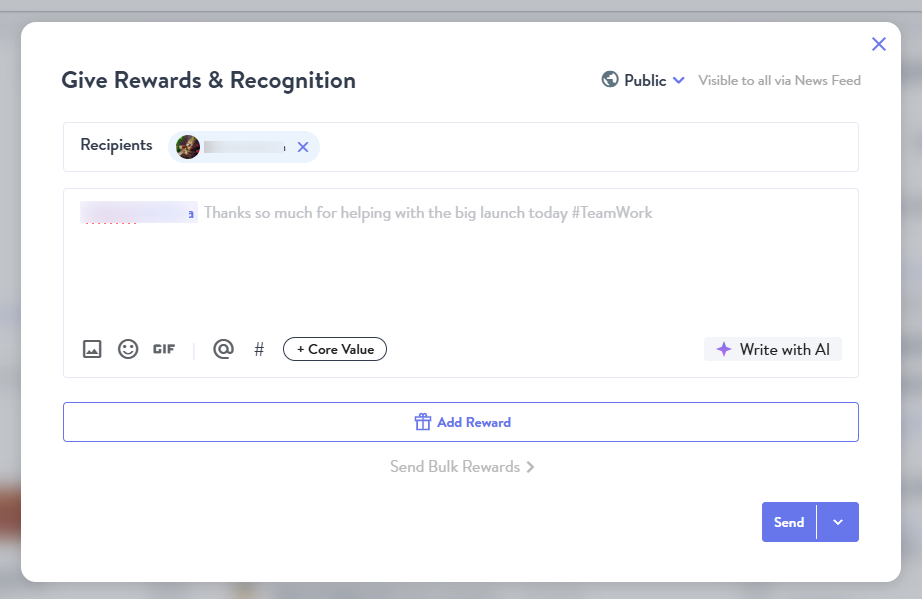
- Type in the name of the Individual(s) or Group you are recognizing, why they are being recognized, and the Core Value(s) they exemplified. You can also add your personal flair in the form of emojis and GIFs.
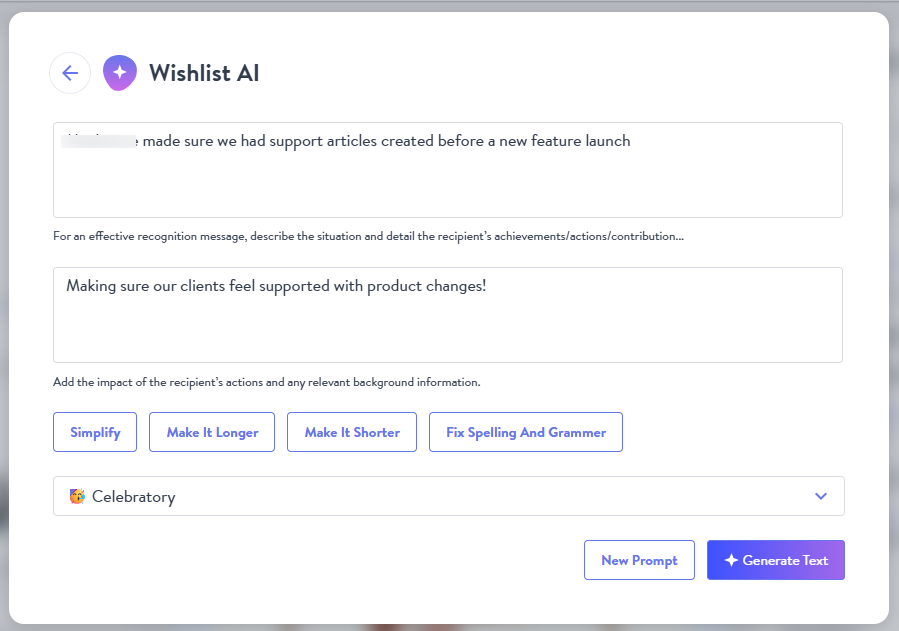
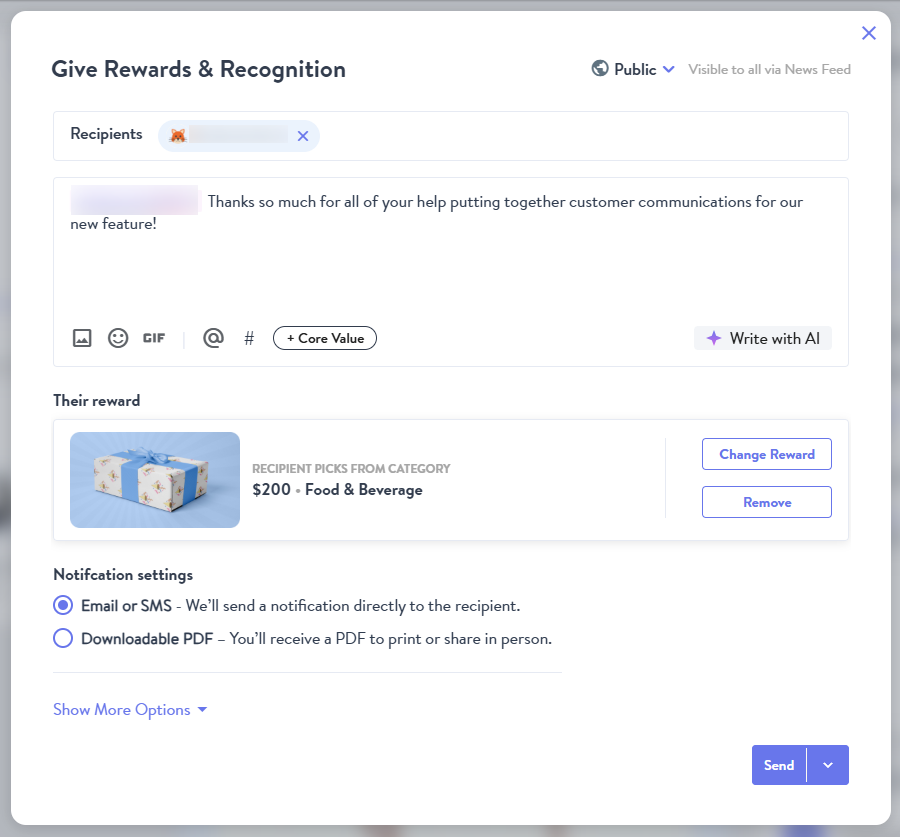
- Prefer AI assistance? Click Write with AI to auto-generate a message using your prompts.
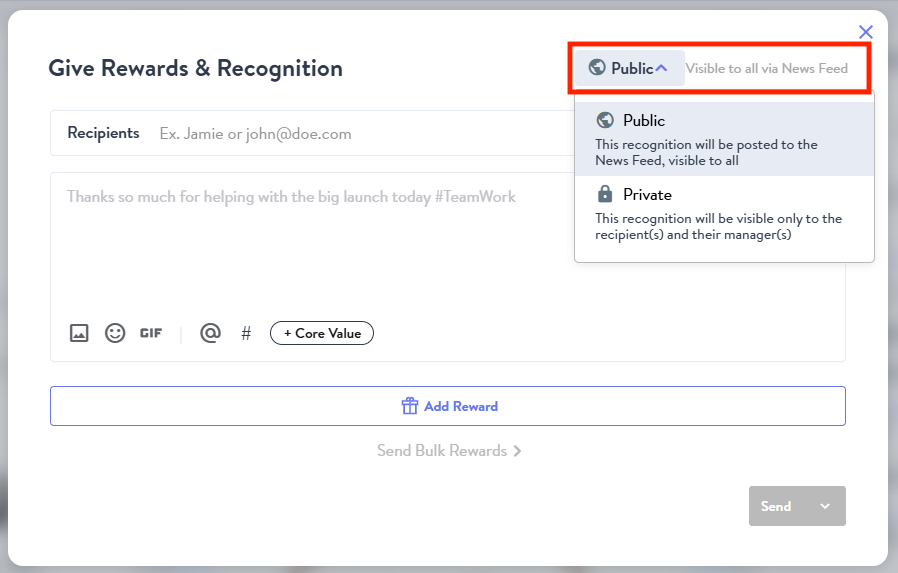
- You can then make this reward Public or Private. Selecting Public will make the reward visible on your company's newsfeed, while Private will ensure that only the reward recipient(s) will get notified.
- If you plan on including a reward for the recipient, you can do so now by selecting the desired Spot Reward Program or Reward Amount from the list of available options within your budget, depending on your account configuration. Otherwise, click the scissors to remove the Add Reward option.
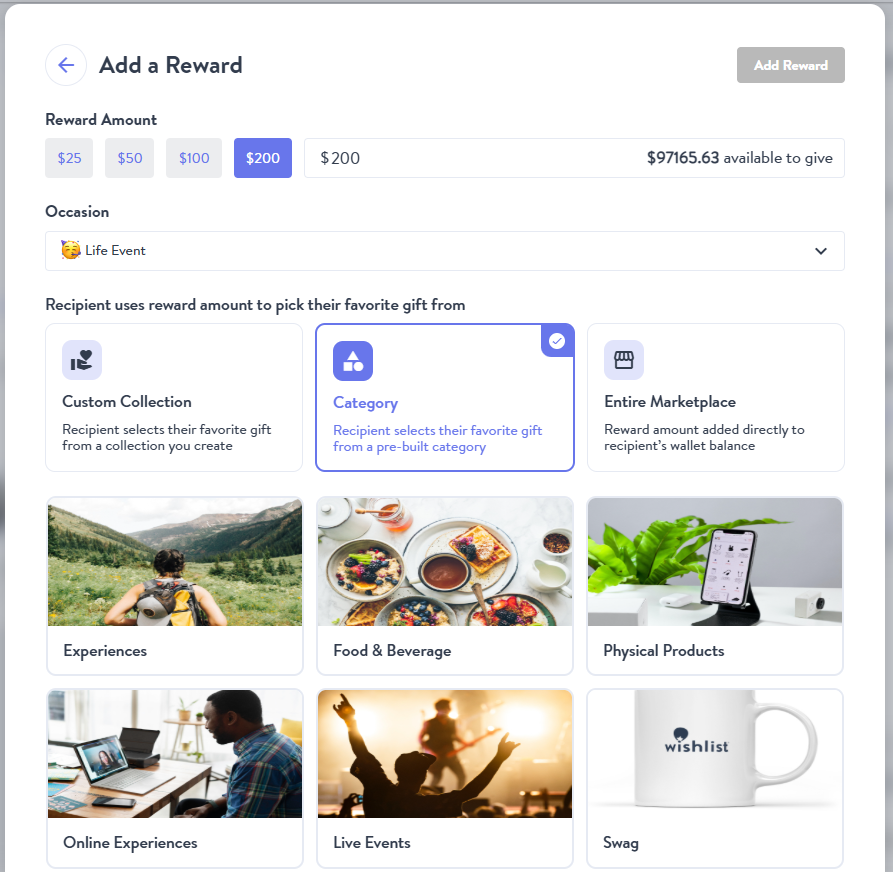
- After selecting the reward amount and Occasion, you can then decide what this reward has access to within the marketplace. The three options are listed below.
- Entire Marketplace - Reward amount is added to their wallet balance and can be used towards anything offered in the marketplace.
- Category - The reward can only be used towards a specified category within the marketplace
- Custom Collection - The Recipient selects a gift from a collection that you create. A custom collection needs to be created first.
- The final step will show the recognition message, their reward (if any), and notification settings. Sending it via email or SMS will automatically add the funds to the user's account and notification will be sent. Downloadable PDF will send you a PDF that you can print off and share with the user in person.
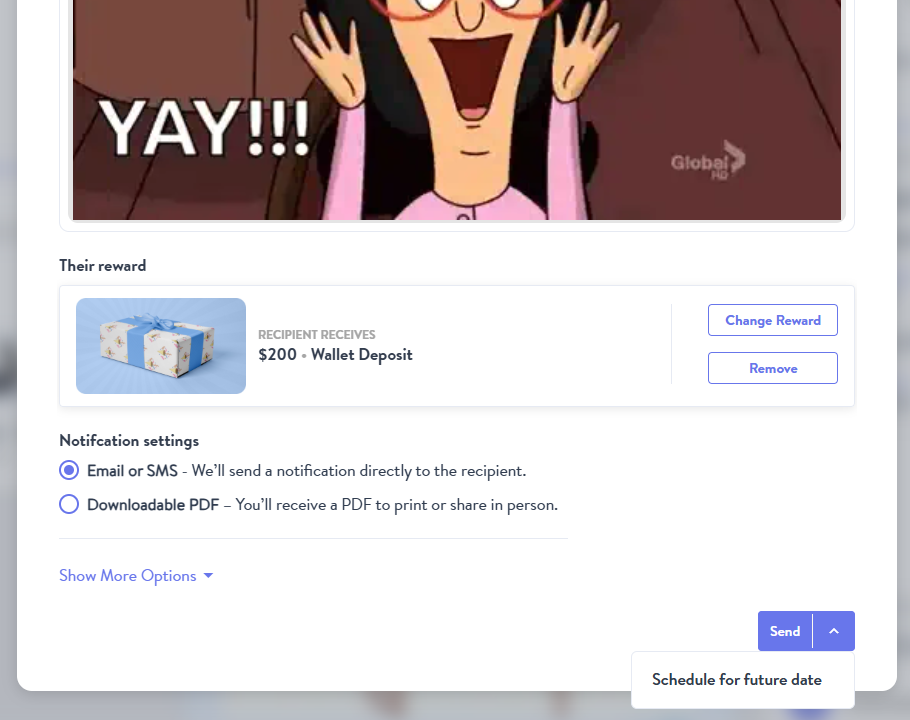
- To send the reward, click the Send button in the bottom right-hand corner of the screen. If you wish to schedule the reward, clicking the dropdown arrow will provide you with this option.
Was this article helpful?
That’s Great!
Thank you for your feedback
Sorry! We couldn't be helpful
Thank you for your feedback
Feedback sent
We appreciate your effort and will try to fix the article