This article provides a guide for users who want to review transactions on their Tuition Account. Through the Tuition Program dashboard, users can track all transactional activity related to their benefit, including any reimbursements or enrolments that have been processed under the tuition program.
Step 1: Open the website app.thrivepass.com and login to your account.
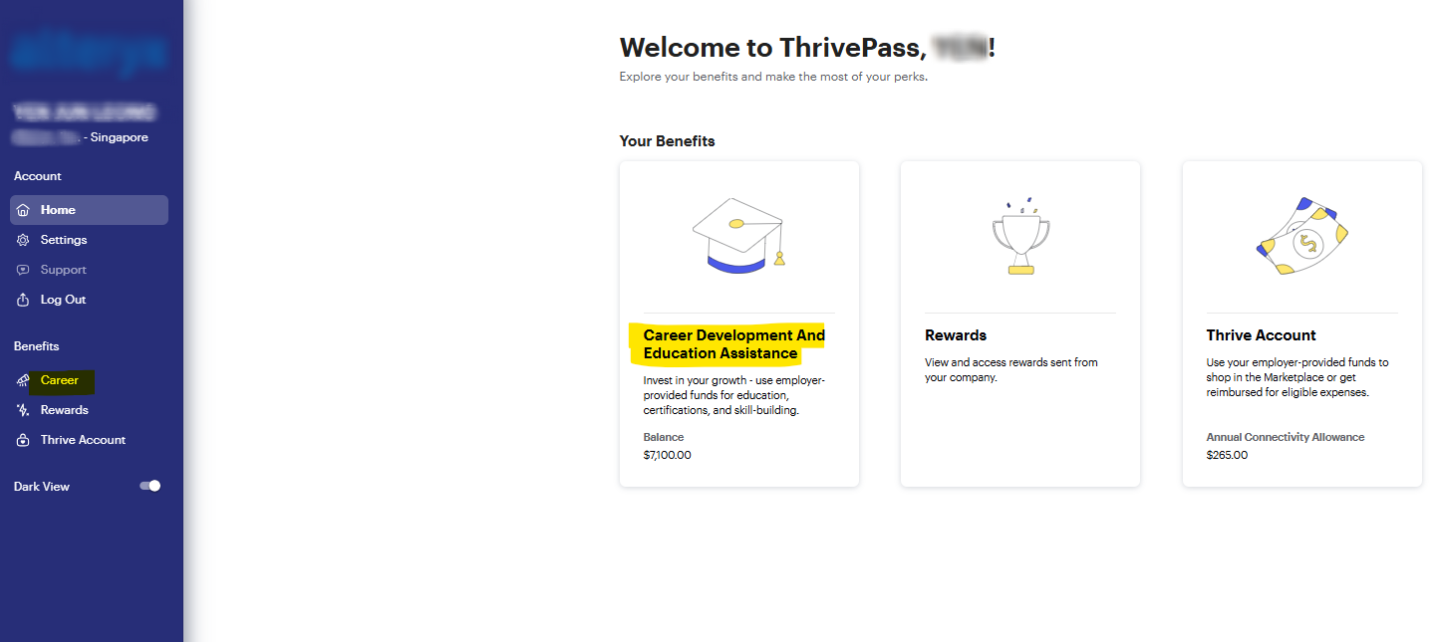
Step 2: Once logged in, you'll see your Benefits Suite ThrivePass dashboard on your screen. From there, select the
“Career Development and Education Assistance” tab (the name may vary depending on your program).
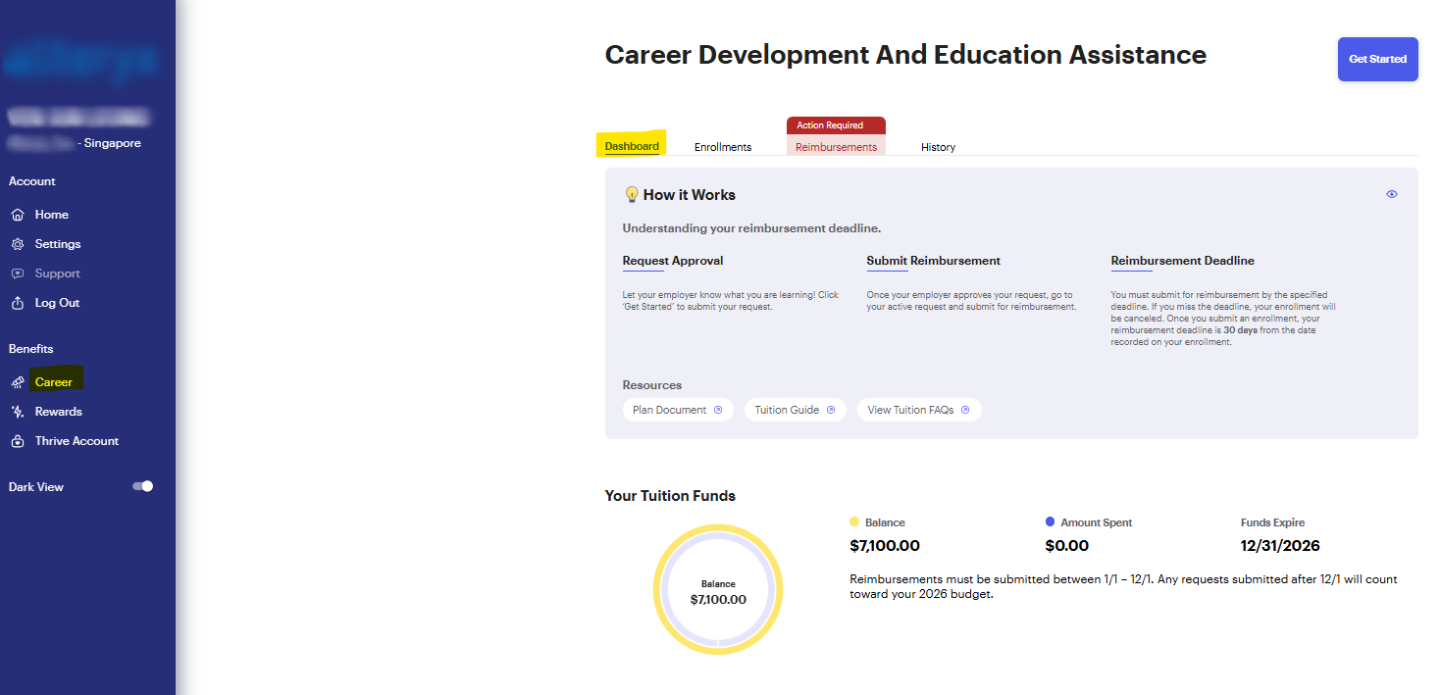
Step 3: You will be directed to your Tuition Program dashboard, where you can view an overview of your tuition benefits and account details.
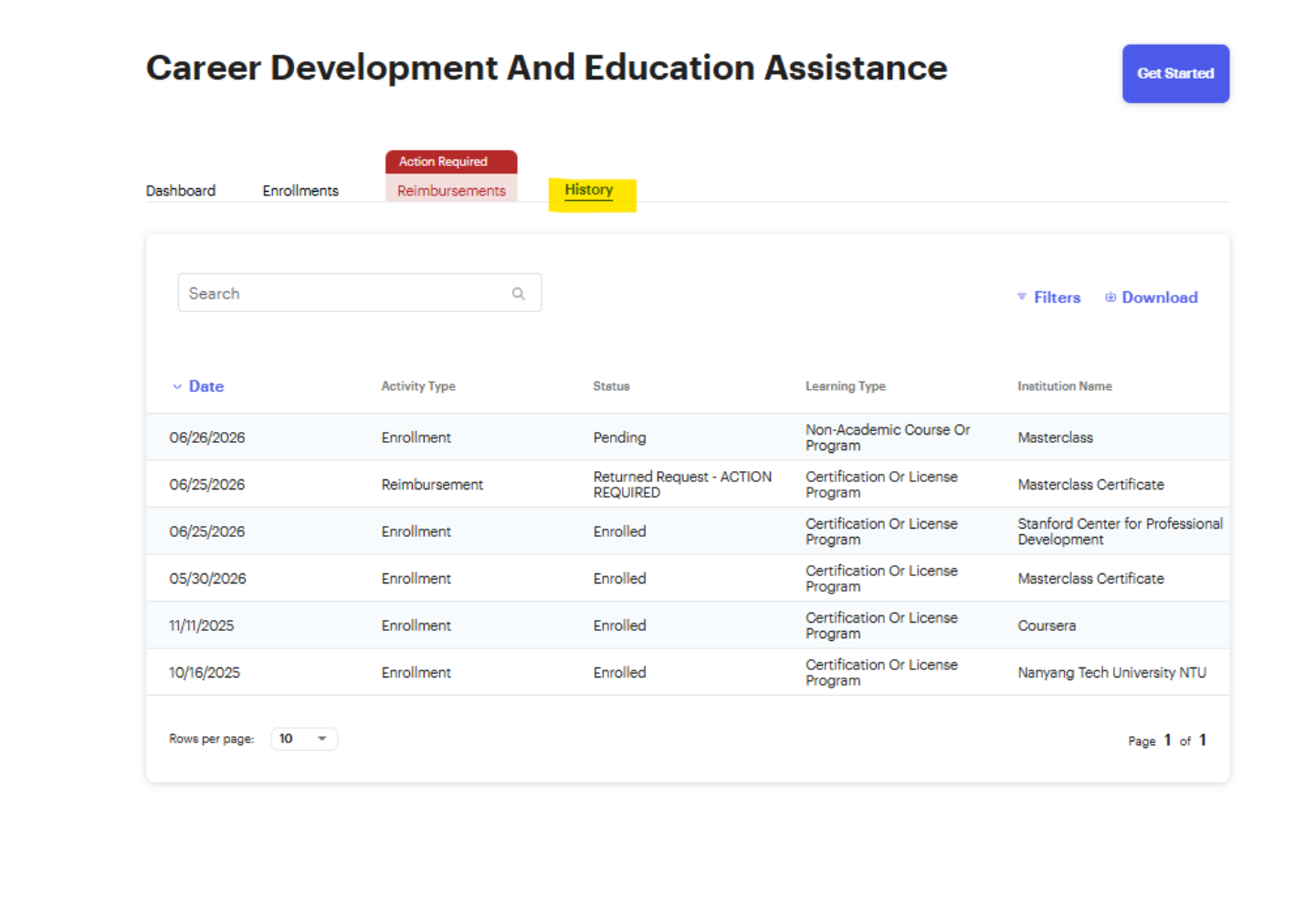
Step 4: Click on the “History” tab to access your tuition transaction records. Here, you can view the following details:
- Date
- Activity Type
- Status
- Learning Type
- Institution Name
Step 5: Moreover, you have the option to utilize the "Filter" function to narrow down your transactions based on criteria such as:
- Date Range
- Activity Type
- Status
- Learning Type
This helps you quickly find specific transactions. 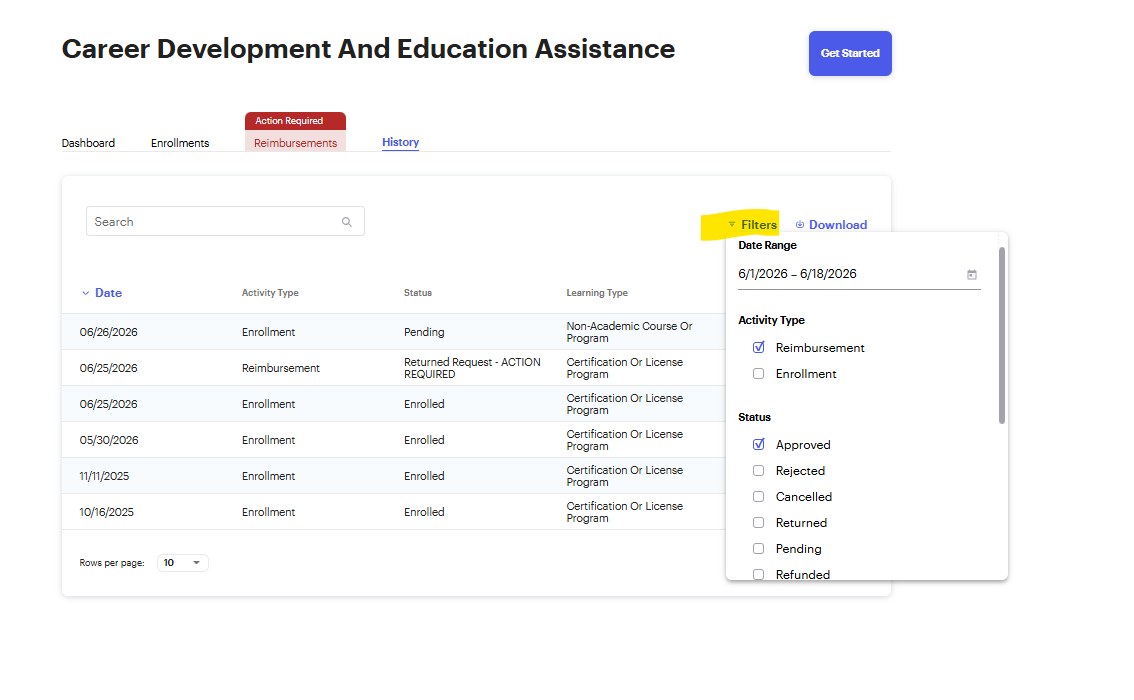
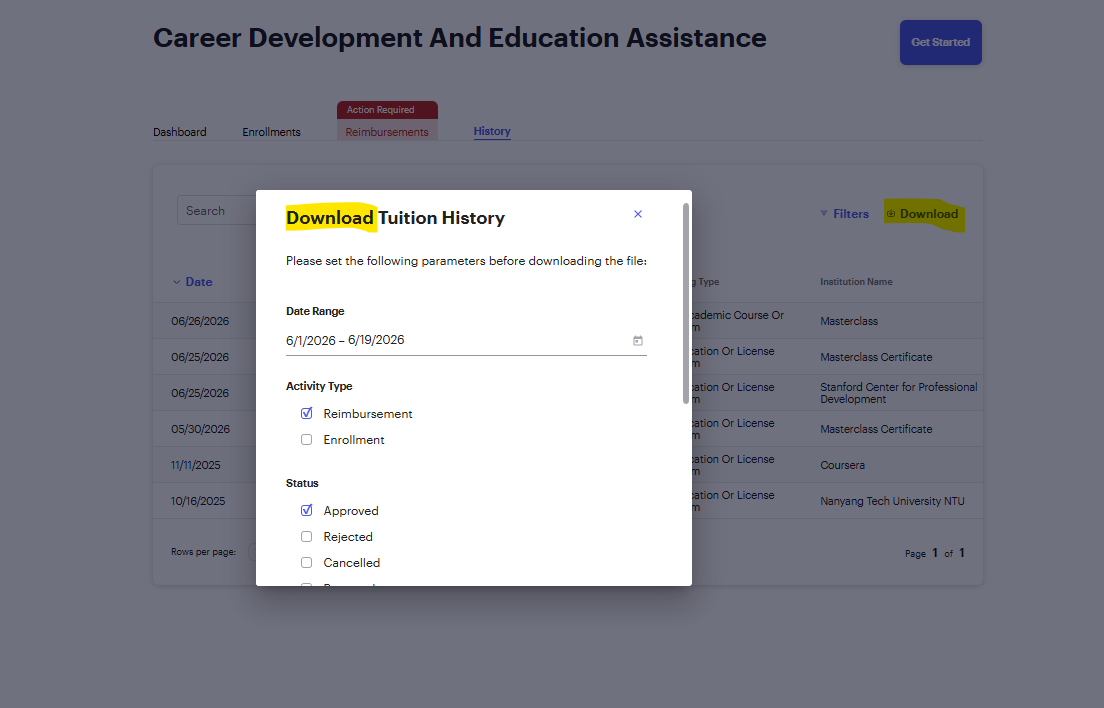
Step 6: You can also download your Tuition Transaction History by clicking the “Download” button in the top-right corner to save a copy for your records.
You may customize the report by applying filters such as Date Range, Activity Type, Status, and Learning Type before downloading.
Was this article helpful?
That’s Great!
Thank you for your feedback
Sorry! We couldn't be helpful
Thank you for your feedback
Feedback sent
We appreciate your effort and will try to fix the article