In addition to receiving emails from Wishlist regarding Reward Approvals, below are the steps necessary for Approvers and Admins to approve rewards on your Wishlist account.
User Approvals
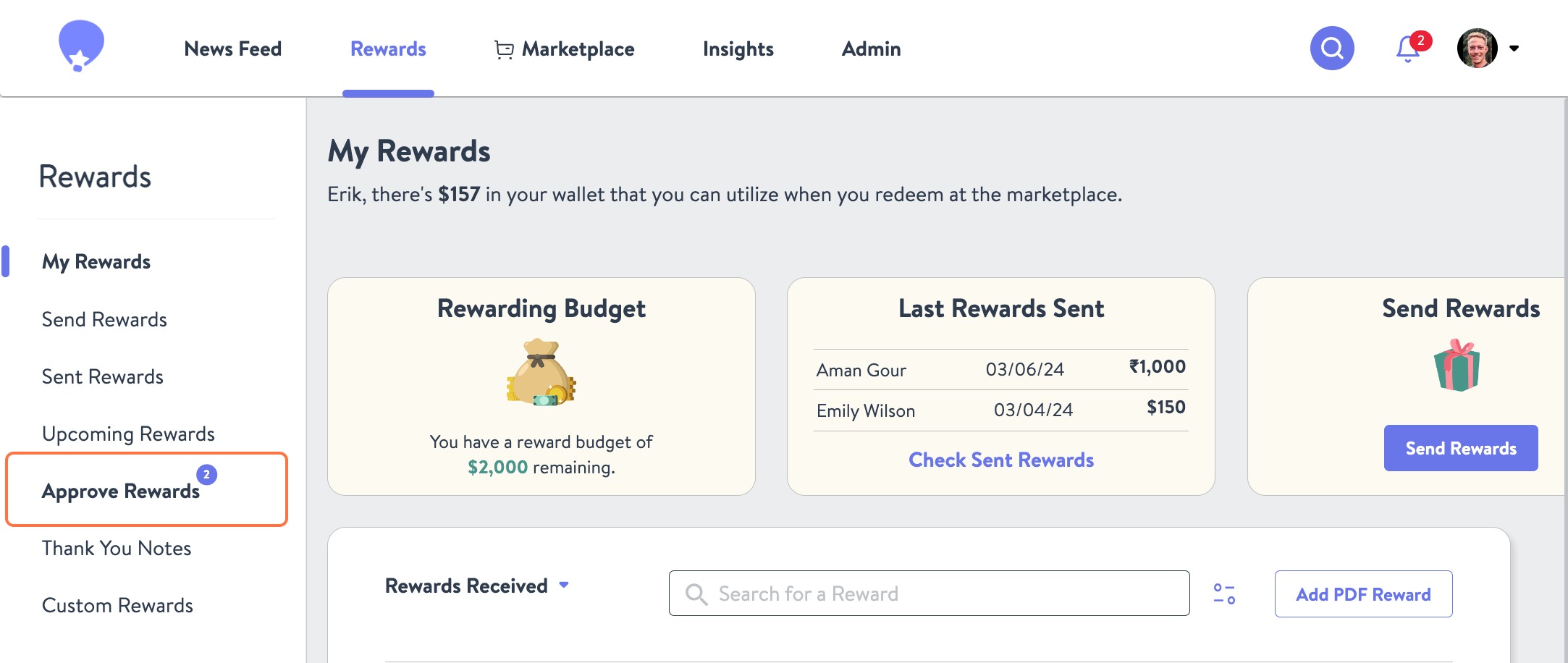
- Under the Rewards tab visit the Approve Rewards section.
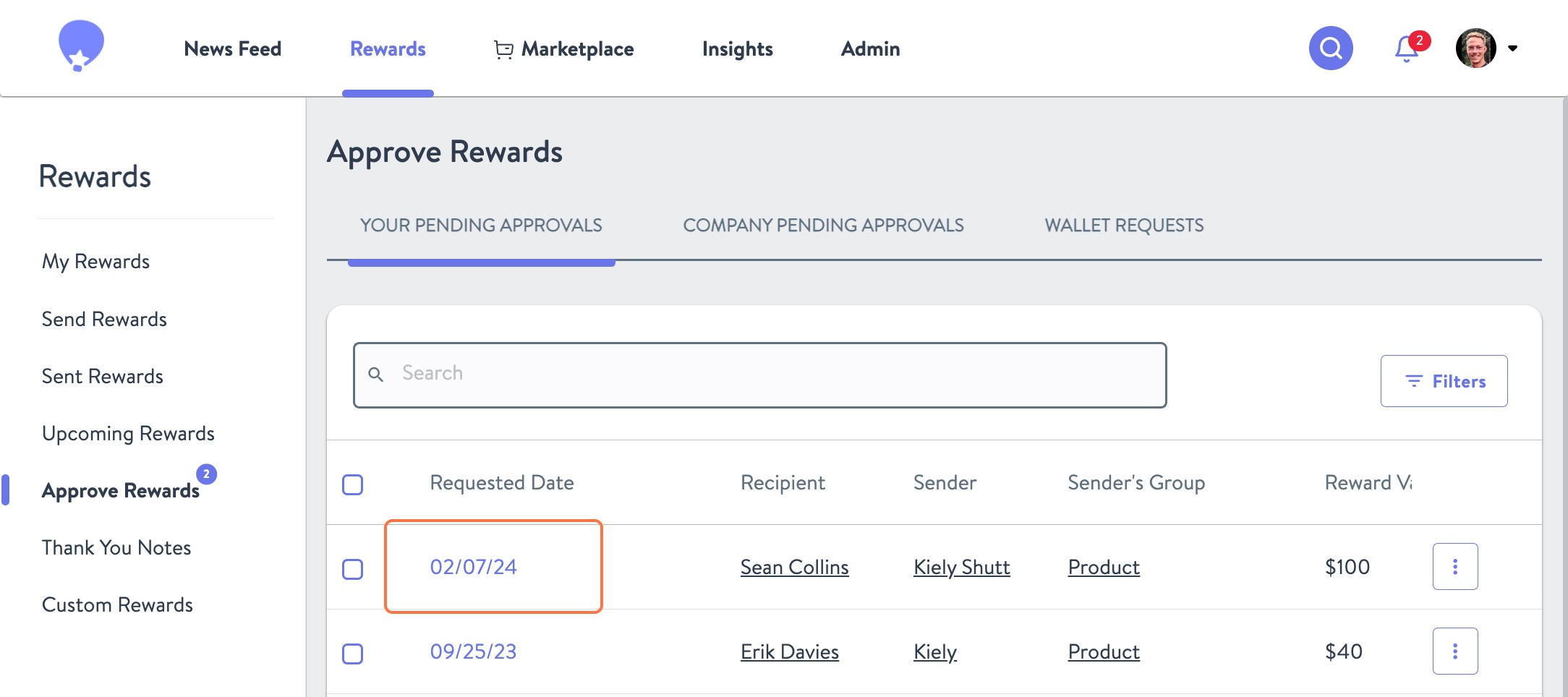
- If the user is a Group Leader or has Approval Access, they will only be able to see the information of pending rewards in the queue that require their approval.
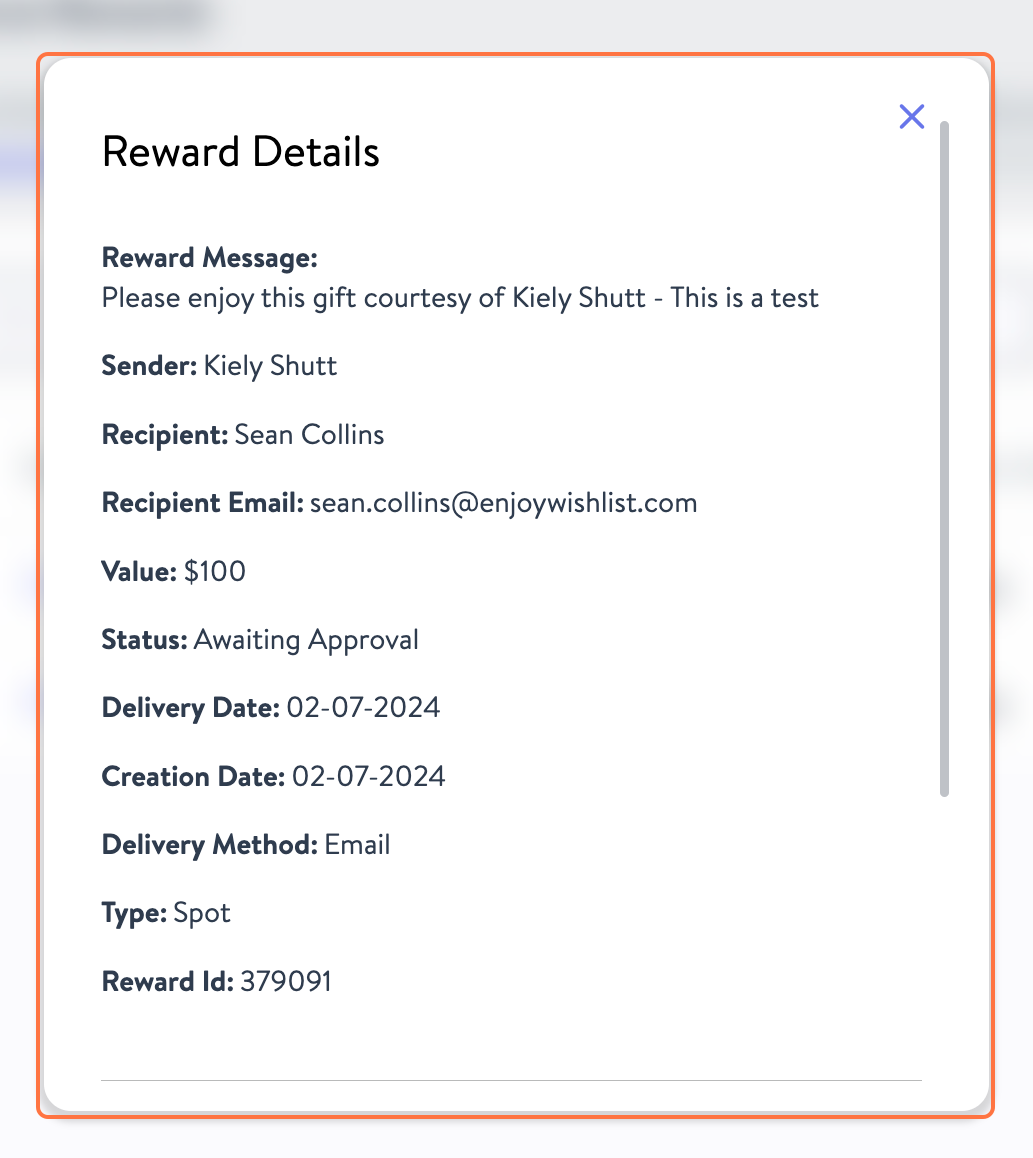
- To see further information (i.e. messaging), click the purple Requested Date link and a Reward Details card will pop up.
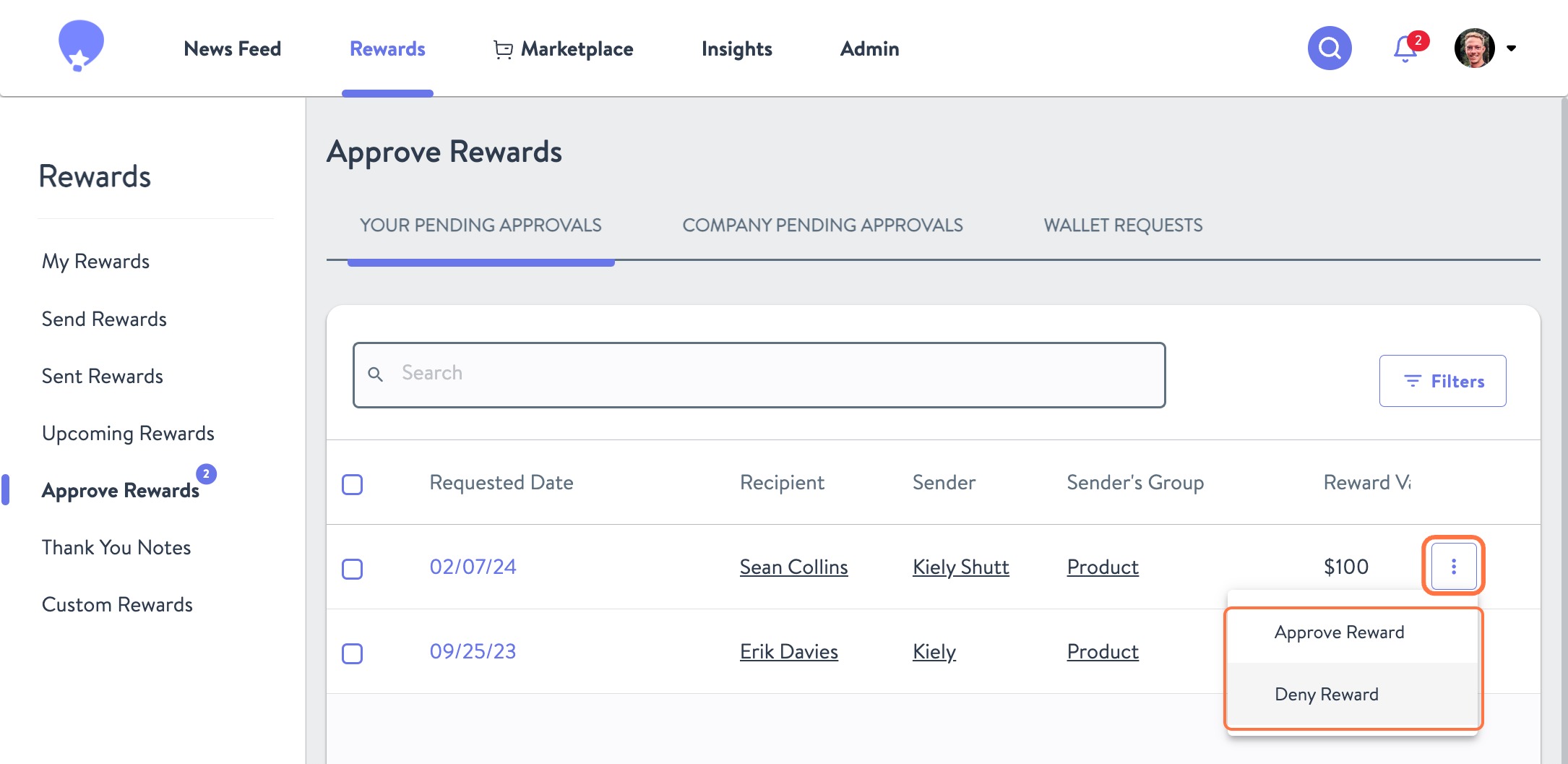
- Use the Kebab Menu on the right side of any reward approval line item in the table to Approve or Deny the reward. Approving the reward will send it immediately, while denying requires an additional step.
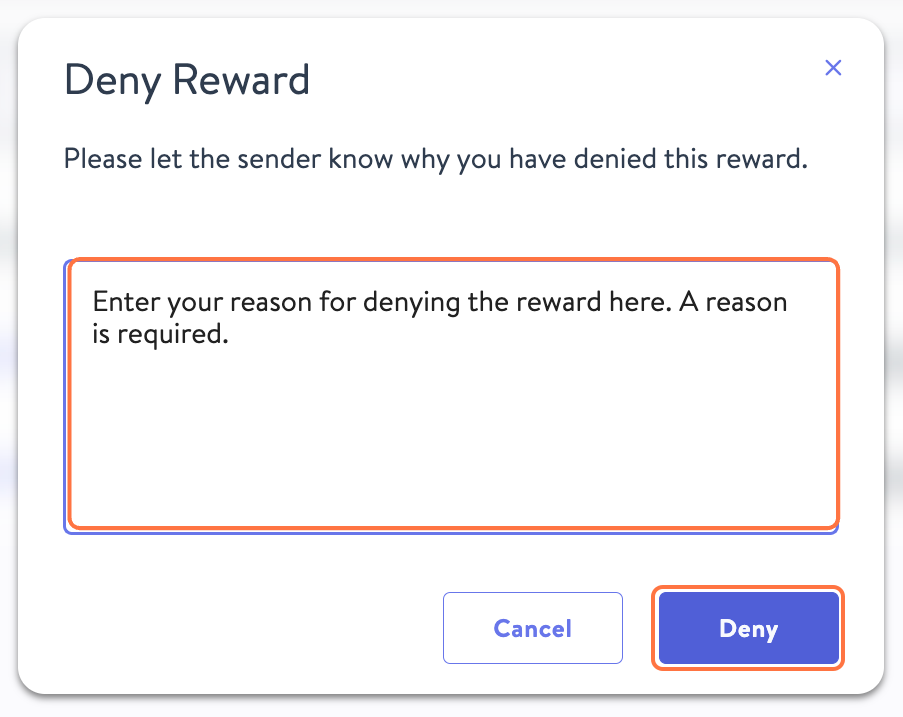
- If you intend to Deny the reward, you will need to enter a reason for the denial
In the case that an approver is out of the office or unable to approve rewards, admins can approve or deny rewards for the company. They will go through the same process described above to do so. If needed, filters can also be used to see the requested date range and delivery date range. You can also Send Approval Reminder to the Approver, who will get an email reminding them of approvals stuck in the queue.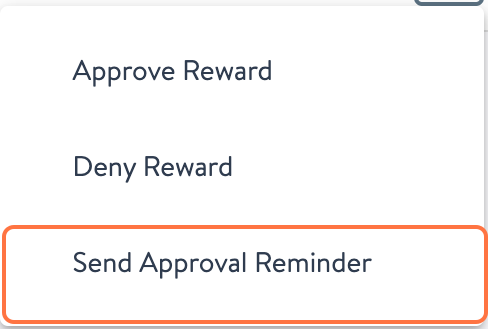
Was this article helpful?
That’s Great!
Thank you for your feedback
Sorry! We couldn't be helpful
Thank you for your feedback
Feedback sent
We appreciate your effort and will try to fix the article