We categorize employees into four different roles, each with different levels of access and permissions. Depending on the use cases, they can be assigned these roles:
- Program Admin – Highest level of access. They can setup, edit, pause/activate reward programs, upload/make changes to the roster, approve rewards, view billing information along with program analytics.
- Reward Sender – Can send and manage rewards.
- Accountant – Can view reports and analytics
- Employee – Base level of access. Can only receive rewards.
*Note that a user can have more than one role assigned to them. Here is a further breakdown of the permissions these roles have.
Employee
This is a mandatory role/permission a user can have, without which they will be unable to login to the account. An individual designated as an employee can:
- Receive rewards
- Access the Marketplace and redeem rewards
- View past and active orders/redeemed rewards
- View the company Newsfeed
- Send and receive Recognitions*
- Comment on and react to recognitions*
- Approve rewards (if that employee is a designated approver for any other employees)
- Take eNPS surveys to provide company feedback
*If your company's account includes the Recognition program
Accountant
An Accountant can perform all of the actions of an Employee and can also:
- Access and download the Accounting report and Usage Reports in the Admin tab
- View all Sent and Upcoming Rewards for the company
- Customize messaging for and delete Upcoming Rewards
- View Thank You Notes
Reward Sender
A Reward Sender can perform all the actions an Employee user can, and they can:
- Send Rewards
- View their own Sent Rewards
- Customize messaging for and delete Upcoming Rewards for themself and the users they manage
- View Thank You Notes that have been sent to them directly
One important distinguisher between an Accountant and a Reward Sender is that an Accountant does not have permission to send Rewards, while a Reward Sender does not have access to the Admin tab or any company reporting.
Program Admin
This is the highest level of user permission settings in the Wishlist Platform. A program admin can do anything within the user interface. Some specific abilities that other users cannot perform are:
- Assign and edit budgets
- Assign and edit groups and group leaders
- View company insights
- View and edit the company roster
- Edit settings for other users including permissions and email address
- Set reminders for rewards
- Edit settings for the program including associated company values, integrations, approvals, and surveys
- View eNPS results
*If your company's account includes the Recognition program
How to assign/change roles?
For Manual Roster Sync
1. Login to your Wishlist account and hop over to the admin portal.
2. Click on the Roster option from the left panel.
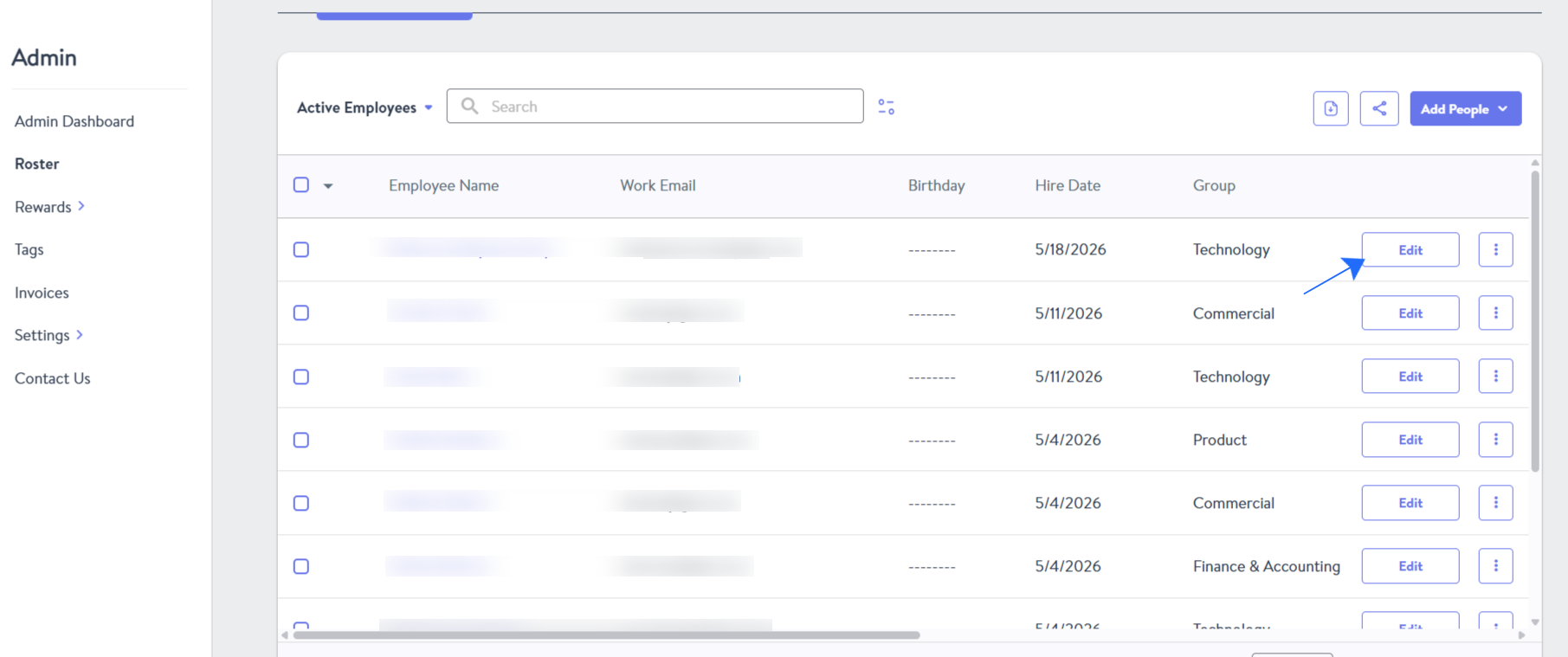
3. Make sure that you are viewing the active employees tab and click on the Edit button for the respective user you want to make changes to. Refer to the Picture below.
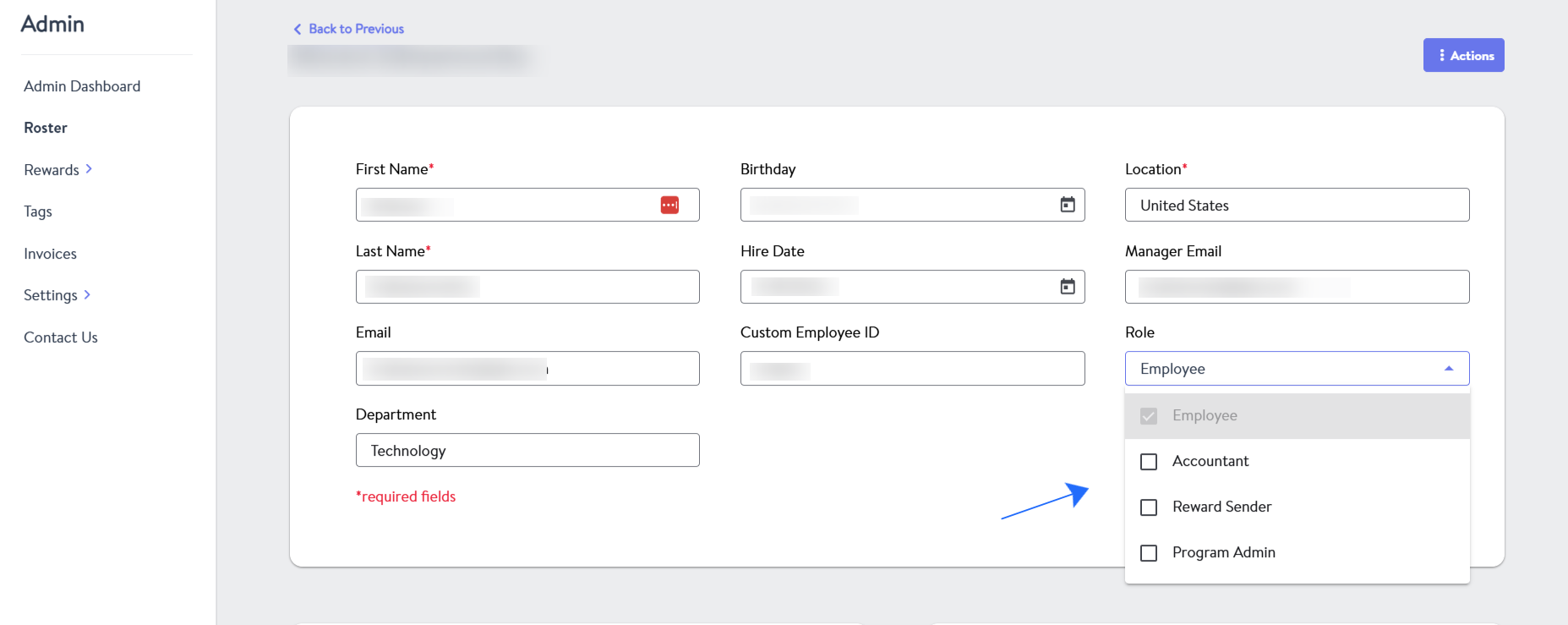
 4. Once the employee page opens up. You can assign the roles of your choice, just a heads up that Employee role remains constant, you'll not be able to unselect it. An employee can hold multiple roles at the same time.
For File Feed Roster
1. Login to your Wishlist account and hop over to the admin portal.
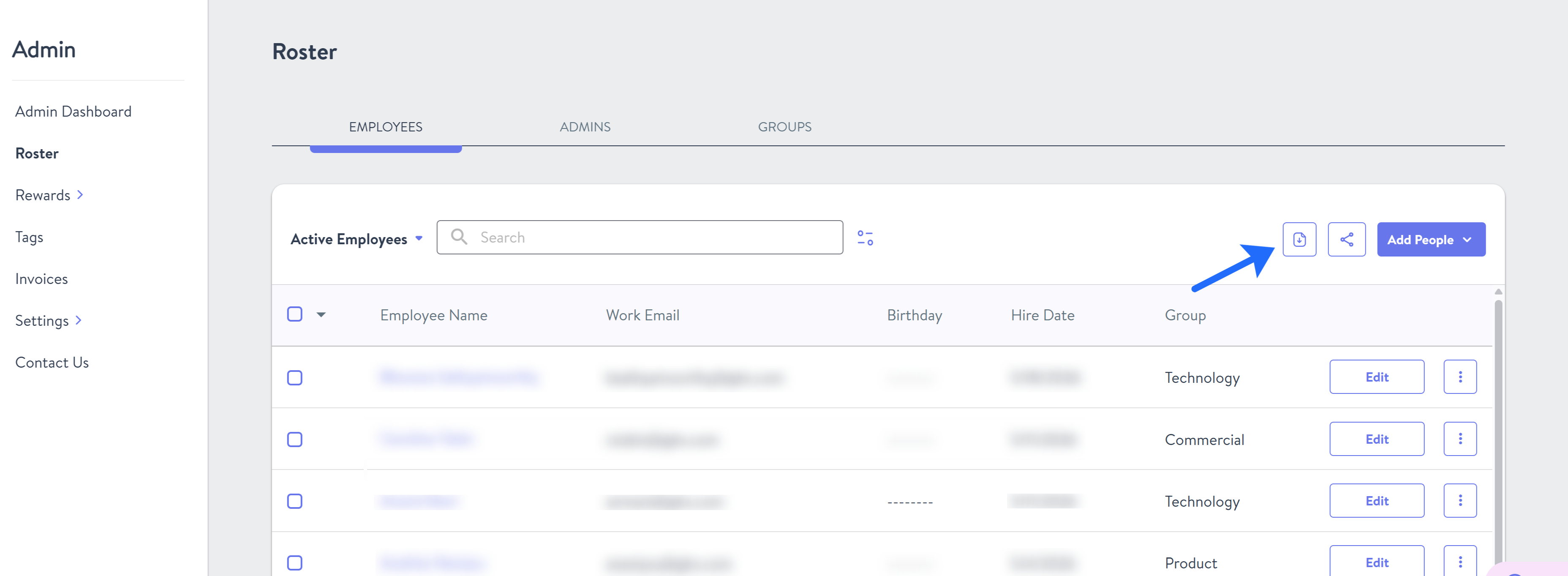
2. Click on the Roster option from the left panel. And click on the icon as shown below, this would download the roster for you.
3. Make the necessary changes to the Excel file, without changing the layout or the prefilled columns. Once done save the file.
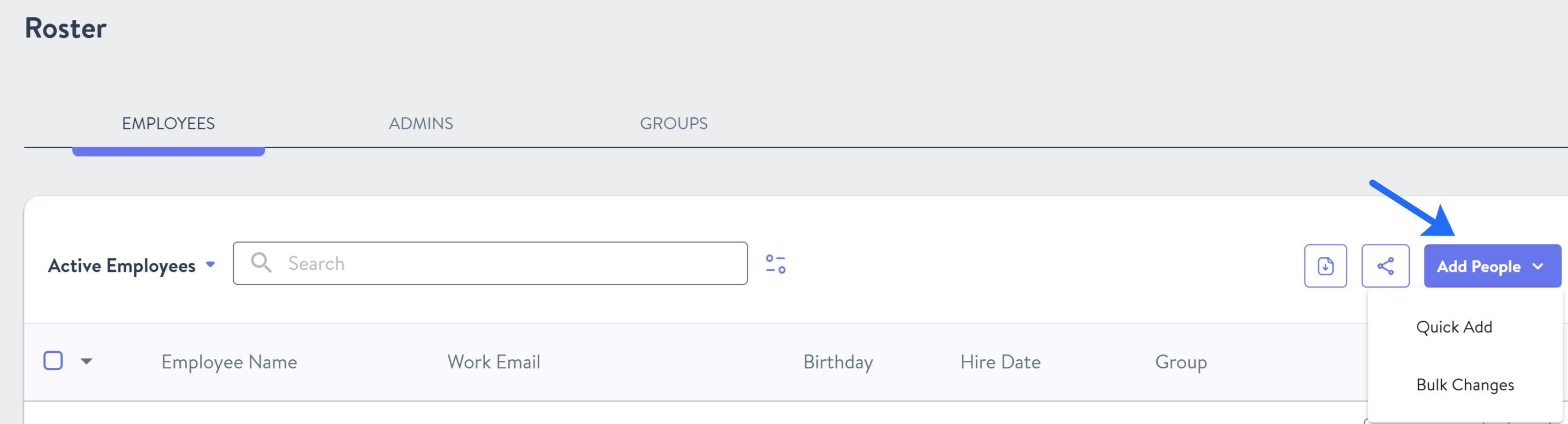
4. Click on the "Add People" button and select Bulk changes. All you need to do now is upload the file you just saved in the previous step and hit Review, if everything looks good save and upload.
Need help?
If you run into any issues or need any further help, please feel free to contact us.