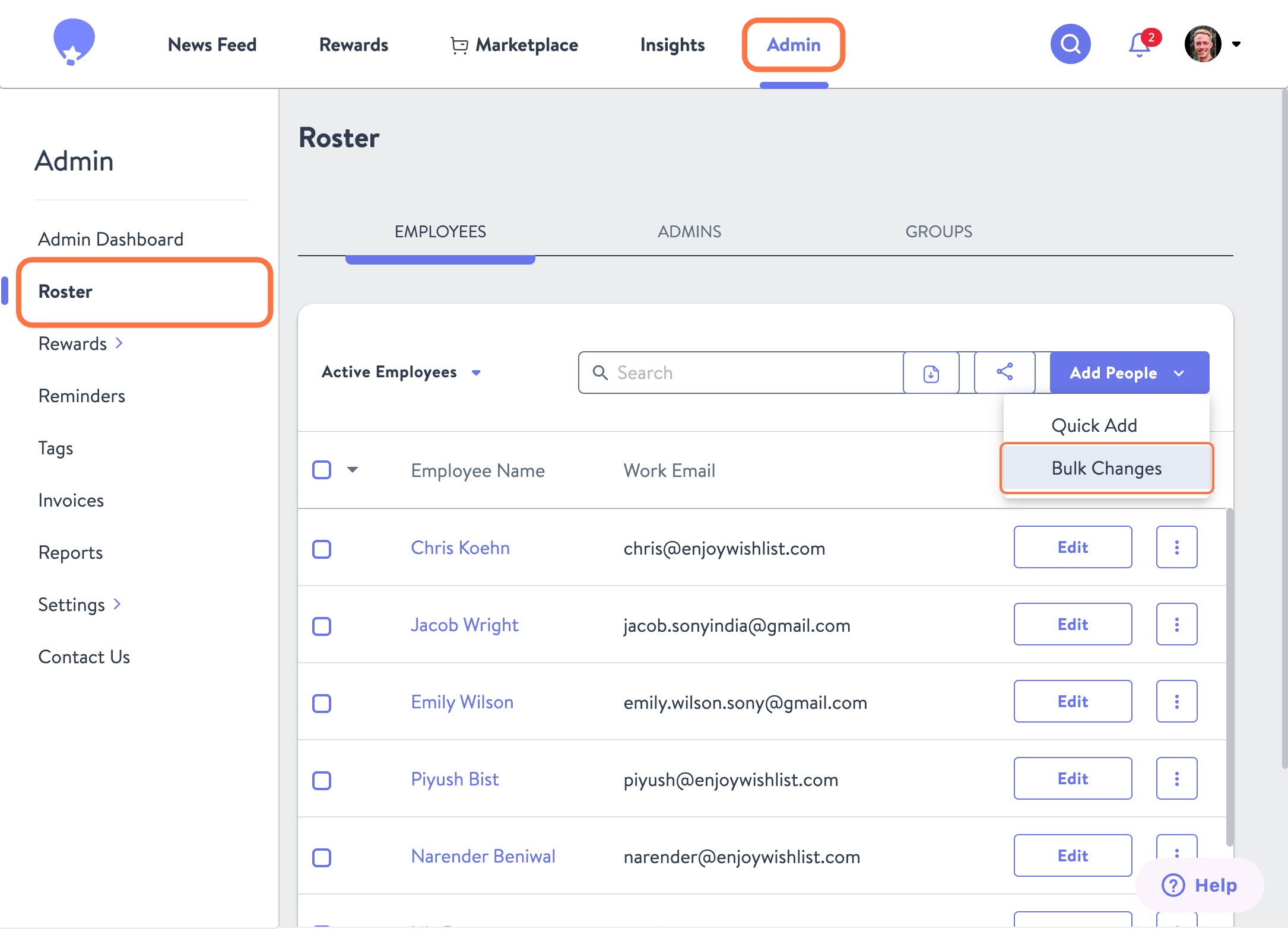
- From the Admin tab, click Roster on the left sidebar. From there, Add People and Bulk Changes from the dropdown menu.
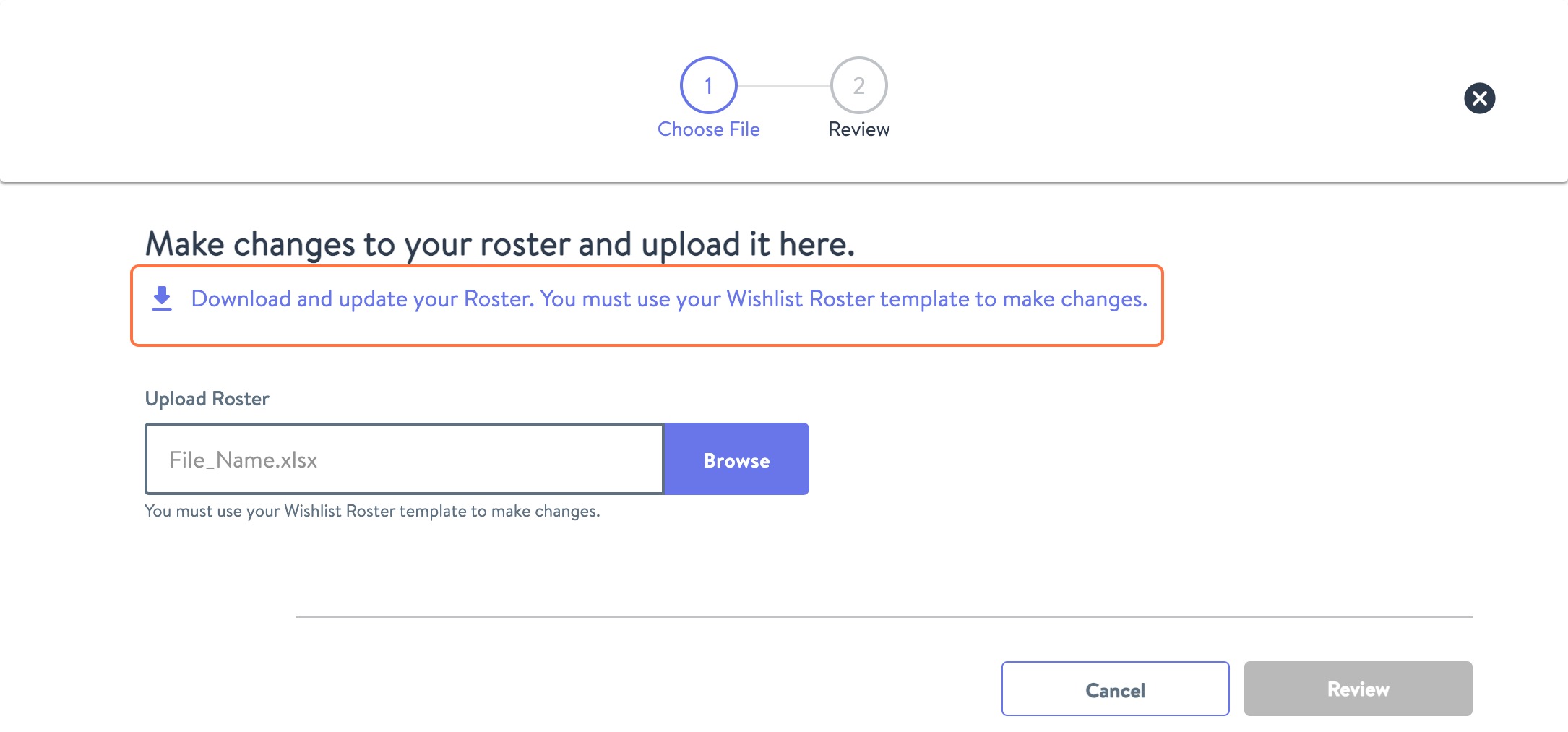
- Click Download and update your Roster. You must use your Wishlist Roster template to make changes. An xlsx file of your roster will download to your computer. Open this file, make the desired edits to your roster, and save it. Ensure you keep the same name as the downloaded version. Please note that any changes to the column header names or formatting will result in an error.
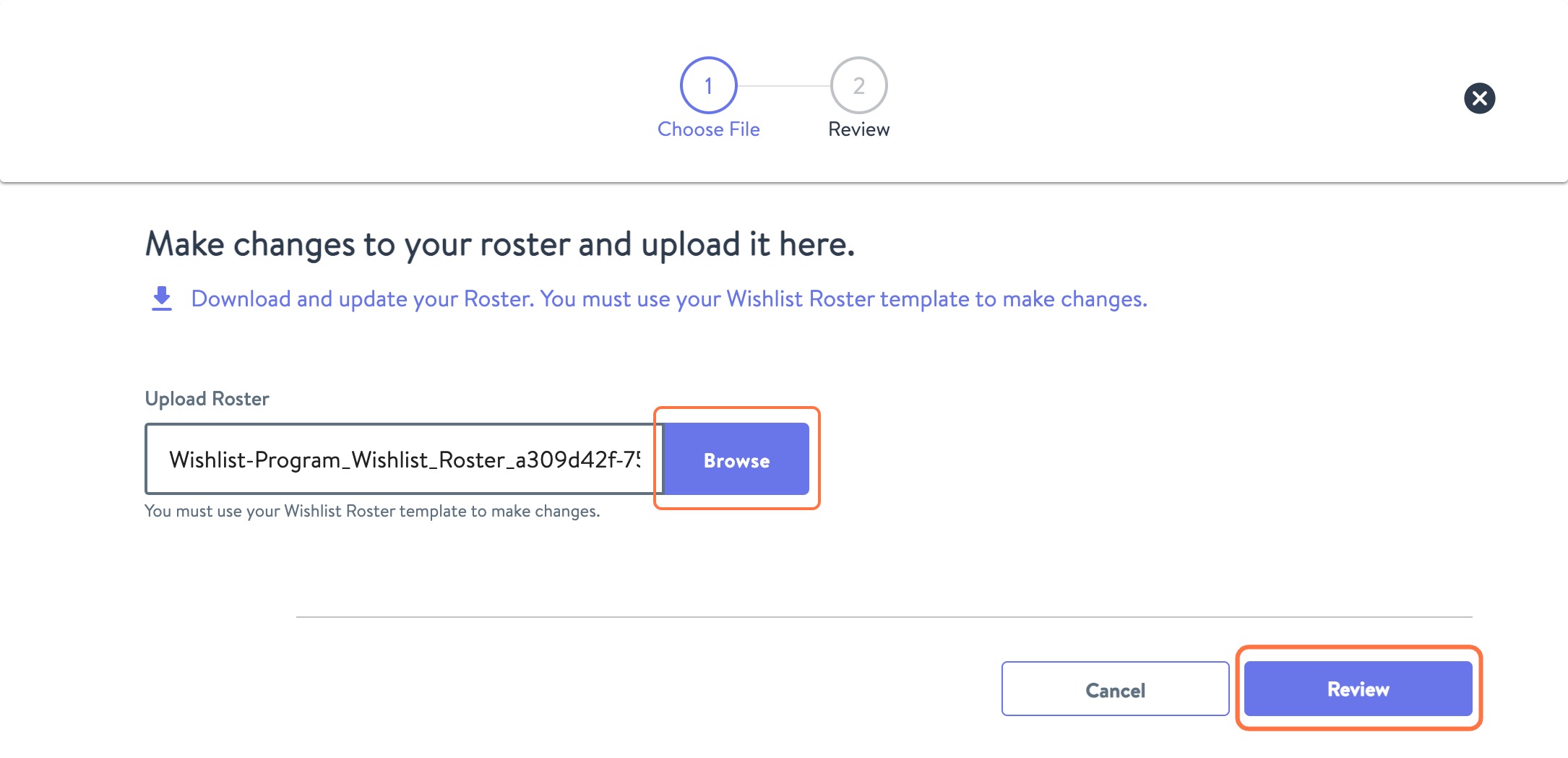
4. Drag or click Browse to upload your saved xlsx to this box to upload. Once uploaded, click the Review button in the bottom right corner.
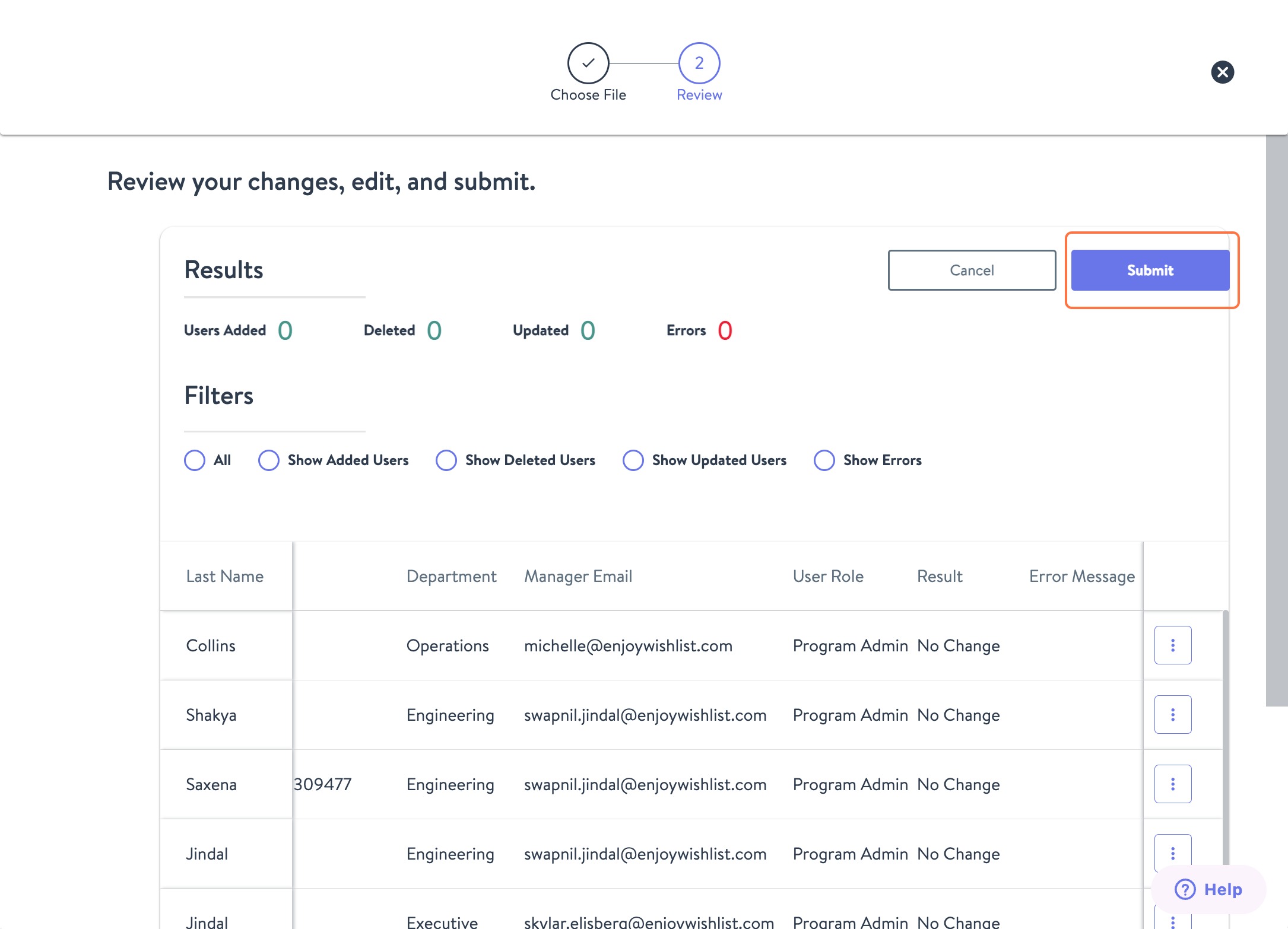
5. Review the changes and correct any errors identified if needed. If everything looks correct, click the Submit button in the bottom right corner.
Was this article helpful?
That’s Great!
Thank you for your feedback
Sorry! We couldn't be helpful
Thank you for your feedback
Feedback sent
We appreciate your effort and will try to fix the article